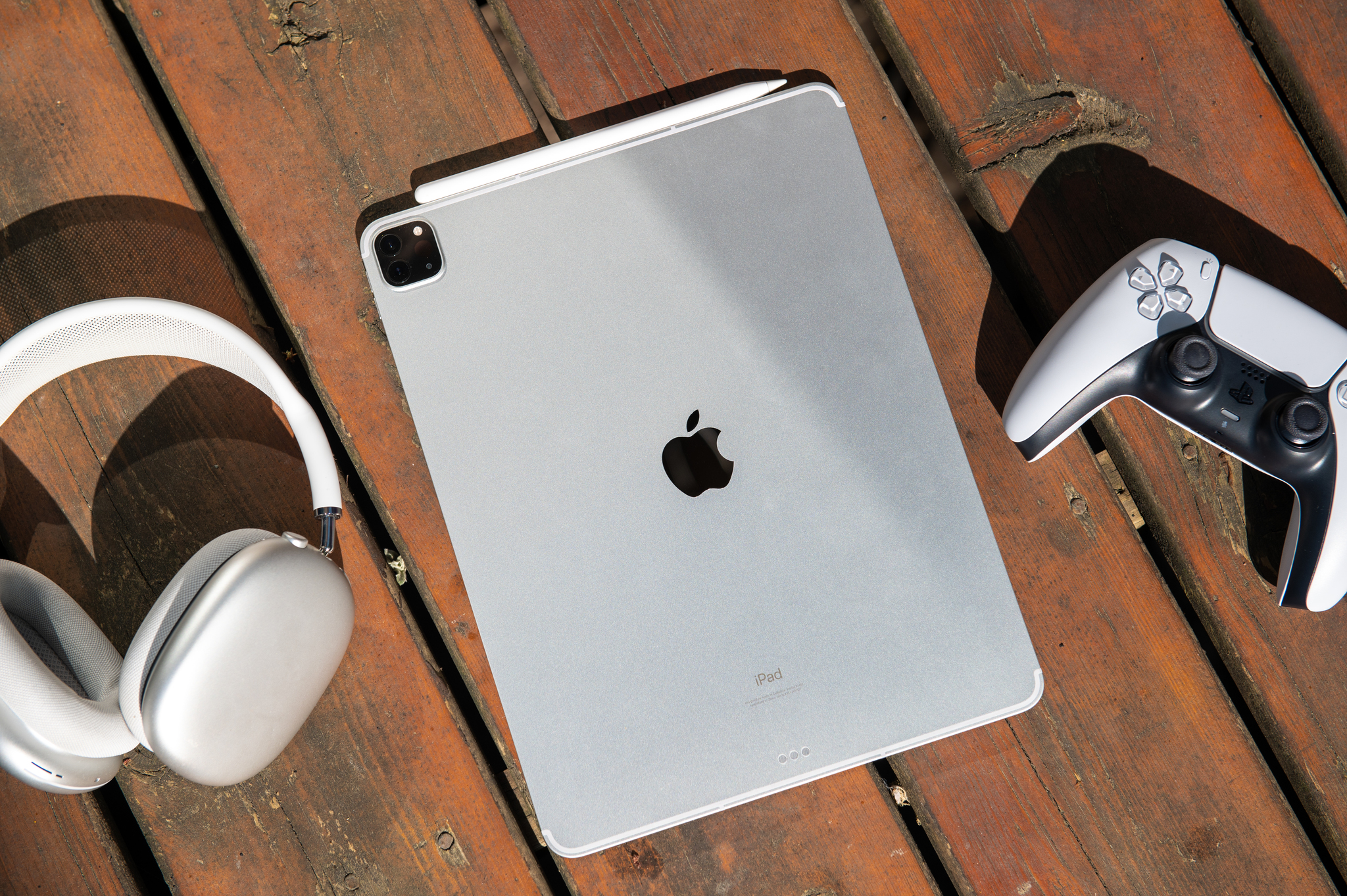
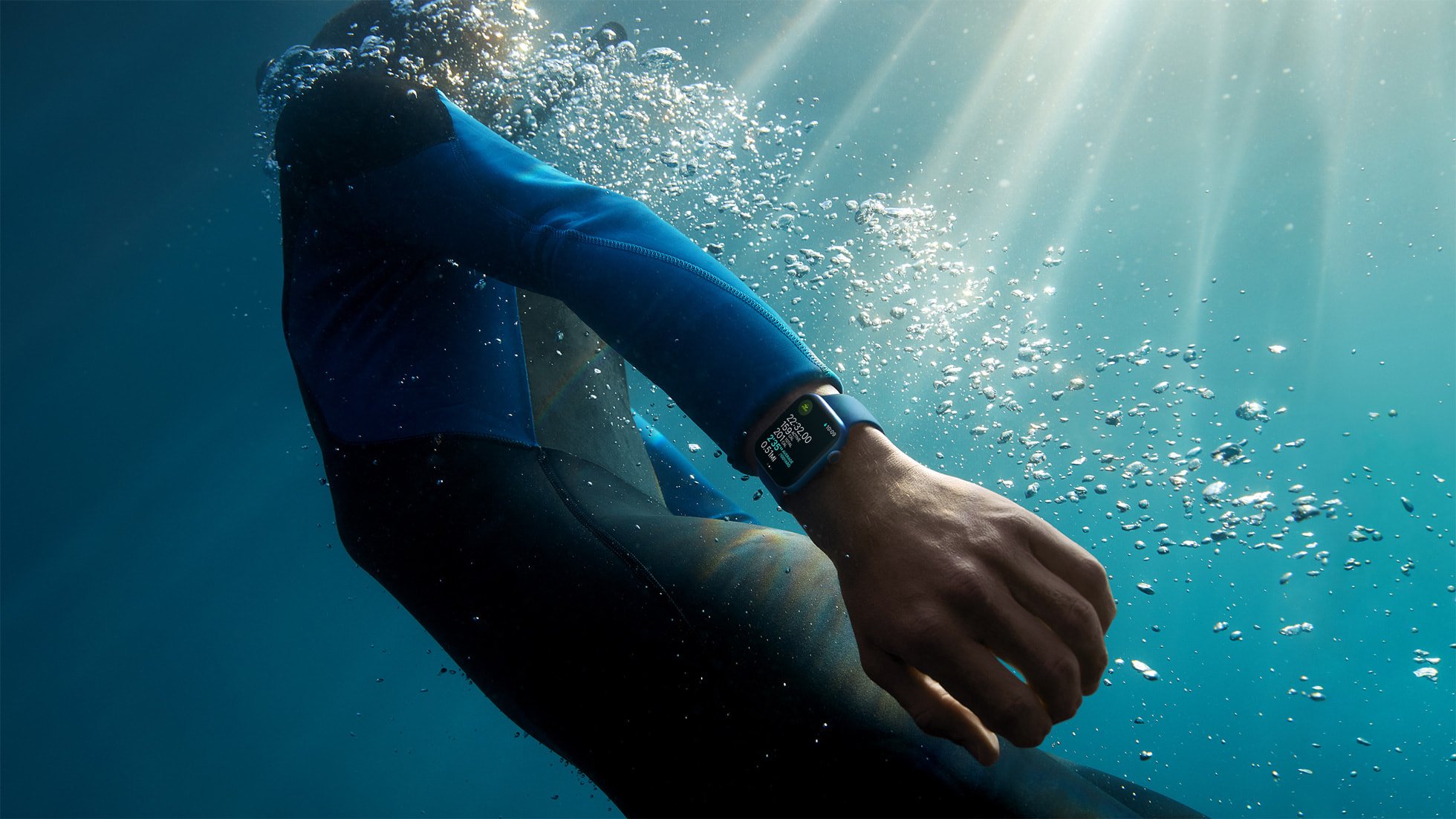
Though the best iPad models continue dominate the tablet space in terms of market share, Microsoft has continued marching on with its Surface lineup and, when you look closely, you begin to realise that Apple and Microsoft's tablet philosophies really aren't that far apart anymore.
Gone are the days of touch-only iPad devices and so-called "toaster-fridge" competition. iPads looks more like Surface devices than ever, and Microsoft continues to make the Surface's tablet experience better. Ultimately, it's consumers that benefit from some real competition in the tablet space since it ultimately results in better products, regardless of which ecosystem you prefer.
Great artists steal
Though it wasn't the first tablet, the iPad was certainly the catalyst for the modern-day tablet market and continues to lead with almost 60% of tablet revenue heading Apple's way. That hasn't put off Microsoft, though, who has continued to bring new Surface ideas to the table over the years since the original iPad debuted.
Though Surface RT was a rough start, Microsoft realized that many users wanted to be able to interact with their tablet in different modes, which the kickstand allowed, and with both touch and traditional input methods like keyboards, trackpads, styluses, and mice.
Consumers benefit from some real competition.
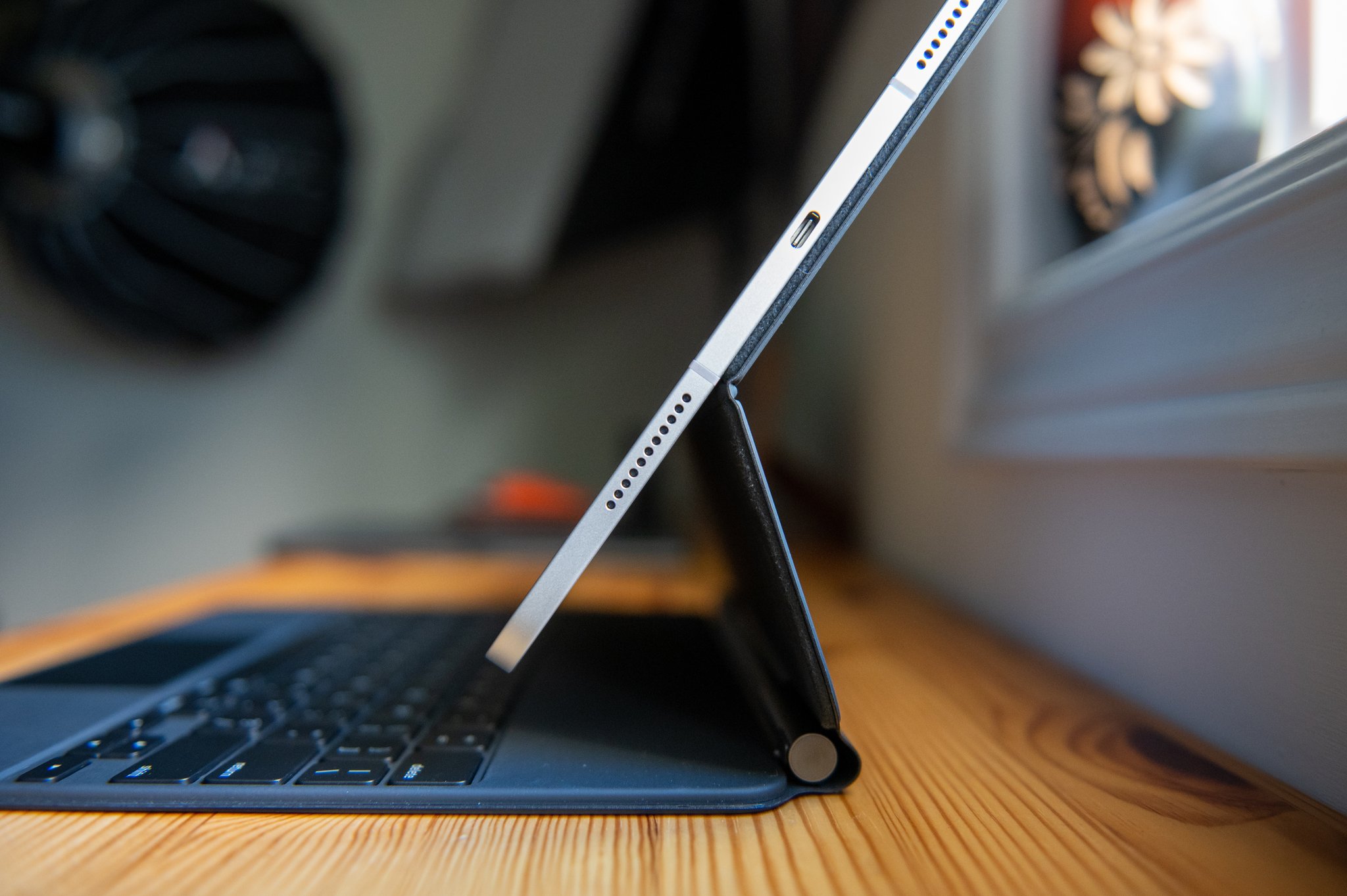
Apple, as always, is happy to steal good ideas where it sees them. It launched its own stylus, the Apple Pencil, in 2015 alongside the first iPad Pro with a Smart Keyboard that magnetically attached to the iPad Pro à la Surface Pro.
The announcement of the adjustable Magic Keyboard was viewed by some as a the final admission that Microsoft actually got the 2-in-1 form factor right with the original Surface.
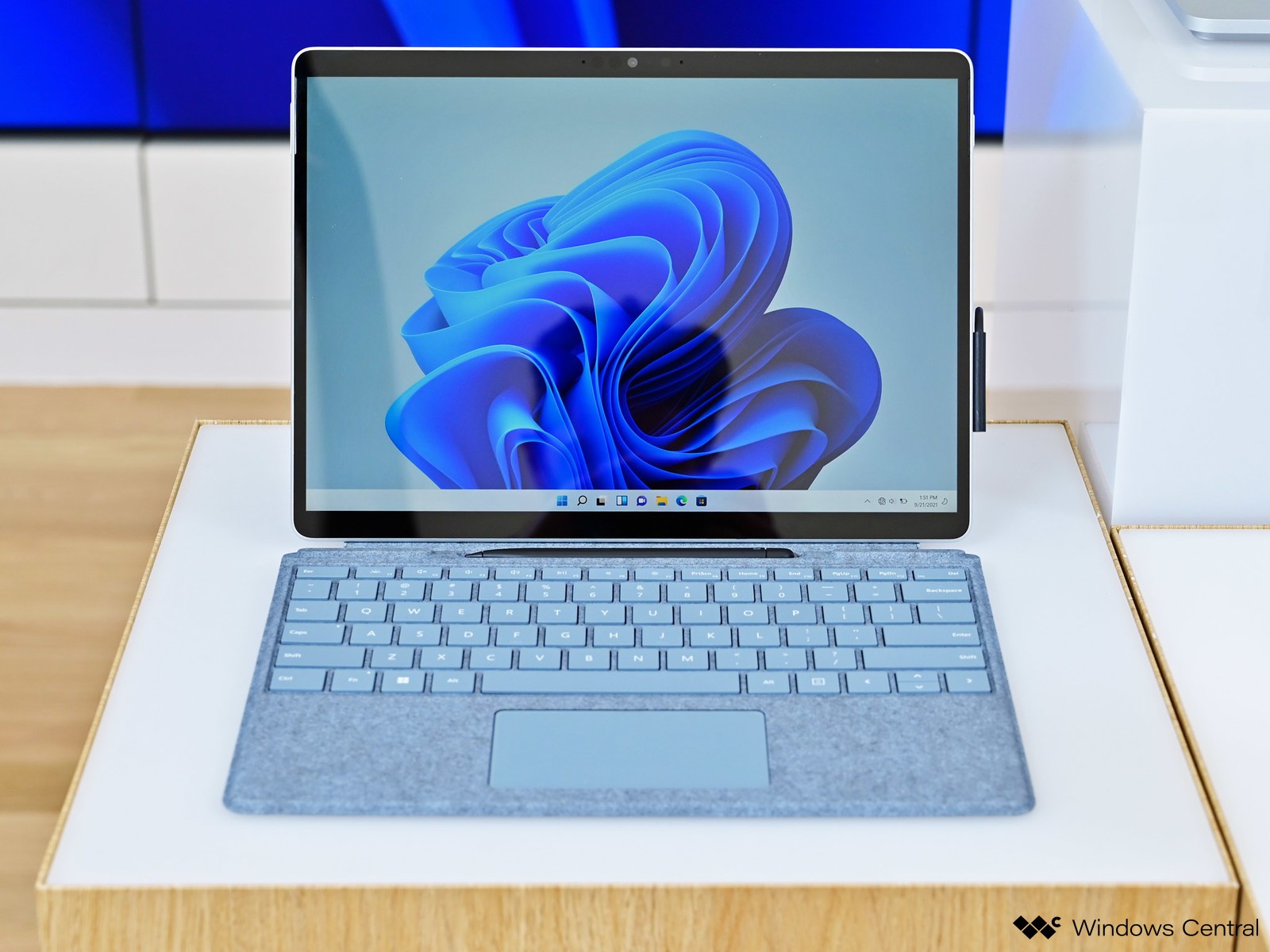
With the just-announced Surface Pro 8 and the Surface Go 3, Microsoft and Apple's competing tablet lines get even more similar with a host of iPad-like features swinging the other way.
The Surface Pro 8, for example, has a larger, edge-to-edge 13-inch display with a higher refresh rate and True Tone-like color adjustment. It also has Thunderbolt 4, Dolby Atmos speakers, improved cameras, and powerful new Intel chips.
The new Surface Slim Pen 2's wireless charging was no doubt inspired by that of the Apple Pencil 2, even if it occurs in a different spot on the device.
Just as the Magic Keyboard cribbed the Surface Pro's hinge, the new Surface Laptop Studio steals it back for its floating display design.
Even on the low end, Microsoft bumped its Surface Go 3 internally while keeping the outside unchanged as it aims to keep up with the entry-level iPad, which was also powered up this fall.
It all comes down to the software
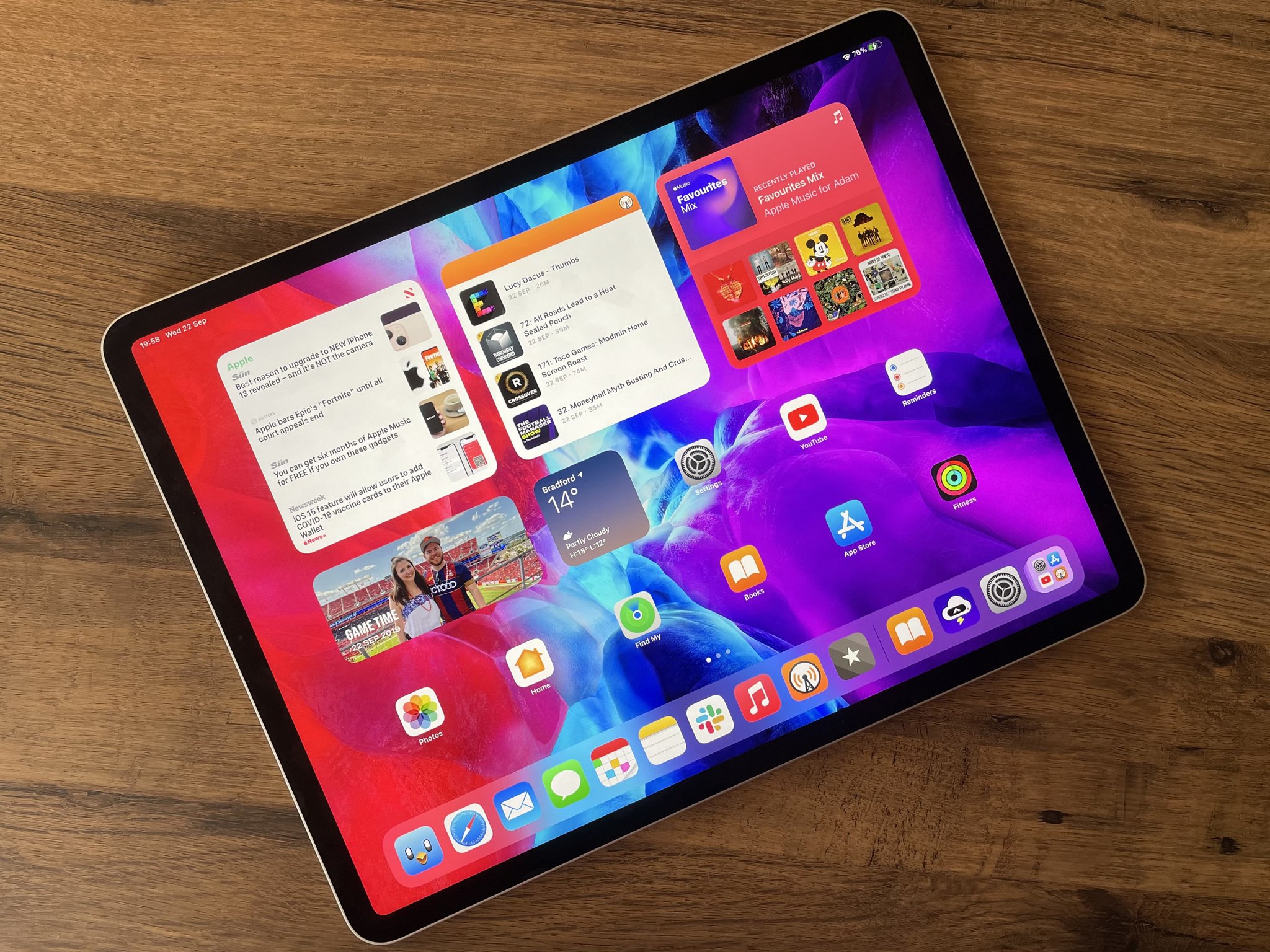
For many, the mobile-first iPadOS is more accessible and efficient, and comes with the backing of the App Store library, which features all of their favorite apps. Plus, it now has native trackpad and keyboard support, as well as a whole host of Multitasking improvements in iPadOS 15, turning it into a more laptop-like experience.
Windows is familiar for a lot of folks who use PCs at work, so a Surface may have less of a learning curve and feel like a more "serious" OS to use elsewhere. Though Windows has very much been a desktop OS shoehorned onto a tablet in the past, Windows 11 brings some major design changes with the aim of improving touch-based input.
You can do work on either an iPad or a Surface, play games, watch movies, and more. You can use either as a tablet, a modular computer, a laptop, or hooked up to an external display. Either can replace your computer since they are both effectively are computers.
Ultimately, with hardware that is very similar in all the ways that actually matter, your tablet of choice is going to come down to which operating system you prefer to use and which suits your needs better. And that's a great spot for the tablet market to be in.
When Apple originally announced the Apple Watch Series 7 at its "California Streaming" event earlier this month, I initially had the same reaction as almost everyone else: "IT'S NOT LIKE THE LEAKS! WHAT A DISAPPOINTMENT!" Once I came down from this state, of course, I looked at it again and thought, "it's a modest update that could be enticing for people with an Apple Watch Series 3."
That opinion seems to have remained steady for almost everyone over the last few weeks as Apple has launched its other products that were announced at the event: the iPhone 13, the 6th generation iPad mini, and the 9th generation iPad. We've all been distracted by all of the other new things to worry about the new watch which isn't coming until "later this fall."
However, earlier today, Jon Prosser snapped us all back into Apple Watch mode when he speculated that preorders for the Apple Watch Series 7 might start next week with the new watch set to begin shipping in mid-October. That caused me to, despite already owning an Apple Watch Series 6, take another look at the Series 7 and, after doing so, I have come to a very different conclusion than I did back on Apple Event day.
Now, don't get me wrong here. No one NEEDS the new Apple Watch, especially if you have an Apple Watch Series 6 or Series 5...heck, even a Series 4. However, if you appreciate technology and the seemingly small changes that have bigger impacts, there's actually a couple of things to be excited about here.
It's all about that screen
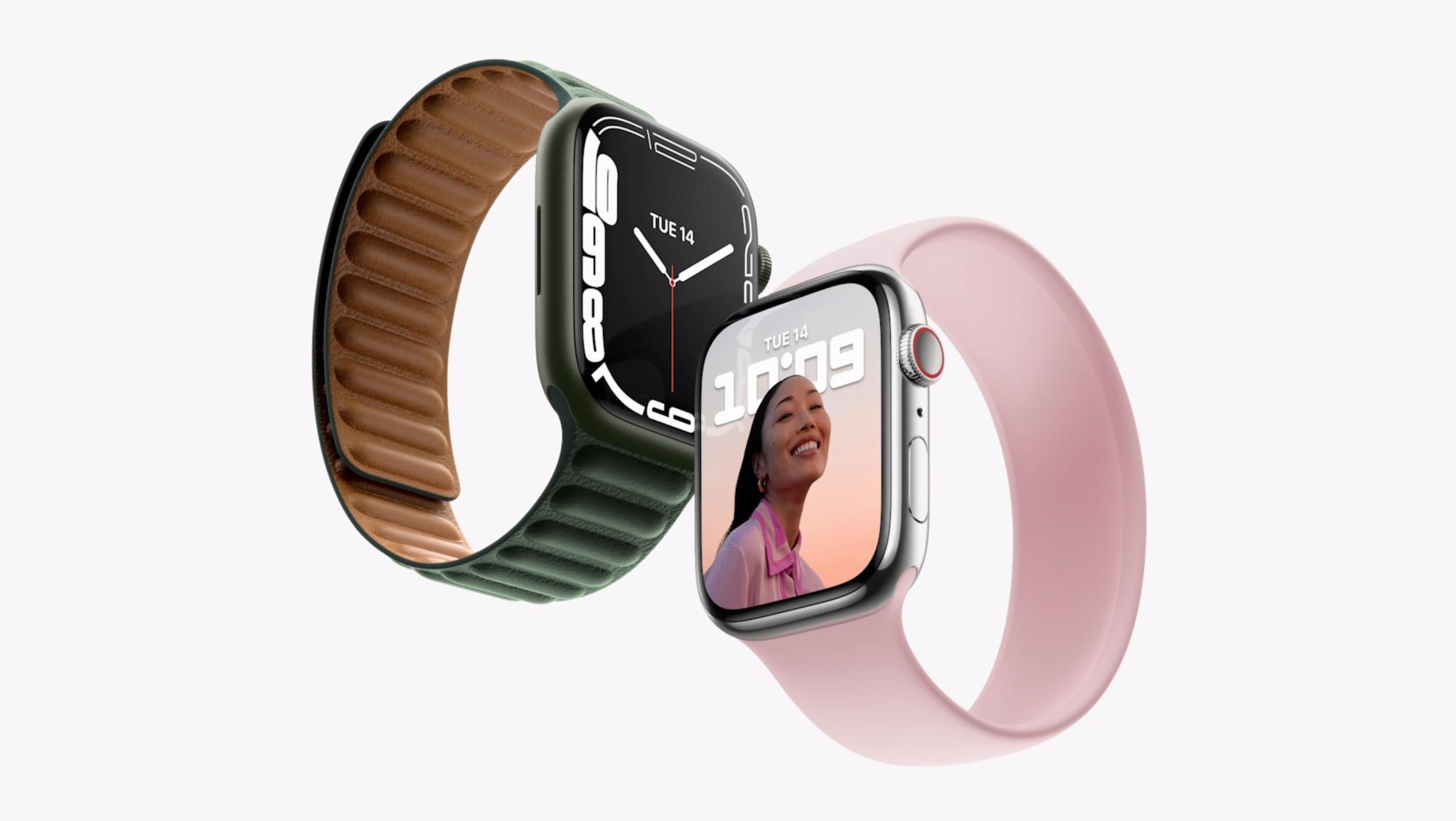
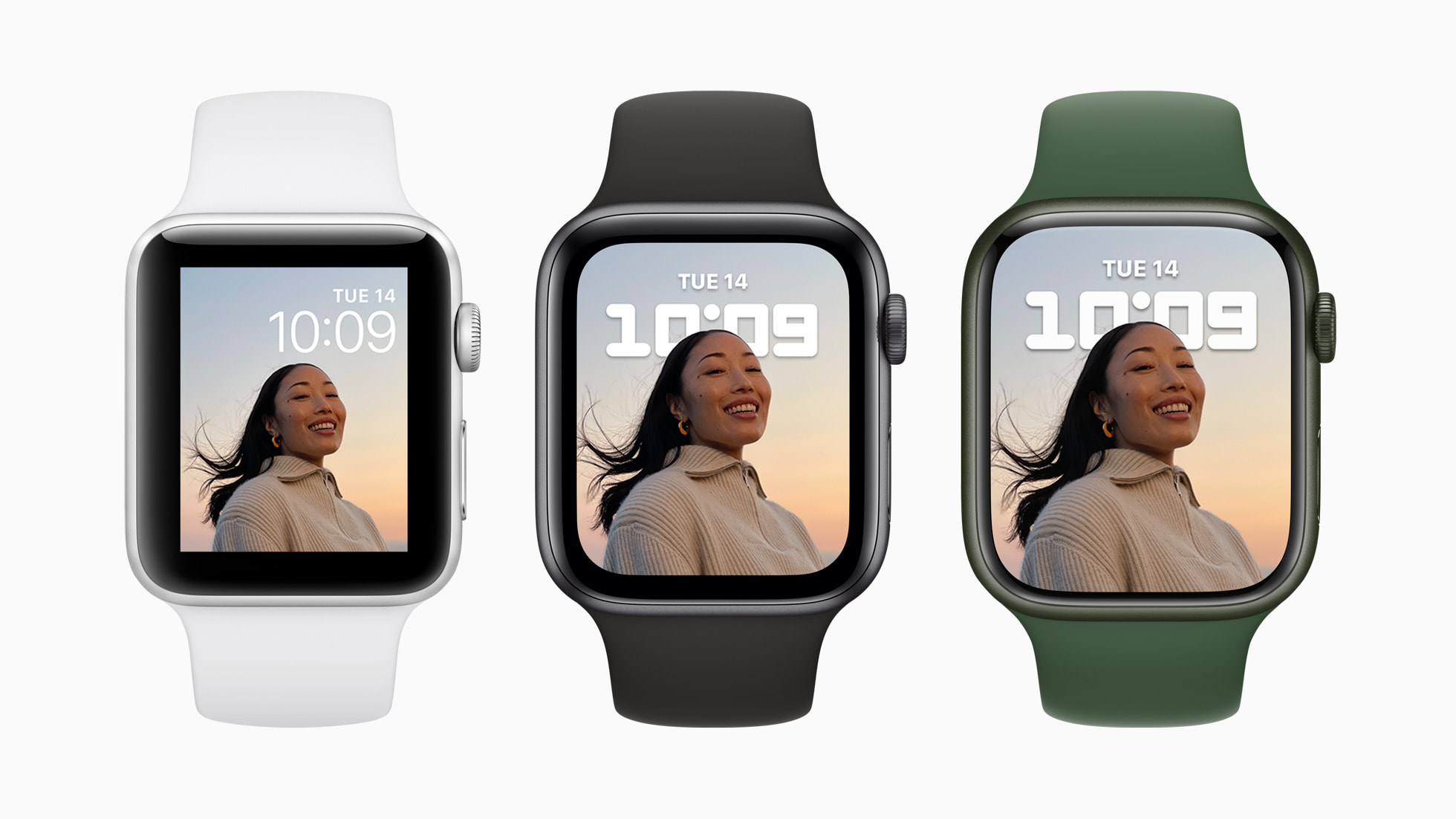
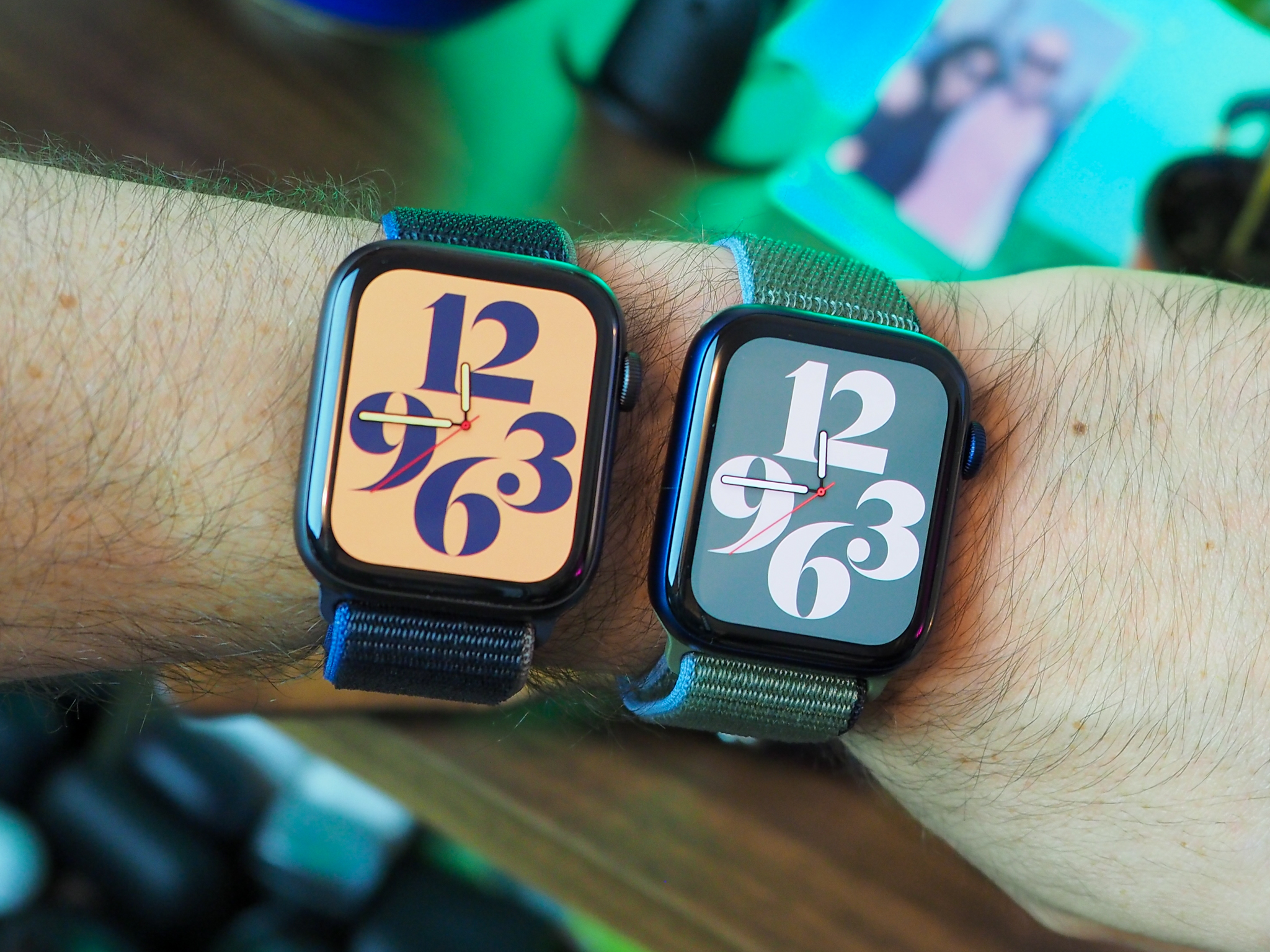
The biggest change to the Apple Watch this year is its new display. With the Series 7, Apple was able to reduce the borders of the watch by 40%, resulting in almost 20% more screen area than the Series 6. This is one of those things that, when I think back to the days of the iPhone 8, I have to appreciate more. When the company unveiled the iPhone X and removed the chin from the iPhone, everyone lost their minds. They were so happy to have an "edge-to-edge" display on the iPhone.
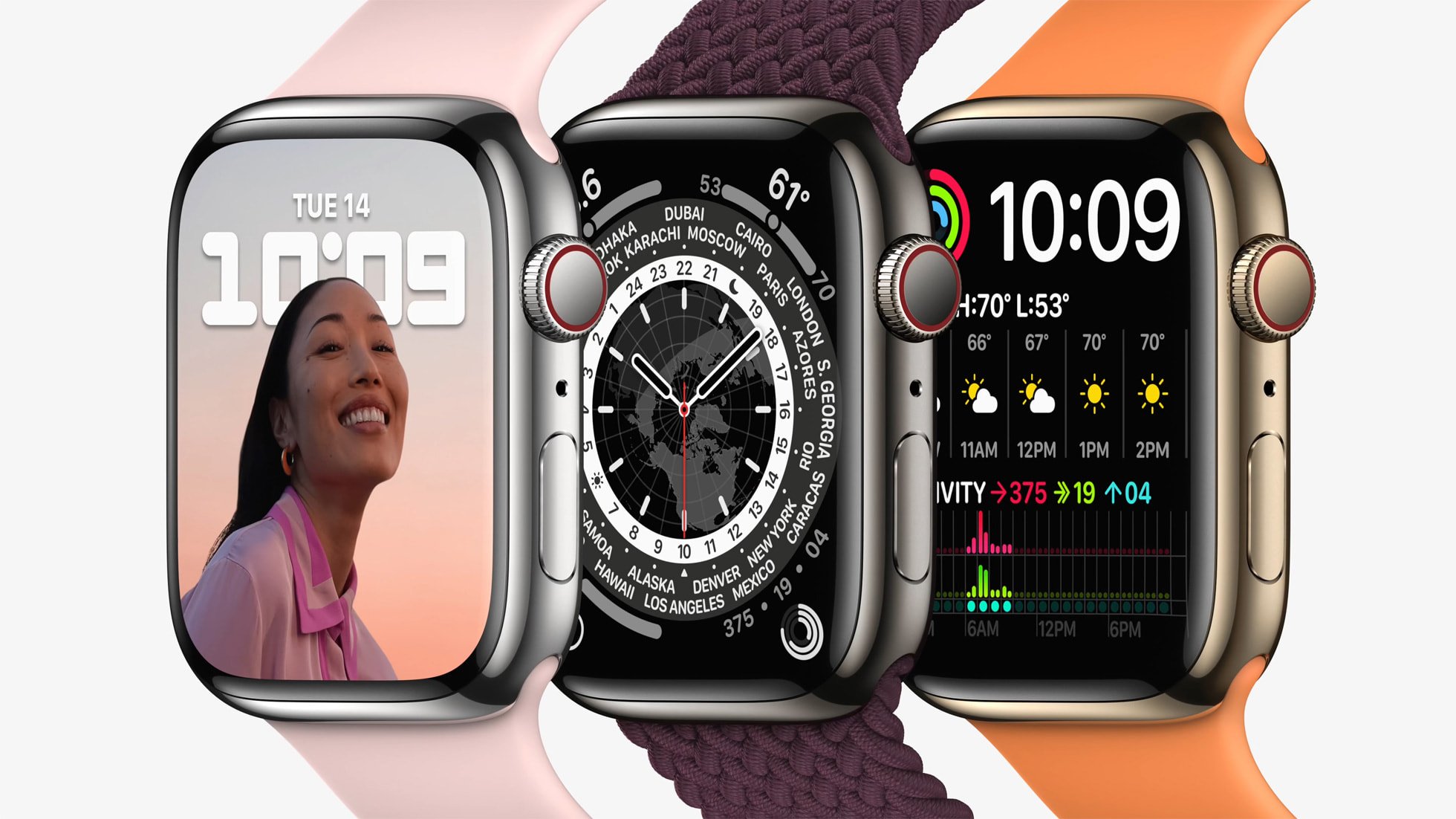
That's kind of what's happening here with the Apple Watch now. Plus, it's not just about having a bigger and more "edge-to-edge" screen. Apple makes use of that space with watchOS to create new watch faces and experiences with the operating system that weren't possible before because of a smaller screen. You can even use a full keyboard on the watch now (although FlickType would have something to say about that).
Imagine if, with the upcoming MacBook Pro redesigns, Apple announces that it was able to shrink the bezels of the display by 40% and there is now 20% more screen real estate on the MacBook. Everyone would throw up their hands in celebration! So, why don't we do that for the Apple Watch? It's a meaningful improvement for all of us who want a better Apple Watch, from the hardware to the software.
A big step for Always-On
Speaking of that display, Apple was also able to increase the brightness of the Always-On display by 70% when it is indoors. While that may sound inconsequential, I think it could improve our behavior when we glance at our watch. Despite the Series 6 already having an Always-On display, I still find myself always waiting for the full brightness to kick in when I raise my watch to look at it.
Glancing at it without full brightness is still just too dim for me, and it still results in using the watch just like I did on previous generations without an Always-On display. With the Series 7, I might actually be able to glance at my watch and move about my day.
For all of us who destroy our watches
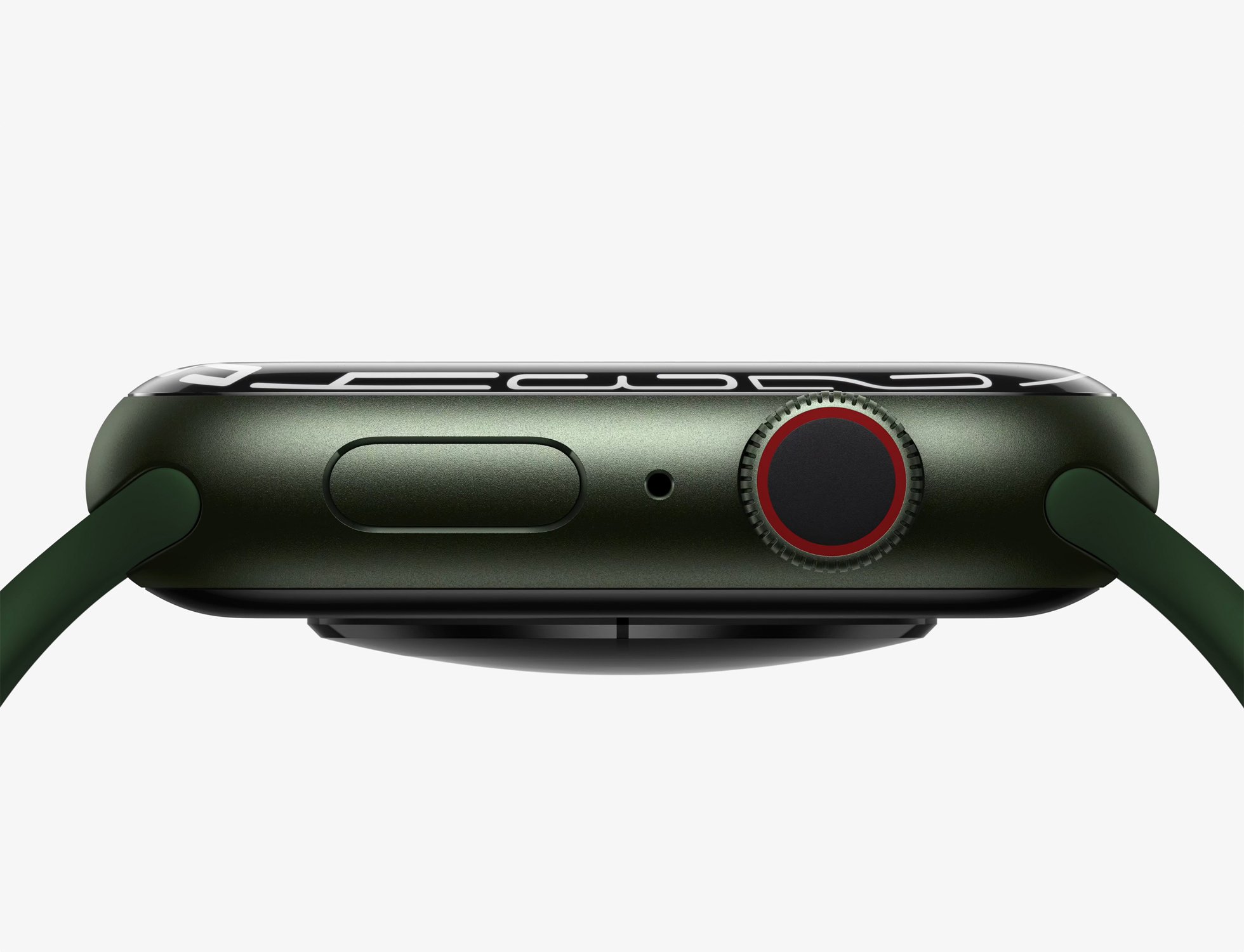
While the other two features are the ones that sway me the most towards the Series 7, I also need to give an honorable mention to the durability upgrades. Apple says that its new watch features a 50% thicker front crystal for more strength and durability and that, due to the new design, is now dust resistant.
I personally have never heard of killing an Apple Watch with dust but I definitely have beaten up the glass on my watches. I hike. I run. I snowboard. I try mountain biking and crash sometimes. These kinds of improvements are meaningful to anyone who likes to do exactly what the Apple Watch was made for - stay active. So, while my other watches have survived my antics, I'm always appreciative of an upgrade to its durability.
More than we thought
Once I put all of this together, I realized that the Series 7 was actually the Apple Watch that I've been waiting for since the Series 5 launched back in 2019. I'll always take a bigger screen in practically the same form factor and a major improvement to the Always-On display makes every moment you glance at your watch better, something we probably don't realize how many times we do in a day.
Of course, if you don't care about these kinds of things, the Apple Watch Series 7 is going to be an easy skip for you. However, if you're the kind of person that appreciates when products push the borders of technology (see what I did there) or find ways to improve the small moment with meaningful results, I think the Series 7 is a bigger upgrade than most of us thought.
The folks at iFixit have shared new wallpapers that show the innards of Apple's new flagships.
Versions of the wallpaper are available for both iPhone 13 Pro and iPhone 13 Pro Max.
Now you can have your wallpaper look like the insides of your iPhone.
The fine folks over at iFixit have today continued their tradition of giving us all a way to look inside our new iPhones without having to take them apart. After ripping their own iPhone 13 Pro apart, iFixit took high-resolution photos of the internals and turned them into wallpapers. You can download them both now.
Different versions are available depending on which iPhone you're using, so make sure to download the one that suits your particular handset. You'll find everything you need over on the iFixit website
Oh, and there are X-ray versions available, too!
Hoping to live out your superhero dreams with some X-ray vision? We've got the goods from Creative Electron to make that happen. These X-rays can show you the magnetic ring for your MagSafe charger, the sensors on those Pro-level cameras, and the shrunken sensor assembly responsible for your newly nimble notch.
Apple's iPhone 13 lineup went on sale last month and is already proving popular. These are the best iPhones Apple has ever made despite the number of bugs that people have been struggling with – including an issue that is currently preventing people from unlocking their new iPhones with their Apple Watches.
Apple isn't done with the releases this year. The Apple Watch Series 7 is still to come, while new AirPods are also said to be in the pipeline for a launch before the end of this year.
How do you change what's displayed on your Apple Watch during a Workout? Easily!
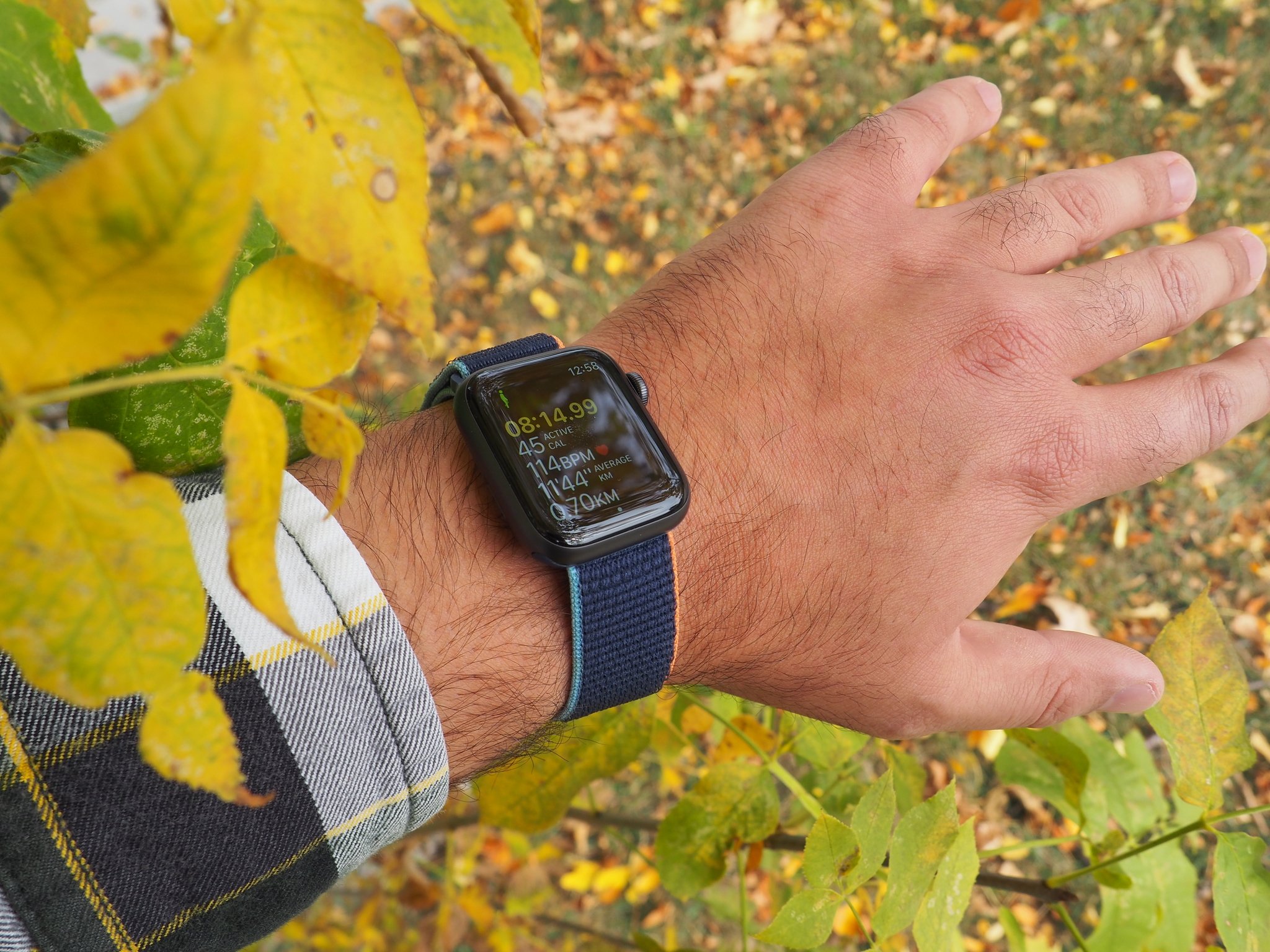
By default, your best Apple Watch will show you several different metrics during a workout. Things like duration, heart rate, distance, calories burned, and more can all be displayed. If you want to change what metrics you see during your workouts, you can head over to the Apple Watch app on your iPhone and customize it to your liking.
Whether you plan to get the Apple Watch Series 7, or you just are continuing to use your current Apple Watch, here's how to customize Workouts for Apple Watch.
How to show a metric in workouts for Apple Watch
Each preset workout will have a default setting for what metrics appear on screen, and some of them will even have options you can add.
Important note: You can only have a max of five metrics displayed on your Apple Watch during a workout, so if you already have five, you'll need to hide a metric first.
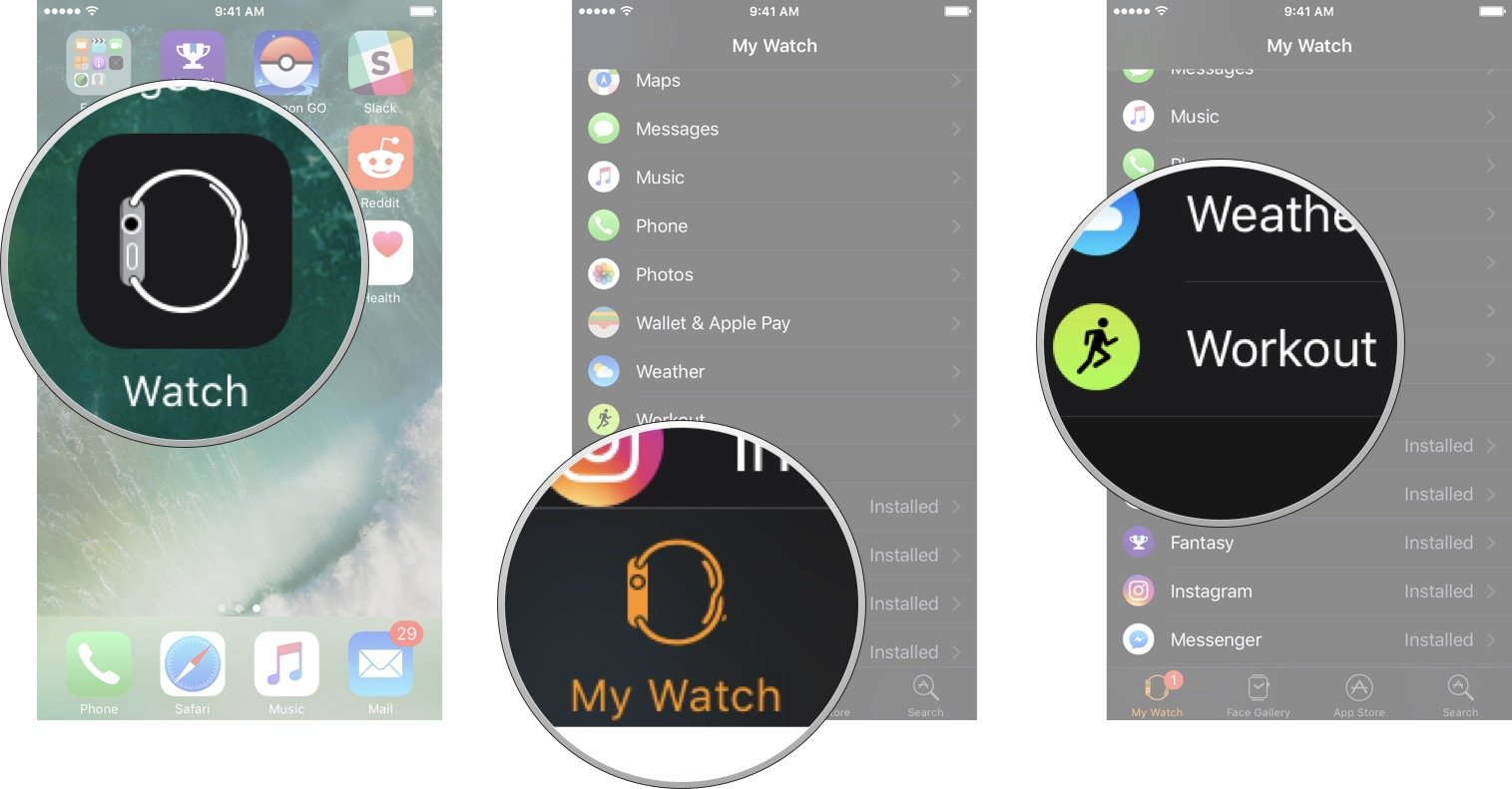
Launch the Apple Watch app from the Home screen of your iPhone.
Tap the My Watch tab if you're not already there.
Tap Workout. You'll need to scroll down a bit.
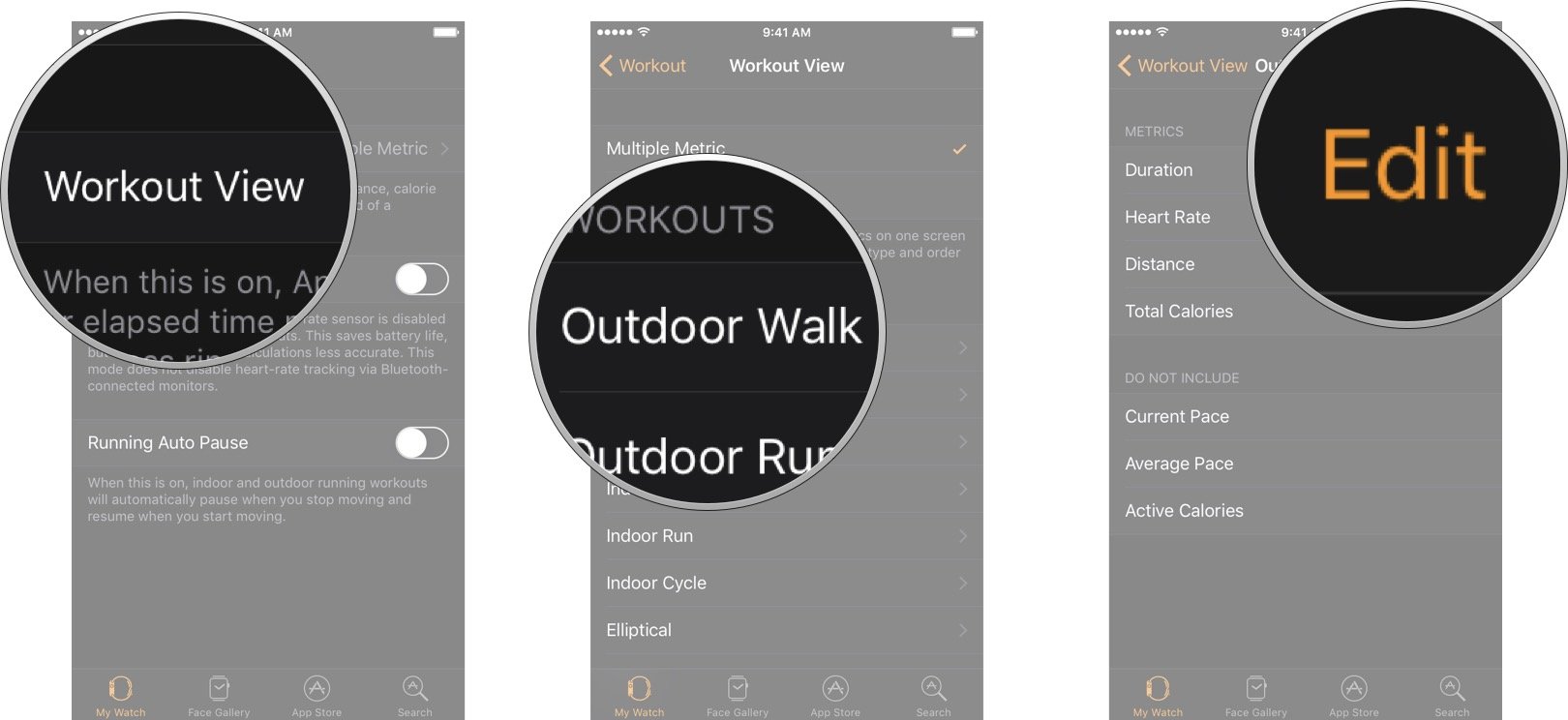
Tap Workout View.
Tap the workout you want to customize.
Tap Edit. It's located in the top right corner of your screen.
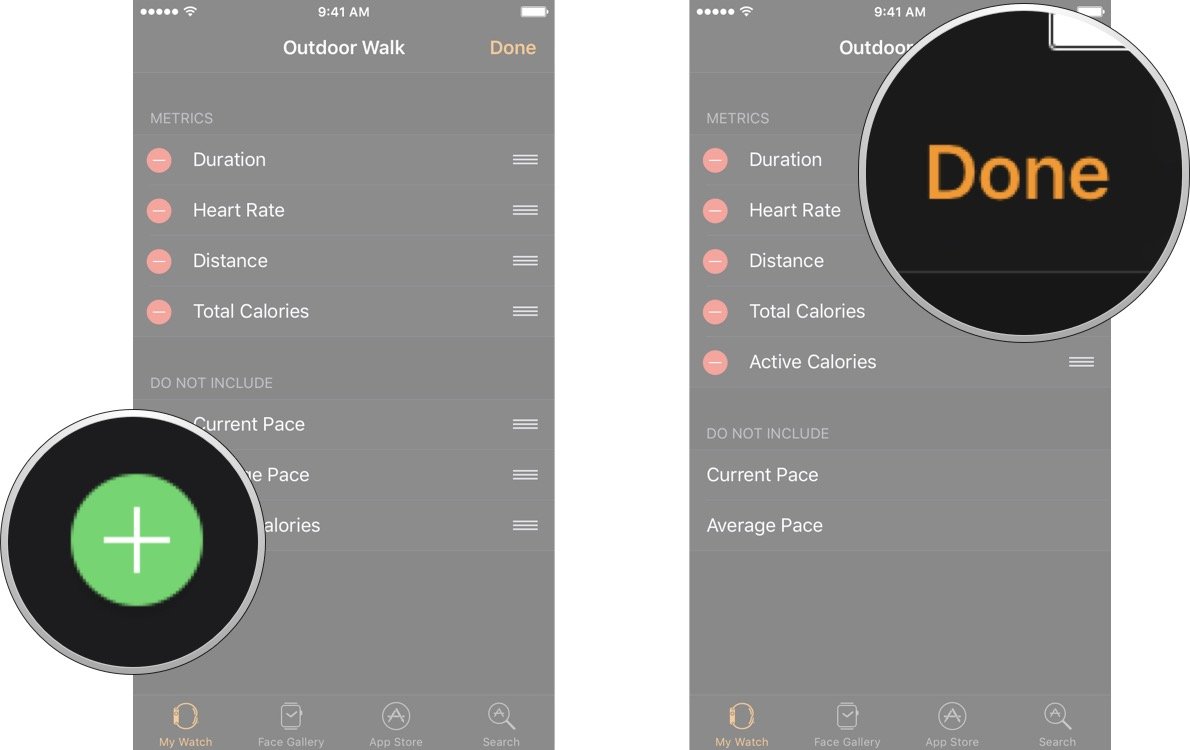
Tap the Add button next to the metric you want to include.
Tap Done
Now that metric will be displayed on the screen of your Apple Watch whenever you select that type of workout.
How to hide a metric in workouts for Apple Watch
Launch the Apple Watch app from the Home screen of your iPhone.
Tap the My Watch tab if you're not already there.
Tap Workout. You'll need to scroll down a bit.
Tap Workout View.
Tap the workout you want to customize.
Tap Edit. It's located in the top right corner of your screen.
Tap the Remove button next to the metric you want to hide.
Tap Remove
Tap Done
How to reorder metrics in workouts for Apple Watch
If you want to change which order the metrics appear on your Apple Watch, follow these steps.
Launch the Apple Watch app from the Home screen of your iPhone.
Tap the My Watch tab if you're not already there.
Tap Workout. You'll need to scroll down a bit.
Tap Workout View.
Tap the workout you want to customize.
Tap Edit. It's located in the top right corner of your screen.
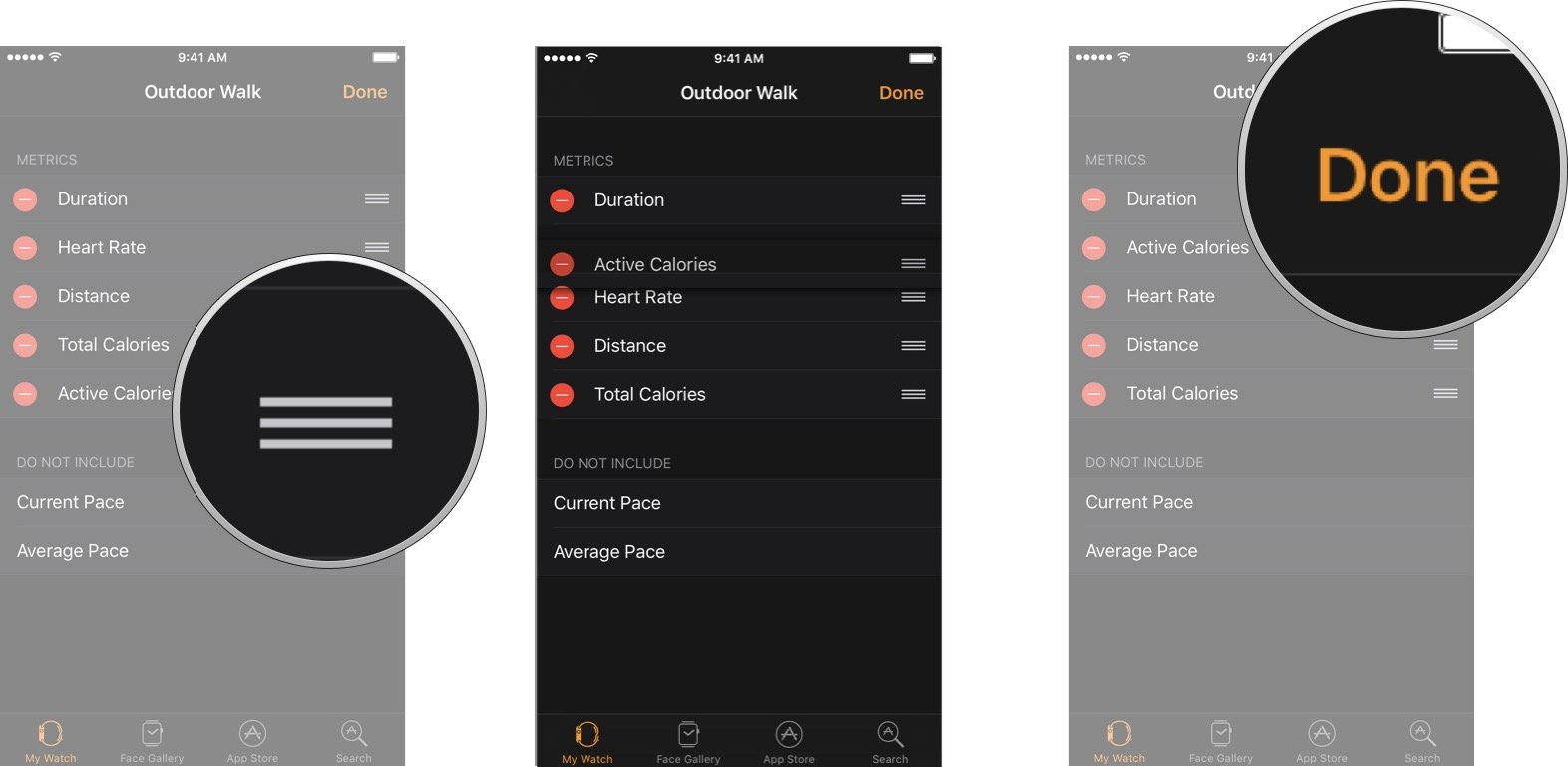
Tap and hold the reorder button next to the metric you want to move.
Drag the metric to your desired location.
Tap Done.
How to view a single metric for Apple Watch
If you prefer a more straightforward interface to look at during workouts, you can only choose to show one metric.
Launch the Apple Watch app from the Home screen of your iPhone.
Tap the My Watch tab if you're not already there.
Tap Workout. You'll need to scroll down a bit.
Tap Workout View.
Tap Single Metric.
Questions?
If you want to know anything more about changing your workout metrics, let us know in the comments below.
Updated September 2021: Updated for the latest versions of watchOS8 and iOS 15.
Apple TV+ has shared a teaser trailer for the upcoming basketball show Swagger.
The new show is inspired by the life of NBA star Kevin Durant.
The show's first season premieres on October 29.
Looking good!
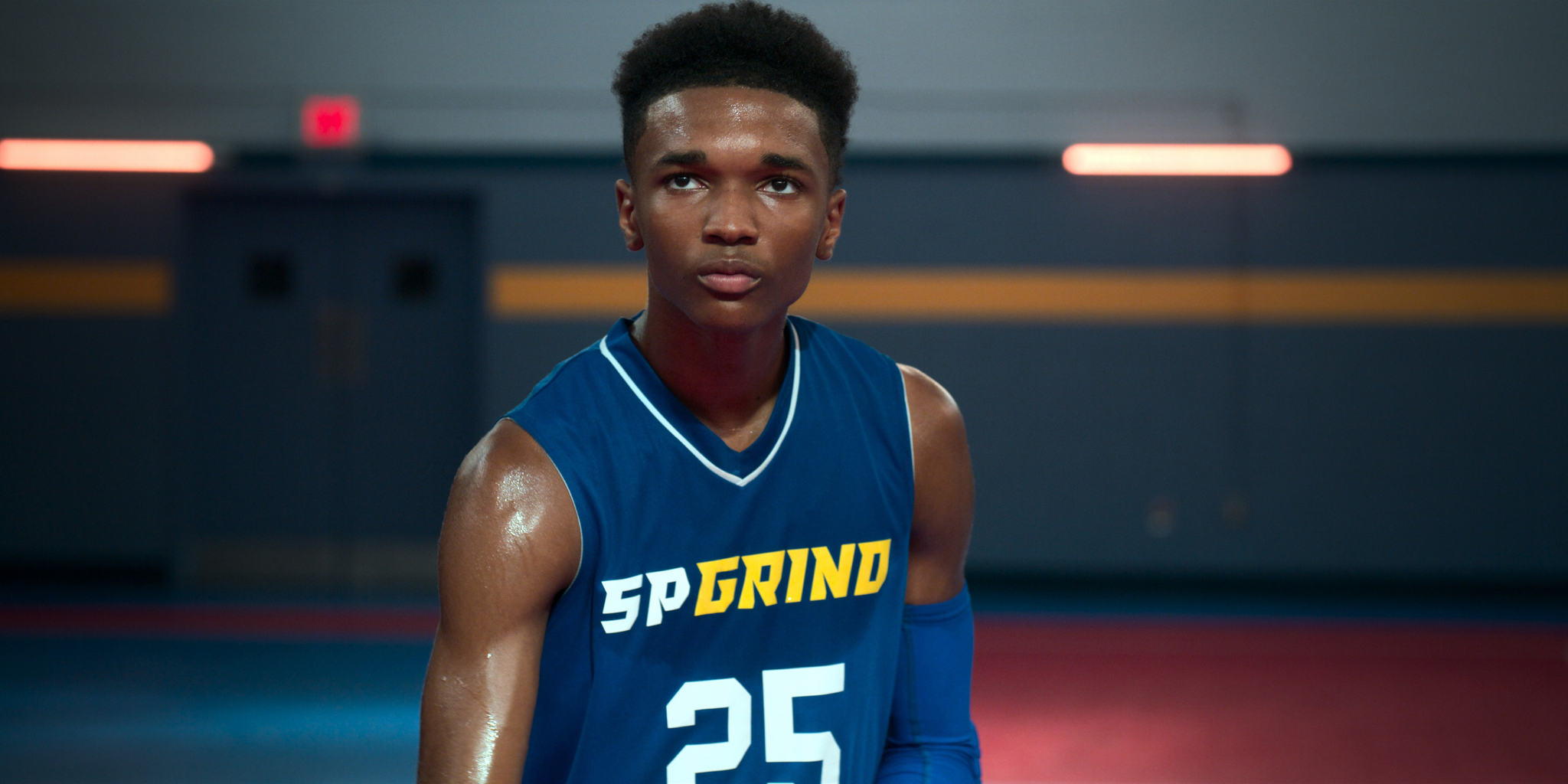
Apple TV+ today shared a teaser trailer for the upcoming basketball show Swagger. The show, which is inspired by the life of NBA star Kevin Durant, will debut on Apple's streaming service on October 29.
Created by from Reggie Rock Bythewood, Kevin Durant, and Brian Grazer, the first three episodes of Swagger will be available on day one, with a new episode arriving every Friday through the season's conclusion.
Inspired by Durant's experiences, "Swagger" explores the world of youth basketball, and the players, their families and coaches who walk the fine line between dreams and ambition, and opportunism and corruption. Off the court, the show reveals what it's like to grow up in America.
The new series is led by an ensemble cast of stars including O'Shea Jackson Jr., Isaiah Hill, Academy Award nominee Quvenzhané Wallis, Shinelle Azoroh, Tessa Ferrer, Caleel Harris, James Bingham, Solomon Irama, Ozie Nzeribe and Tristan Mack Wilds.
And here's that teaser:
Inspired by the experiences of Kevin Durant, Swagger slams into the world of youth basketball, the families it builds, and the fine line between dreams and making it. #Swagger premieres October 29 on Apple TV+ pic.twitter.com/lpT1PDMcZG
This is definitely one show I'm keen to check out in a month's time!
Apple TV+ continues to go from strength to strength, picking up new content at an almost constant rate. Last week saw the arrival of Foundation and the hits just keep on coming.
If you want to enjoy Swagger in style, be sure to check out our list of the best Apple TV deals on the market today. This is definitely one show you don't want to be watching in low quality because your streaming kit is sub-par!
100% exclusive content for the price of a cup of coffee.
With TV+, you can watch well-produced, big-budget TV shows from famed directors, and starring award-winning actors and actresses across all your Apple devices and with up to six members of your Family Sharing group.
While some places may be returning to some sense of normalcy, there are still a lot of people who are working remotely or studying from home, and thus the demand for the best Mac webcams remains high. That's because a lot of communication is now done virtually through video calls, whether it's on Skype, FaceTime, Zoom, Google Meet, or whatever else. But webcams can do more than just video chats — people also use them for business meetings, distance learning, streaming content, and much more. A webcam has become a necessity for everyone, and there are plenty of options out there. For those who want a great all-around webcam, you can't go wrong with the Logitech C922 series. Streamers should consider the Logitech StreamCam, while gamers should look at the Razer Kiyo. But no matter who you are or what you're doing, there's a webcam for everyone.
Note: While these are our picks for the best webcams for Mac and PC, some of the more popular models sell out constantly due to high demand. If you need one right now, no matter what, you can search places like Amazon to see what is available right this moment.
What are the best Mac webcams you can buy right now?
Finding the best webcam for Mac and PC is a harder question to answer right now, during a pandemic, than it ever has been before. The Logitech C922 Pro HD Stream is the best all-around webcam because it has a 1080p camera, built-in microphone, autofocus, lighting correction, and comes at a good price.
The Logitech Brio is the 4K webcam everyone is talking about and is an excellent webcam if you have a YouTube channel. The problem is that most video services and social networking sites don't support 4K, so you won't be able to take advantage of the more expensive technology if you're just looking for video chats or daily Stories.
If you need your webcam to fulfill your basic needs and don't want to spend a lot, the Wansview 1080p Webcam is a remarkably good webcam for its price, which is remarkably low.
1. Logitech C922 Pro HD Stream
Best Mac webcam for most users
Resolution: Full HD 1080p/HD 720p | FPS: Full HD 30/HD 60 | Built-in Mic: Stereo | Field of View: 78-degree | Connector Type: USB-A
Pros:
1080p at 30FPS or 720p HD at 60FPS
Plug-and-play
Universal clip
Autofocus
Comes with tripod
Cons:
Mic quality is just OK
A tad pricey
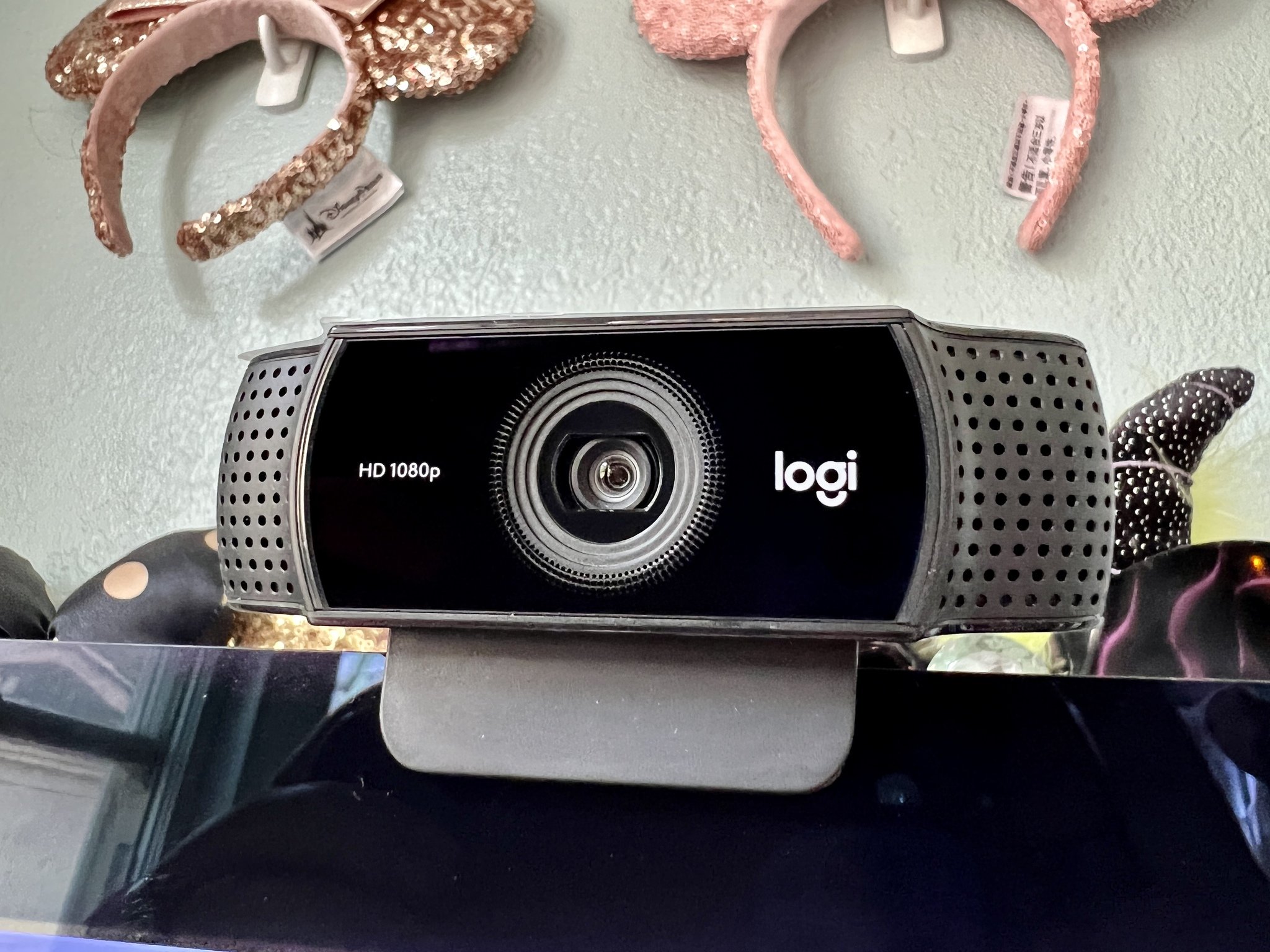
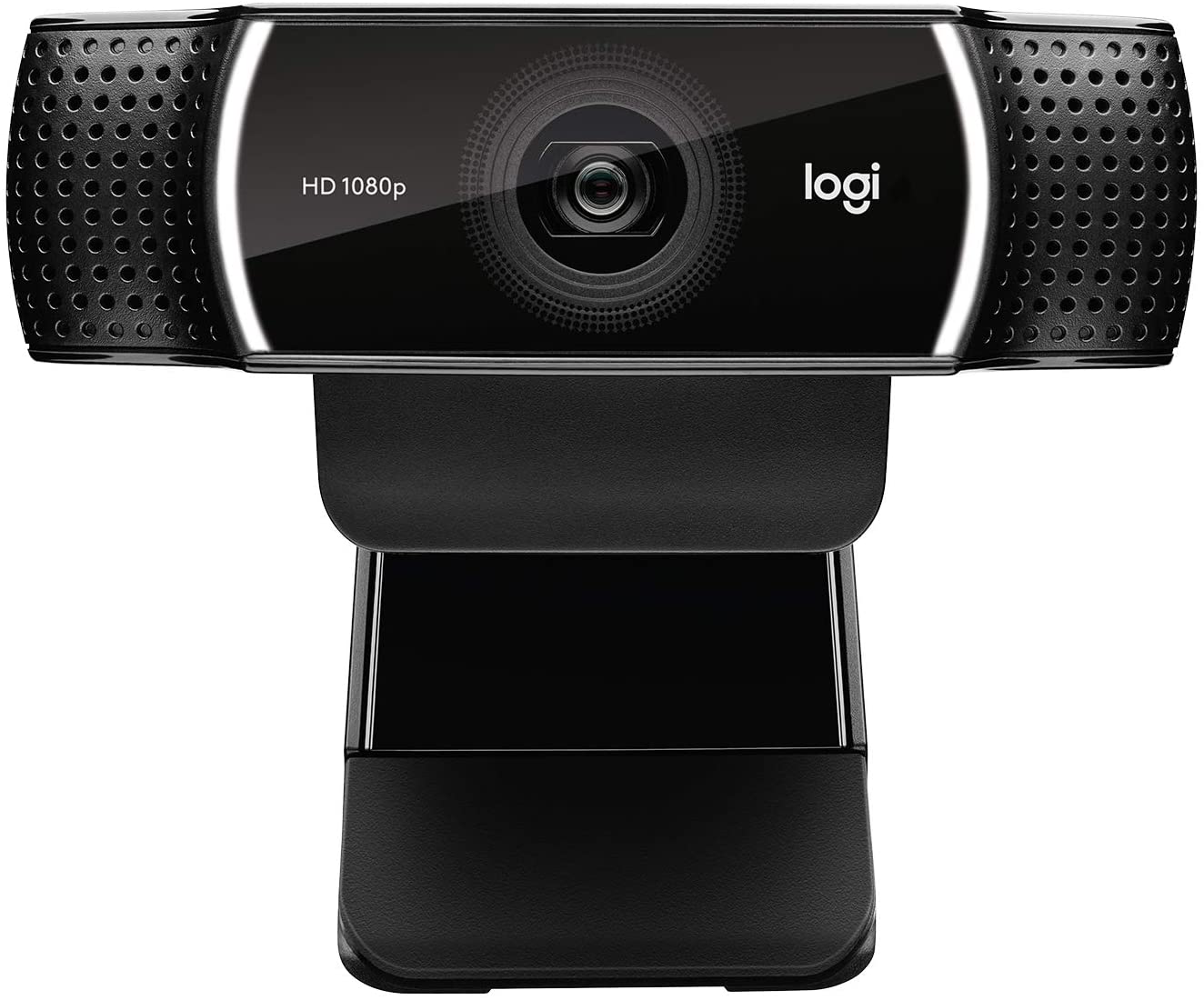
The Logitech C922 Pro HD Stream webcam is one of the more popular Mac webcams, and is pretty much a successor to the now-discontinued Logitech C920 Pro that we've highly recommended in the past. The C922 Pro HD offers max resolution of 1080p at 30FPS or super HD at 720p at 60FPS. In today's high-definition world, everyone's webcam should at least have a 1080p camera, but unfortunately, most of the Mac lineup only has standard definition 720p iSight cameras. You're going to appreciate this spec bump.
It also has autofocus and light correction, so you're always going to be the center of attention. The 78-degree field of view offers a great perspective. While the C922 Pro HD Stream is designed for streaming, it gives you incredible clarity for all of your other video calls as well.
While the C922 Pro HD Stream is pretty much plug-and-play with your Mac, it does take advantage of some special software for additional features. You can download and use Logitech's Capture app to create, record, and even customize the settings on your webcam and stream, making it a one-stop shop. It also comes with three free months of XSplit, a popular live streaming and recording application.
While the C922 Pro HD Stream does have a built-in stereo microphone with range of up to three feet, the sound quality is still subpar. It's fine if you just want to chat with friends and family, but if you want to sound better and more professional, then it's highly recommended to check out some of the best USB microphones for Mac to get the job done. Of course, no built-in mic on a webcam is going to be great, so you should be using a standalone mic or even a headphone mic, such as AirPods Pro or AirPods Max.
On Amazon, you'll notice that the product is called the C922x instead of just the C922. That's because this version is exclusive to Amazon, and you get a six month trial for XSplit instead of three. However, the regular version of the C922 that you can purchase elsewhere includes a free tripod, which you won't get if you purchase from Amazon. Instead, you basically get another three months of XSplit instead.
Logitech C922 Pro HD Stream
This is our top pick for anyone looking for the best webcams for Mac. It's all-around, easy to set up and use, and works great right out of the box.
Resolution: 1080p | FPS: 30 | Built-in Mic: Dual omni-directional | Field of View: 90-degree | Connector Type: USB 2.0
Pros:
Support for more video services
Easy setup
Manual zoom (4x)
H.264 video compression
Cons:
Software is confusing
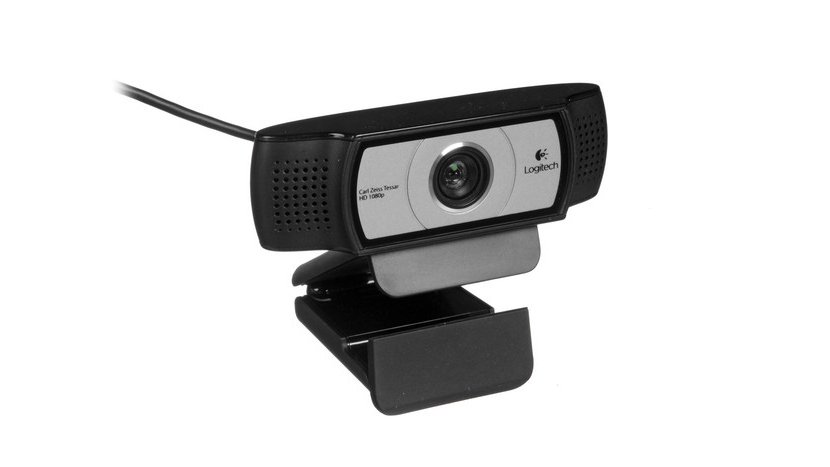
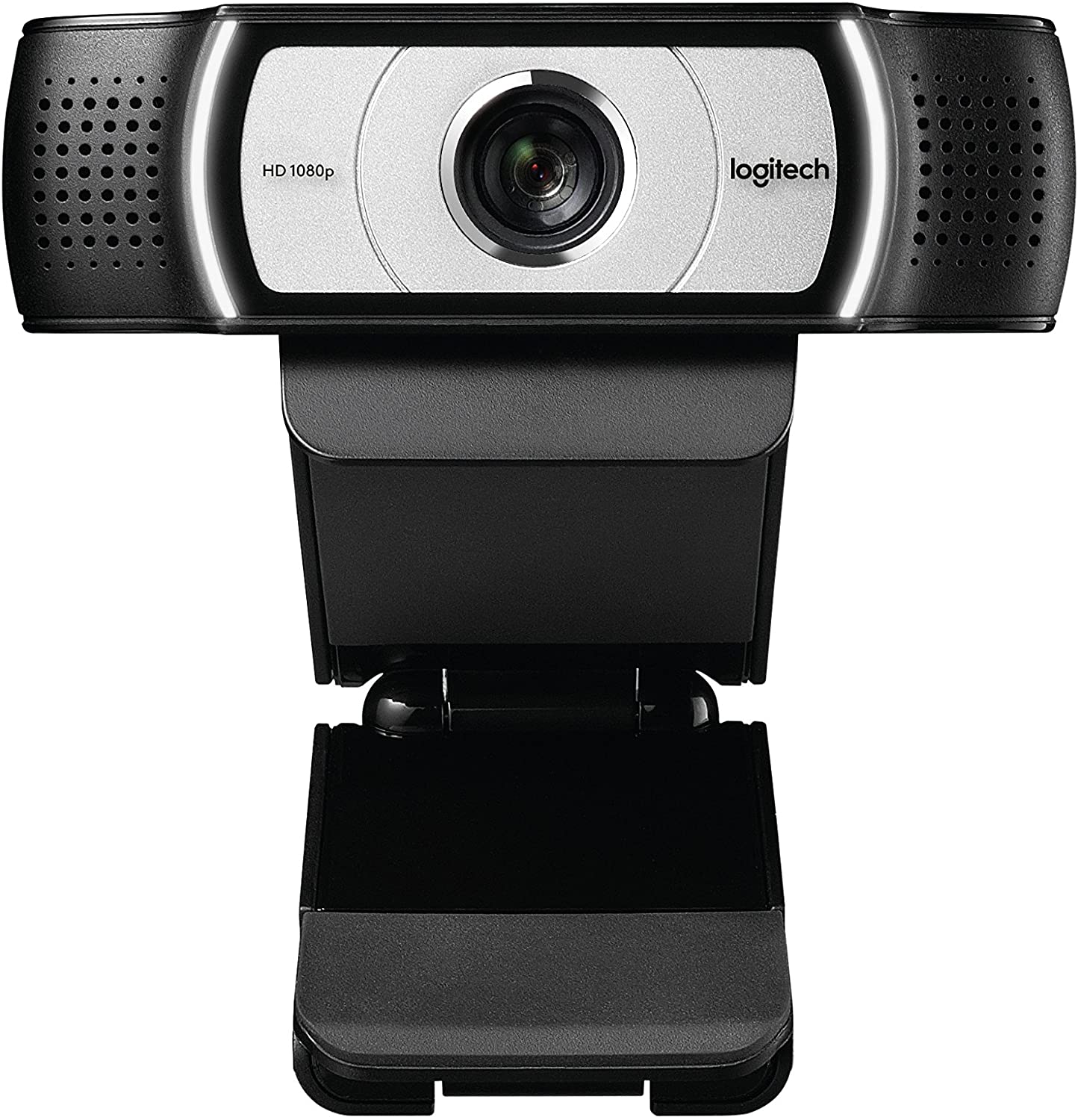
The 930e is Logitech's business webcam with certified compatibility for some of the most popular video services, like Skype for Business and Cisco. It also has built-in enhanced integration with BlueJeans, Vidyo, Zoom, LifeSize Cloud, Broadsoft, and Zoom. It's easy to set up: all you have to do is plug it into a USB-A connector on your computer. It uses USB 2.0 but is compatible with USB 3.0.
With the Camera Settings app from Logitech, you can manually control zoom and pan. You can zoom up to 4x, which is nice if you're trying to hide the cluttered corner of your living room.
Though it has its own settings app, the software experience can be confusing. It isn't compatible with older Windows and Mac software and can sometimes act weird if you try to plug it into a USB 3.0 port. Luckily, the Camera Settings app is optional. If the software isn't compatible with your PC, you can just use the webcam without zoom or pan (autofocus still works, though!).
The 930e also uses H.264 video compression, so you're less likely to experience lag or video skips while on your conference call. It features UVC 1.5 encoding to keep resource usage to a minimum.
Logitech C930e 1080p HD Video Webcam - Black
With full support for your most-used business video chat services, the 930e is perfect for those long, boring useful work meetings. It's our pick for the best webcam for PC.
Resolution: 1080p | FPS: 30 | Built-in Mic: Noise-canceling | Field of View: 90-degree | Connector Type: USB 2.0
Pros:
Very inexpensive
Mic works up to 20 feet away
Great picture quality
Cons:
No auto-focus
Wide-angle rounds the edges
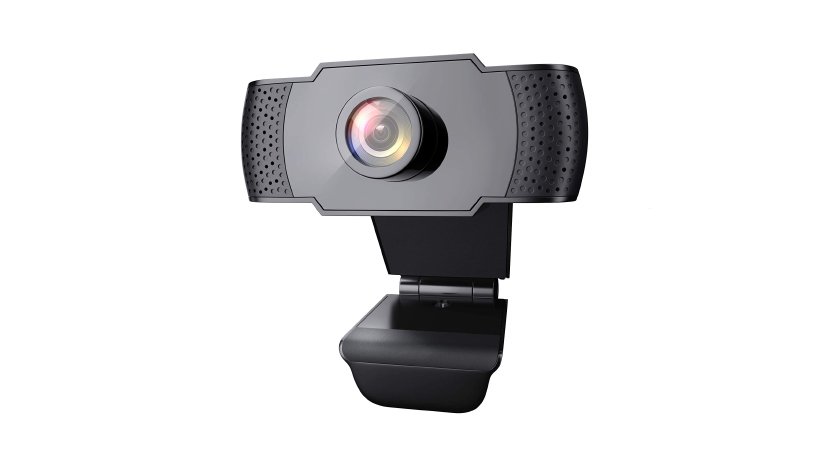
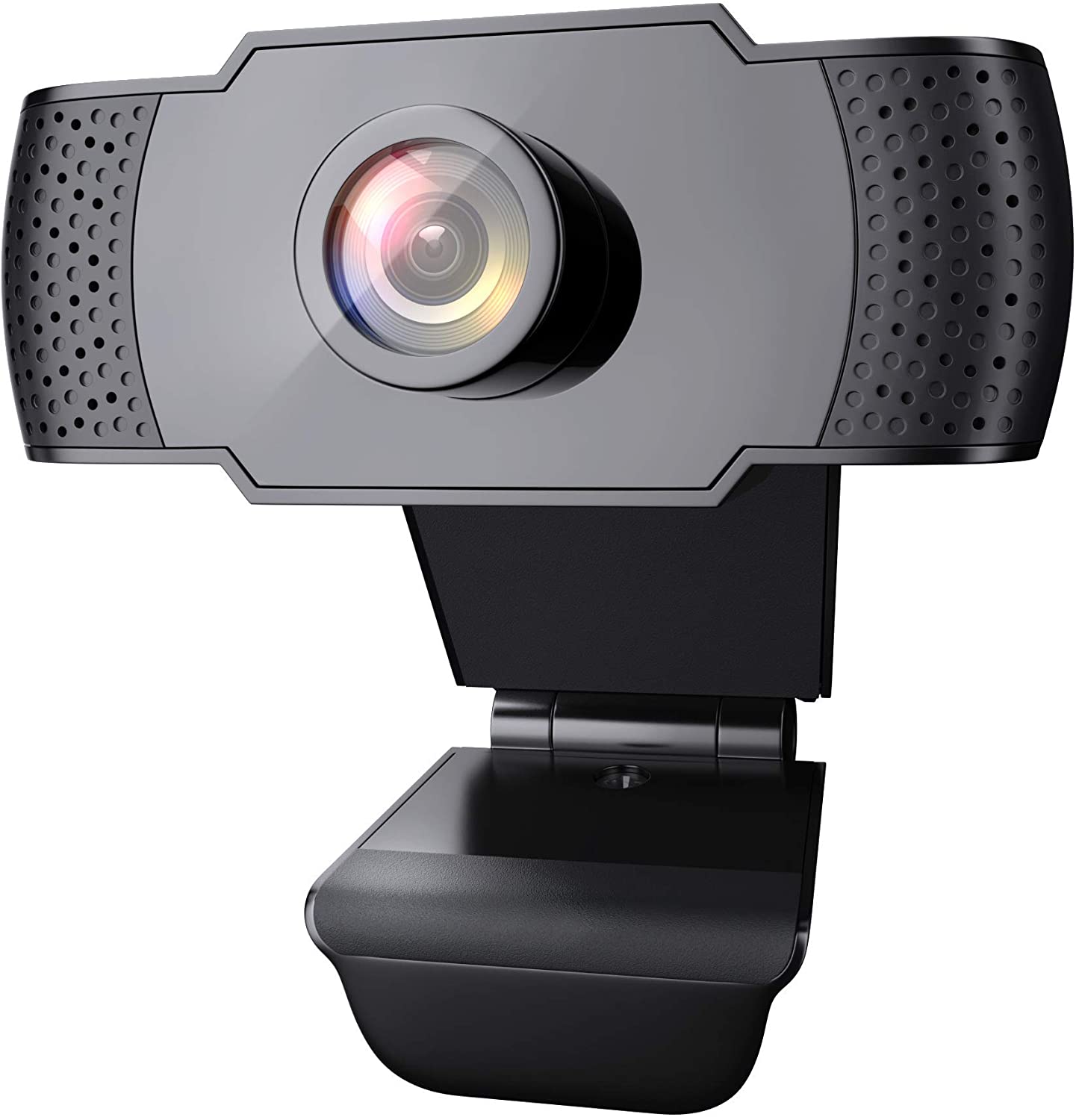
Though the saying, "you get what you pay for," is great advice most of the time, this budget model proves not all of the best webcams for Mac are expensive. It's pretty darn good for its price. It has 1080p support with a crisp, clear picture, including darker rooms.
The microphone has subject recognition, so even if you're on the other side of a room while you're talking, it will pick up on your voice while blocking out the sound of the dog barking outside.
I realize I mentioned this already, but the picture quality is remarkably clear, crisp, and bright, especially for a webcam that costs about half of what other popular brands offer.
This webcam has an adjustable lens for focusing, but that doesn't mean it has autofocus, so you're going to want to set up your camera before joining that video call. I think it also uses software to create a wider field of view, which results in rounded corners at the edges of your view. If your camera is set up with a wall or other background set close behind you, it won't be noticeable, but you may see curves in the door frame or bookshelf if you're not sitting right in front of it.
It's not going to be perfect for such a low price, but this Wansview webcam is pretty impressive. Plus, you can often find Amazon coupons for it to bring the price down even further. With that in mind, you simply can't beat the quality for the price!
Wansview 1080p Webcam
For such a low price, and for something that's usually in stock, you're getting your money's worth, and then some.
Resolution: 1080p/720p | FPS: 30/60 | Built-in Mic: Integrated | Field of View: 81.6-degree | Connector Type: USB 2.0
Pros:
Built-in ring light
60 FPS (at 720p)
Easy to use
Regular firmware updates
Cons:
Special functions don't work on Mac
Gaming live streams have become more popular than ever over the past few months. If you were already a game streamer, good on you for getting in early. If you're starting, this is a great starter webcam for a couple of reasons.
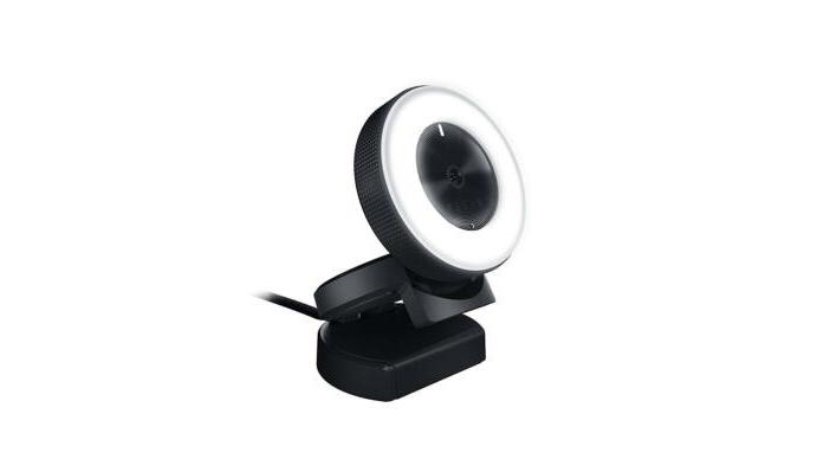
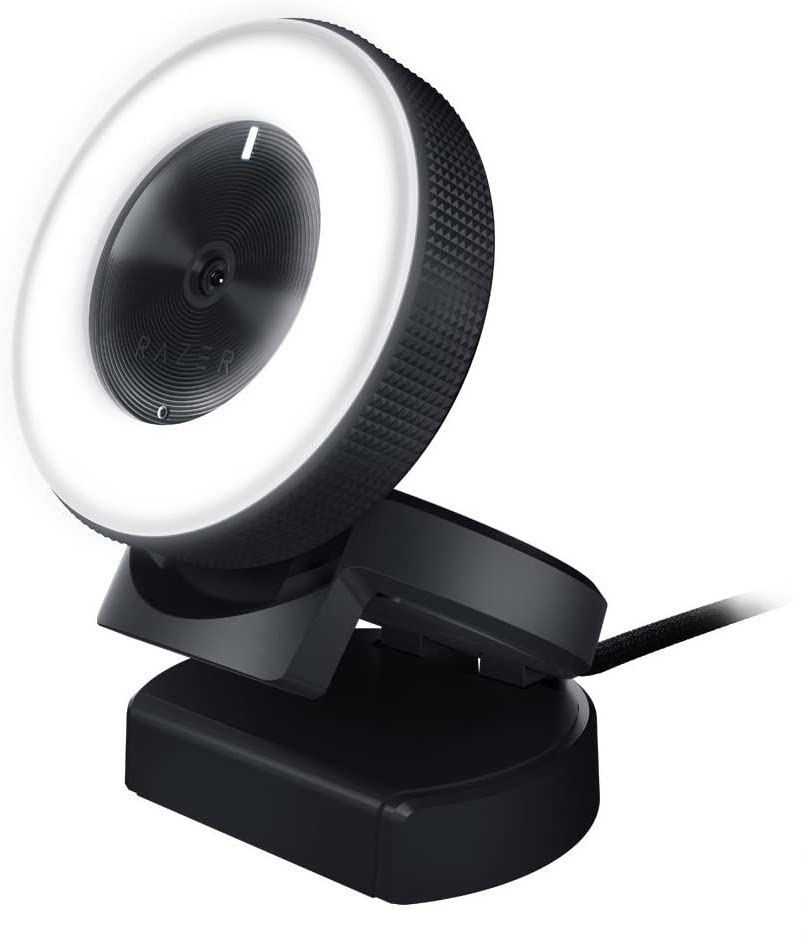
Speaking from the experience of someone who live streams regularly, a good light source is vital for proper brightness, and a light ring is perfect for getting that brightness you need right on your face. The Kiyo comes with a built-in light ring right around the camera's lens, so you're going to be well-lit whenever you're facing the camera.
The Kiyo also streams in either 30FPS or 60PFS, depending on the pixel quality. If you want a crisp, sharp image, you'll use 1080p at 30FPS, but if you want to show the speed and agility of your avatar as you blast through 100 unsuspecting builders, you can reduce the resolution to 720p and ramp up the frames-per-second to 60. This is why the Kiyo is a game streamer's webcam. It'll catch all of the action without stutter, lag, or skips.
Razer does a good job of keeping the Kiyo up to date. Since it launched, it's had several major updates to improve performance, so you know you're investing with a company that takes care of its customers.
The Kiyo, unfortunately, does not have full support for Mac. It does work as a basic webcam with a light ring, but the software needed to adjust the settings doesn't work with Mac, so the Kiyo is more of a "plug and go" type webcam on the Mac.
Razer Kiyo
With a built-in ring light, you're always going to be plenty well-lit when you stream or video chat, and with 60FPS (at 720p), your fans can see every jump, punch, and shot.
Resolution: 1080p | FPS: 60 | Built-in Mic: Dual omnidirectional mic | Field of View: 78-degree | Connector Type: USB-C
Pros:
Support for OBS
Vertical Video support
1080p at 60FPS
Companion software for content creators
Cons:
Only 78-degree FoV
Doesn't work well with USB-A adapters
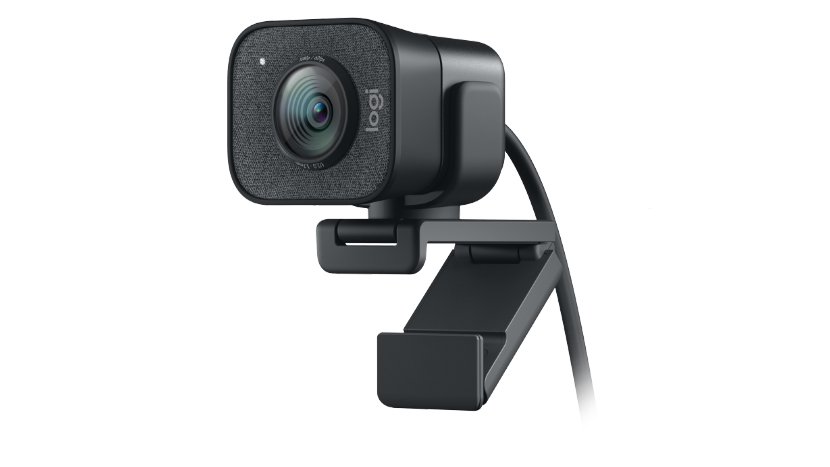
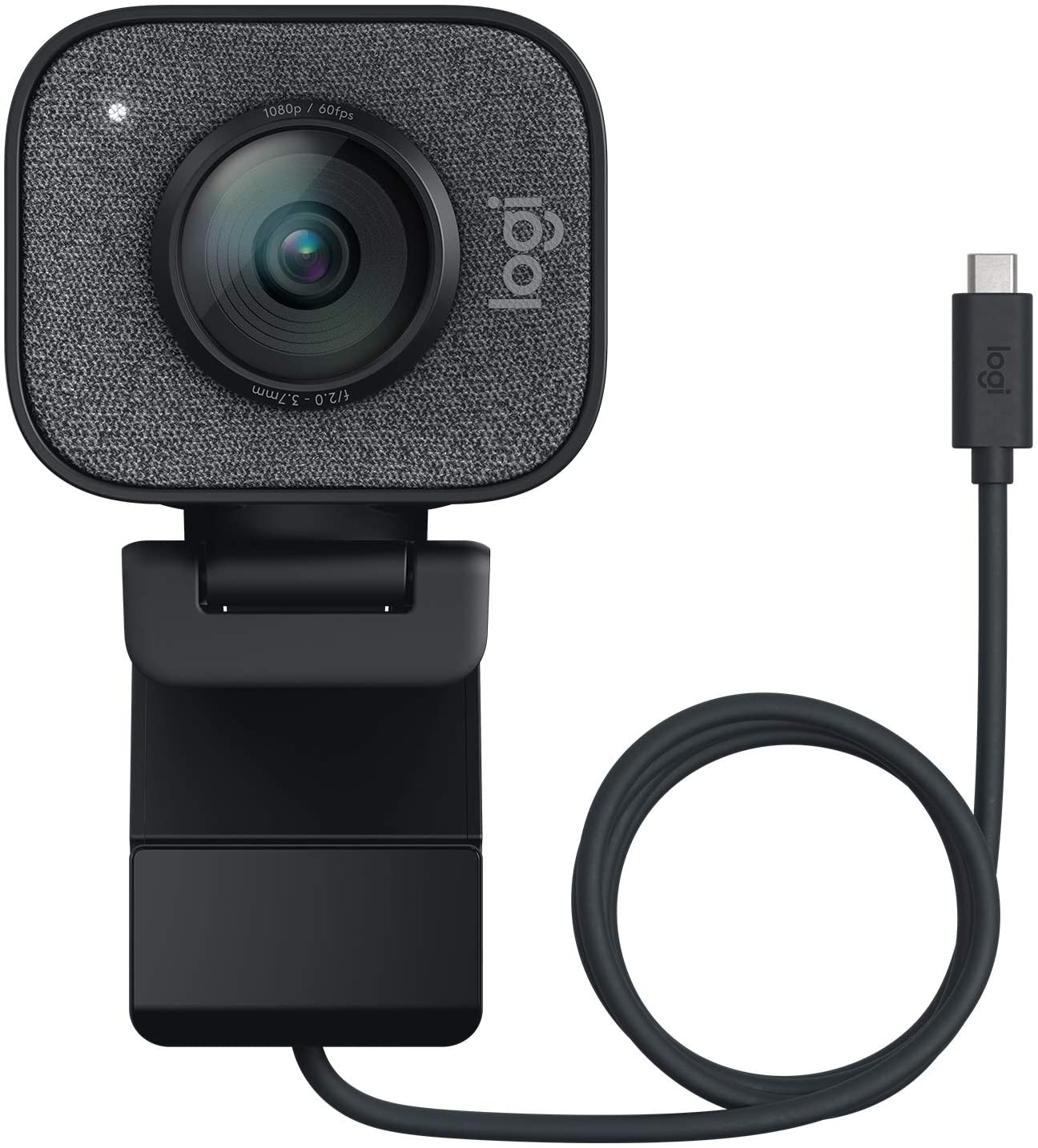
The StreamCam has everything a YouTube influencer would need from a webcam. It is optimized for Open Broadcaster Software (OBS), StreamLabs, XSplit, and more, making streaming to the most popular social platforms, like Twitch and YouTube, easy. It uses USB-C for faster video transfer speeds, so you won't experience lag or stutter from the camera. While the StreamCam is one of the best Mac webcams for streaming, like the C920 Pro, it often sells out quickly, so if you see it in stock, do not hesitate to pick it up! If it is unavailable at your preferred retailer, I recommend signing up for in-stock email notifications to make sure you don't miss out when they restock.
Because the USB-C connecter is permanently fixed to the camera, PCs that don't have a USB-C port will need to use an adapter, which can cause friction with performance. If you don't have a USB-C port on your computer, I'd recommend checking out the C922 Pro instead.
The StreamCam supports vertical video, which is a huge bonus for influencers whose main platform is Instagram or Twitter. You no longer have to use just your iPhone 13 Pro to record your streams. Set up the StreamCam in vertical mode for high-quality 1080p streams in 60FPS.
The companion software, Logitech Capture, offers a multitude of tools designed specifically for content creators. You can record from two webcams and combine them into a single scene, add text overlays, customize your webcam settings, add transitions, and more.
This camera is designed for close-up, so it only has a 78-degree field of view (FoV). That's a great positioning view for most situations, but it'll be more difficult for you to fit in a second person or a particularly well-designed living room in the background. There's no wide-angle here.
The StreamCam is a webcam with a microphone designed to capture your voice while you talk, so if you don't yet have an external mic set up, you can just plug this in and run with it, no extra hardware needed.
Logitech StreamCam
With support for vertical video, 1080p at 60FPS, and special software designed for content creators, this is the perfect webcam for influencers.
Resolution: 1080p | FPS: 30 | Built-in Mic: Noise reduction | Field of View: 110-degree | Connector Type: USB 2.0
Pros:
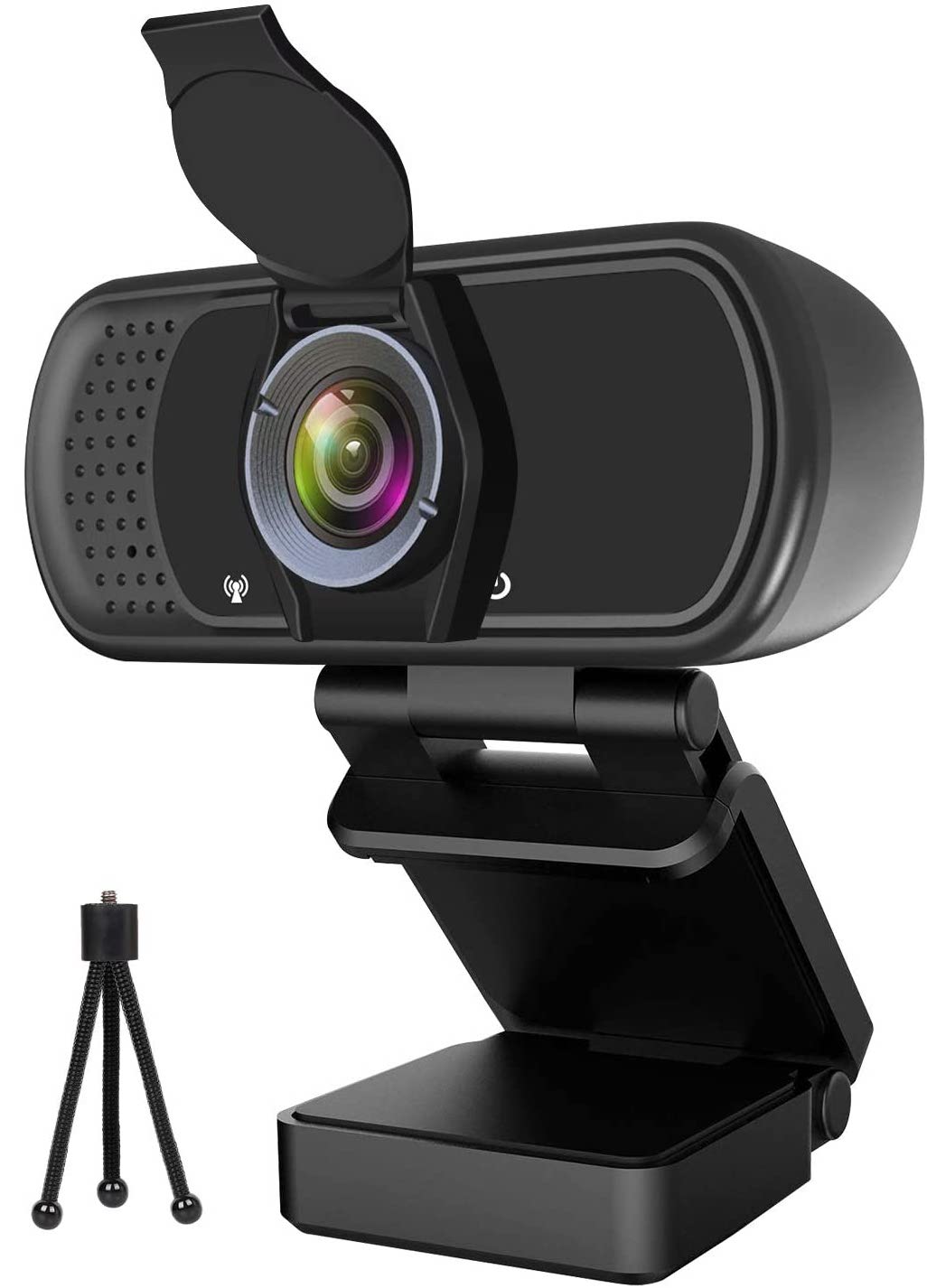
Includes privacy cover
Includes desktop tripod
Inexpensive
Cons:
Poor mic quality
Edge distortion
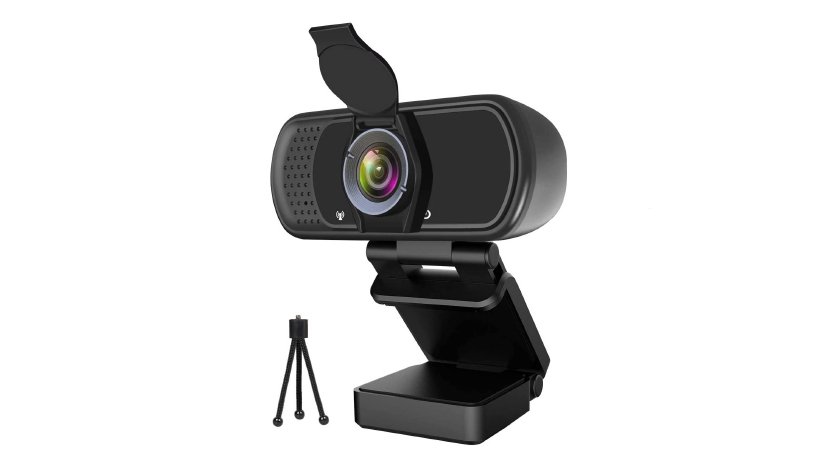
Sometimes, 90 degrees is just not enough of a field of view. If you want to fit a group of people into your video chat, you may need something wider, and that's where this ultra-wide-angle webcam comes in. With the widest viewing angle at 110 degrees, you can video chat with the whole family and room to spare for the dog.
This Hrayzan webcam comes with a privacy cover, which is very comforting when you hear about how webcams can be hacked. It also comes with a desktop tripod if you don't want to mount it on your computer. However, it uses a magnetic mount so you don't have to worry about permanent fixation.
Though this is a webcam with a microphone, the quality of the mic is muffled. With the video output, you may notice some edge distortion due to the wide-angle's extra stretching.
This is relatively inexpensive for having a 1080p ultra-wide-angle lens, and it is regularly in stock.
Hrayzan 1080p Webcam
This webcam will fit you and your family in a single frame with an ultra-wide-angle and simple setup. It's also useful for large room video conferencing.
Resolution: 4K | FPS: 30 | Built-in Mic: Dual omni-directional | Field of View: 90-degree | Connector Type: USB 3.0
Pros:
4K resolution
Works with Windows Hello
5X digital zoom
USB 3.0 interface
Cons:
USB 3.0 required for 4K
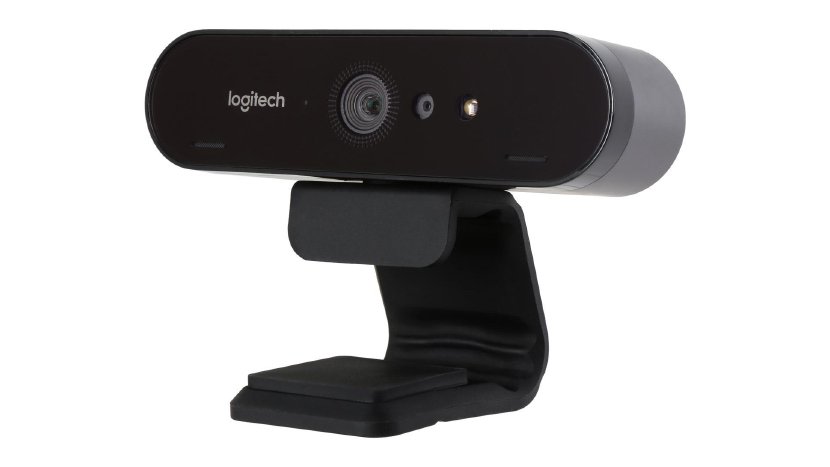
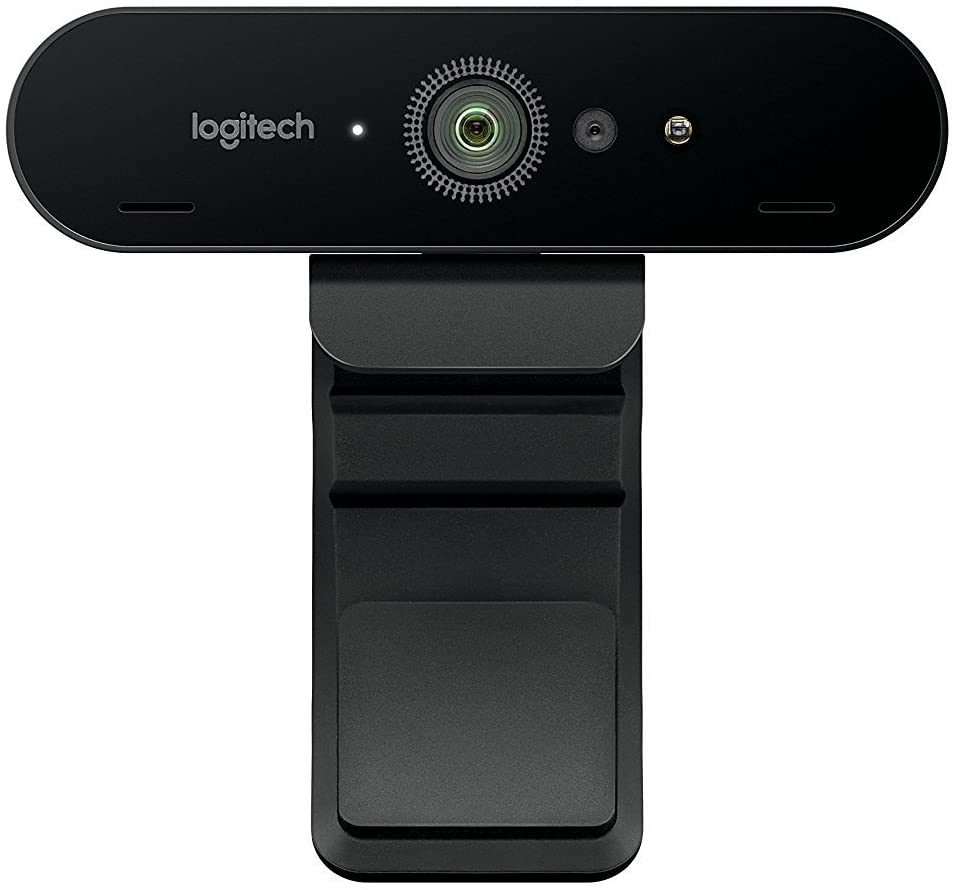
The Brio is considered one of the best Mac webcams (though it will also work on a PC) because of its 4K camera. There aren't many webcams on the market that support 4K, as it's still a somewhat niche market. Video chat services like Skype don't support 4K. A 4K webcam makes more sense for live-streaming or recording video that you later upload somewhere.
The Brios camera system includes optical and infrared sensors for facial recognition, which works with Windows Hello to secure your Windows-based computer.
With the companion Camera Settings software, you can manually adjust the field of view from 65, 78, or 90 degrees. You can also adjust the frame rate and resolution and manually zoom up to 5x.
The Brio is set up to be future-proof with a USB 3.0 interface. It does work with USB 2.0 ports, but the only way you'll be able to record the full 4K is with a USB 3.0 port, so make sure your Mac or PC meets these minimum requirements for 4K video recording.
Logitech Brio
While most people don't need a 4K webcam, many jobs depend on the advanced resolution, and the Brio is the most advanced webcam you can get before upgrading to a DSLR.
We've listed the cream of the crop for the best webcams for Mac, PC, and streaming, but there is more to a webcam than just the camera itself. Lighting, positioning, and audio are also important to get the best quality video. You don't have to be a pro to look like one, and you don't necessarily need to spend money like a pro to look like you have.
Do you need a webcam tripod?
All of the webcams on our list, and most webcams of any brand, come with their own mount that you can put directly onto your computer, whether it's a laptop or a desktop. So you don't need a tripod. There are, however, some reasons why you may want a tripod for your webcam. If that's the case, don't miss out on the best webcam tripods.
Positioning is key to good framing with a webcam. When you mount your webcam to your computer, you don't have a lot of flexibility in how high or which direction it faces. You may have already noticed that many people in video chats look like they're looking down at something instead of directly at the screen. That's because their webcam is sitting up high at the top of a large-screen computer, way above eye level. Or, you may have also noticed that you're always looking up the nose of your video chat mate. That's because they're using a laptop (probably on their lap) with the camera below their chin.
Ideally, you'd have your webcam positioned directly in front of your face with about two feet between you and the camera (webcams with zoom make it even easier to adjust the closeness). You also want to have your head take up more of the screen than you realize. You don't want your background to be the main focus. When possible, get the top of your head to sit about an inch or two below the top of the screen.
Sometimes, just a minor adjustment to the left or right will enhance your angle. A webcam lets you make these small rotations, as well as angle up or down.
Do you need special webcam lighting?
If you're having Zoom, Skype, or Hangouts meetings with friends, family, or coworkers, you can make use of the natural lighting around you instead of spending the extra money on special lighting. Though some webcams, like the Razer Kiyo, have built-in lighting. The key is to have a window that lets in light in front of you. The natural sunlight will give you nice lighting without being too bright. A window off to the side will work, too. But ideally, it should be in front of you. Don't video chat or stream with your back to bright light; this will turn you into a shadow.
If you're doing more than video conferencing with friends, family, or coworkers, you may want to consider some of the best lighting accessories for webcam streaming. A ring light is a standard amongst video podcasters and streamers. It provides a nice bright light directly on your face to keep you from having weird shadows in places like under your eyes or nose, which aren't very flattering.
Be aware, however, that with a ring light comes some additional lighting needs. Depending on the type of ring light you use, you may end up washed out in your dimly lit room. So, if you don't have a decent amount of natural light surrounding your room, you should look into a panel light or two, or at least place a desk lamp or two behind your webcam, reflecting off of a wall to create ambient lighting.
We could go much deeper into lighting for webcams, but that's a story for a different article.
Do you need a webcam with a microphone?
Every webcam on this list and most webcams come with a built-in microphone, but most of them have subpar mics. Again, if you're chatting with friends and family or sitting in on a meeting, the microphone in your webcam is probably good enough, but it might be a little muffled or underwater-sounding.
I don't ever use the built-in microphone on any webcam, but I do use the best headphones. Any headphones with a microphone will work just fine with your computer and webcam. There's no special driver needed. Just connect your headphones to your computer, and when you start up your video chat or streaming program, just check the settings to make sure it's connected to your headphones or earbuds for audio input.
If, however, you're trying to get your brand recognized, you should definitely spend the extra money on a quality microphone. Audio quality is just as important, and I would even argue more important than video quality. You should have an external microphone connected directly to the device you record audio, too. The best podcasting microphone should have frequency adjustors and noise reduction. You should also get a microphone mount to protect against accidental table bumps.
Pay close attention when buying a microphone for your computer. If it isn't natively a USB microphone, you're also going to need to get an audio interface like the Focusrite Scarlett.
Credits — The team that worked on this guide
Christine Romero-Chan is a senior writer and editor at iMore who is always checking out the latest accessories to go with the Mac. She may be camera-shy, but when she needs a webcam, she wants to make sure it's a good one.
Lory Gil is the former managing editor of iMore, the co-host of the iMore Show podcast, and MacBreak Weekly. She's been using webcams since before they were popular and knows what's important when finding the best webcam for Mac, PC, and streaming.
Shift Keyboard 5 is available for download from the App Store now.
This update includes new smart autocorrect and suggestions algorithms for easier text entry.
An improved swipe keyboard is part of the new update.
Not just Apple Watch Series 7, unlike someone else's keyboard I won't mention.
Launching a big update to your Apple Watch keyboard in the days of Apple Watch Series 7 might not seem like the best thing to do, but that's the situation developer Adam Foot finds himself in with Shift Keyboard 5. And while Apple has added its own keyboard to Apple Watch Series 7, that's the only place it will be. Shift Keyboard, by contrast, works everywhere. And you should give it a try right now.
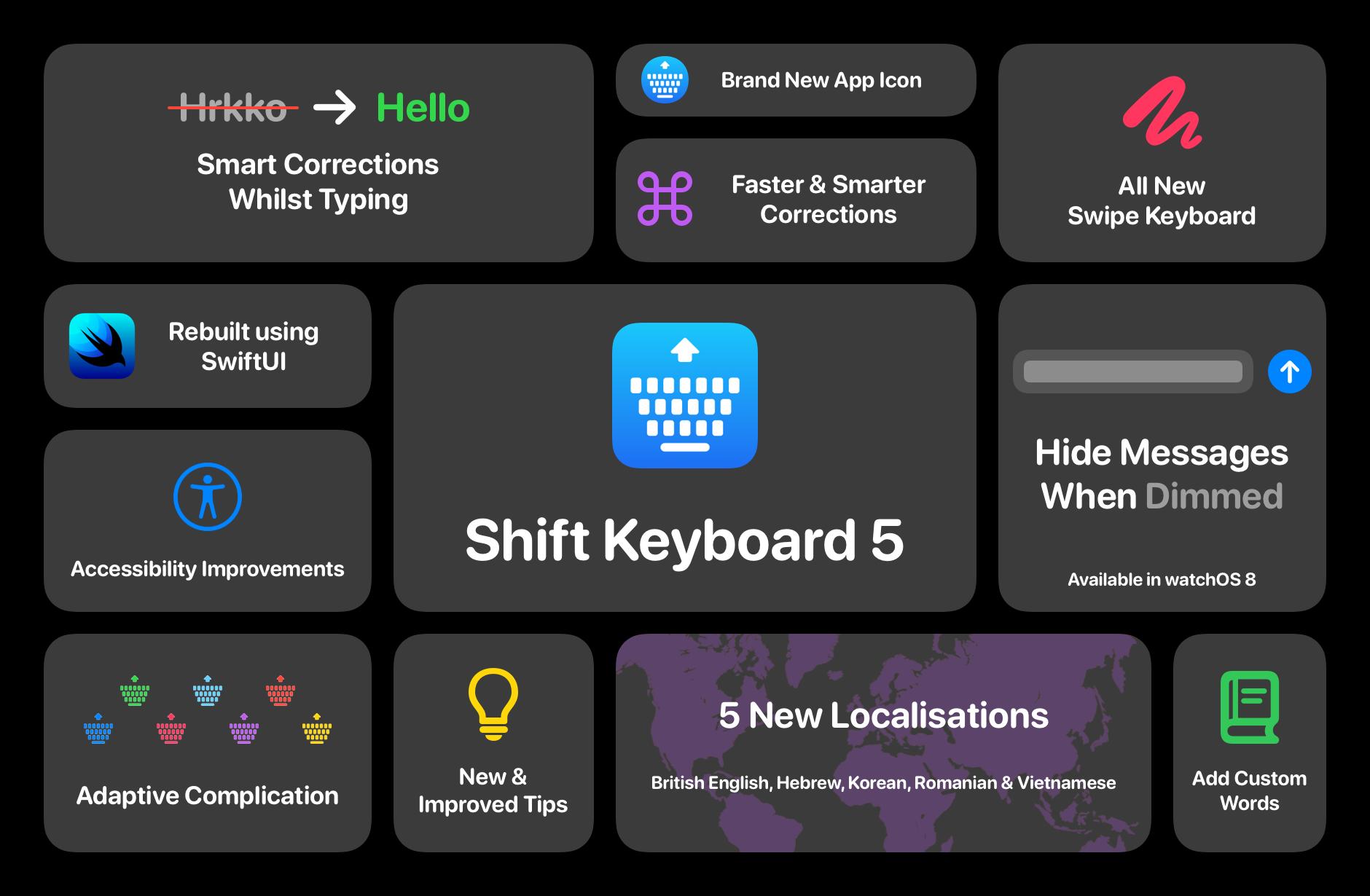
Designed to make it easier and faster to type on your Apple Watch, Shift Keyboard now supports the latest watchOS 8 features while also building on functionality that was already there. This new update includes new smart autocorrect and suggestions algorithms for easier text entry, for example. An improved layout means those with smaller watches will be able to type more easily, and more accurately, too.
Going back to those watchOS 8 features for a moment, Foot says that Shift Keyboard now dims itself instead of just showing the time when you move your wrist.
watchOS 8 added the ability for developers to hide content in their app when an Apple Watch is facing down and the app is still open, instead of just showing the time as per watchOS 7. Shift Keyboard takes advantage of this by hiding the current typed message when the Apple Watch is dimmed.
There are a bunch more changes, too.
Improved swipe keyboard that will more accurately accept swipes and predict what you were typing.
Added the ability to add your own custom words to the dictionary.
Devices running watchOS 8 or higher and have an Always-On display, will have their current message blurred out when their wrist is down.
Improved corrections picker when you turn the Digital Crown.
Improved access to numbers, symbols and global characters.
Improved accessibility for visually impaired users who rely on VoiceOver.
Shift Keyboard is now localised in additional languages including British English, Hebrew, Korean, Romanian & Vietnamese.
That isn't all of it, either. Newly updated complications fit existing watch faces better and even the app icon has changed. More importantly, Shift Keyboard works on any Apple Watch running watchOS 7 or newer, so you can use it on your old Apple Watch. The new watch might be the best Apple Watch ever, but you don't need it if you want a keyboard, that's for sure.