WhatsApp won't make an Apple Watch app but WristApp is one new solution that you can try.
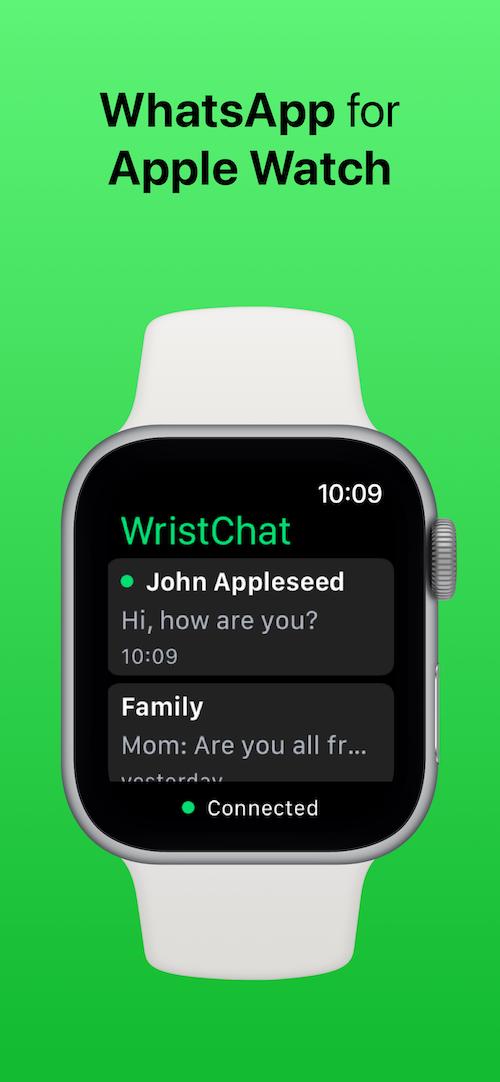
WristApp puts your WhatsApp chats onto your Apple Watch.
Integration with WristBoard makes replying to messages quick and easy.
Big WhatsApp users need this on their wrist.
If you've ever found yourself wishing that there was an Apple Watch version of the WhatsApp app, wish no more. WristChat is the Apple Watch app that WhatsApp won't make and you can download it from the App Store now.
The new WristChat app takes your most recent WhatsApp that threads and puts them into your wrist. You can read new messages and then reply to them if you like, all without having to ever touch your iPhone. Entering text can be done using Scribble or voice dictation, but special integration with WristBoard is another option — both apps are created by the same developer.
Setting WristChat up is as simple as scanning the QR code that the app displays on your Apple Watch and then you're all set. WristChat supports both one-on-one chats and group chats and you can customize the color of your chat bubbles with more than 10 different color options available. Customization extends to other things including whether you see profile images.
WhatsApp offers no native Apple Watch app, WristChat aims to plug that gap! With its unique integration with WristBoard, you can even type messages using a full keyboard on your Apple Watch.
Just like WhatsApp Web, setup is done through simply scanning a QR Code and you'll have instant access to all of your private and group chat messages!
If you're a big WhatsApp user this could be the best Apple Watch app you download this month — and you can download it from the App Store now. It's priced at $2.99, as is the companion WristBoard app that you should probably check out, too.
Twitter is rolling ALT text badging to everyone, globally.
ALT text makes it easier for screen readers to understand what an image shows.
Twitter is making it easier to see which images have ALT text.
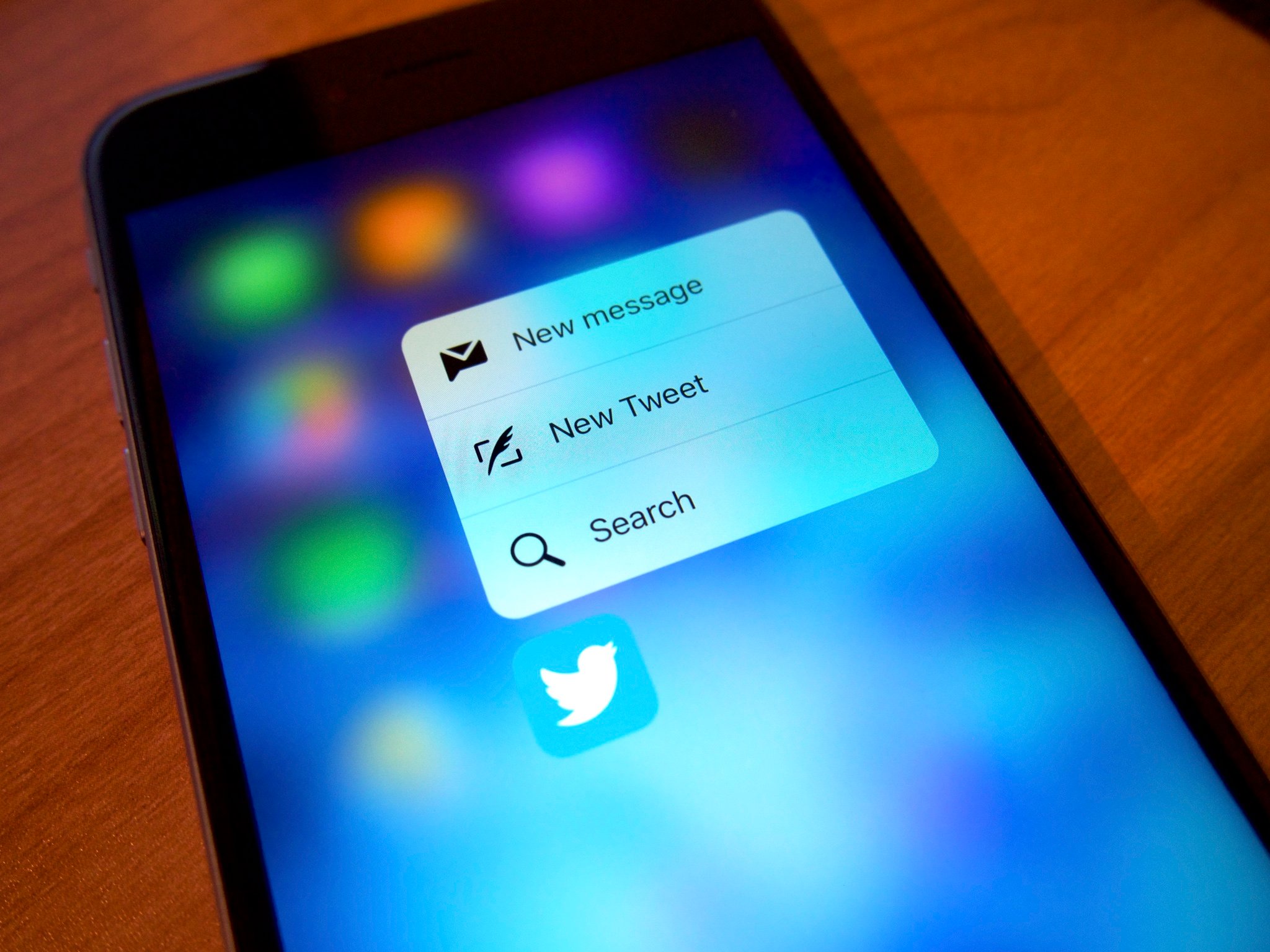
Twitter has made changes to make itself more accessible to those who are blind or have problems with their vision. The change means that images will now have an ALT badge when they have descriptive text attached, making it easier to discern which of them have been made more accessible. ALT text is important for screen readers, for example, so they can read the description of the image when people might not be able to see it.
While Twitter has been testing the change with a small percentage of users of late, the social network says that it is now being rolled out to everyone globally, giving more people than ever a better understanding of which images have ALT text. Twitter has also added exposed image descriptions, too.
Describing what's in your images benefits people who are blind, have low vision, use assistive technology, live in low-bandwidth areas, or want more context. Without descriptions, your readers won't know what your images contain, or why they're important. This missing information prevents people from engaging with your Tweet.
As promised, the ALT badge and exposed image descriptions go global today.
Over the past month, we fixed bugs and gathered feedback from the limited release group. We're ready. You're ready. Let's describe our images! Here's how: https://t.co/bkJmhRpZPghttps://t.co/ep1ireBJGt
— Twitter Accessibility (@TwitterA11y) April 7, 2022
Twitter has also shared a new Help Center article that gives people more information on how to add ALT text to their images when using its service and apps.
The improvement is very much a welcome one and while even Twitter would likely admit that it isn't as accessible as it would like to be, this change is undoubtedly a move in the right direction.
Apple TV+ has announced that the second season of Greatness Code will premiere on May 13.
The second season of the show will feature six new athletes.
Rashford will be joined by Bubba Wallace and four other athletes.
Apple TV+ has confirmed that the second season of Greatness Code will premiere on Friday, May 13. The streamer has also confirmed the athletes that will be featured through the season including Marcus Rashford, Bubba Wallace, and more.
Greatness Code is a short-form docuseries that focuses on what makes the world's greatest athletes do what they do. The second season will feature six athletes across six episodes.
In "Greatness Code," iconic athletes pull back the curtain on a pivotal career moment when they touched greatness. A stylized hybrid of live action and visual effects, this short-form docuseries sheds new light on the sports legends you thought you knew.
The athletes featured in this second season include:
Marcus Rashford: English professional footballer and children's campaigner
Russell Wilson: Super Bowl champion NFL quarterback who has played in nine Pro Bowls
Leticia Bufoni: Six-time X Games gold medalist and professional street skateboarder
Scout Bassett: Parapan American track and field champion
Bubba Wallace: First African-American driver to win a race in NASCAR's premier series since 1963
Lindsey Vonn: Four-time World Cup champion alpine ski racer, Olympic gold medal winner, author and entrepreneur
Those looking to check this out on May 13 will need an Apple TV+ or Apple One subscription to do so. The content itself can be watched on anything from an iPhone to a PS5 and all kinds of things in between. If it has an internet connection, there's a very good chance it can stream Apple TV+ shows!
That being said, if you want to enjoy Greatness Code in style, be sure to check out our list of the best Apple TV deals on the market today.
100% exclusive content for the price of a cup of coffee.
With TV+, you can watch well-produced, big-budget TV shows from famed directors, and starring award-winning actors and actresses across all your Apple devices and with up to six members of your Family Sharing group.
iCloud Photo Sharing makes it easy to share your favorite pictures and video with other people. Here's how to get started with it!
Apple's iCloud service offers a number of features for users who want to share items with their colleagues, friends, and family. iCloud Photo Sharing is one of those. You can use the Photos app on iPhone, iPad, or Mac (or a PC) to add images to a shared album that your friends and family can then access, comment on, and even add their own contributions to the set.
Once you've set up iCloud Photo Sharing, here's how you can create, view, and edit shared photo albums on your iPhone, iPad, Mac, or PC.
How to view shared photo albums on iPhone, iPad, Mac, and PC
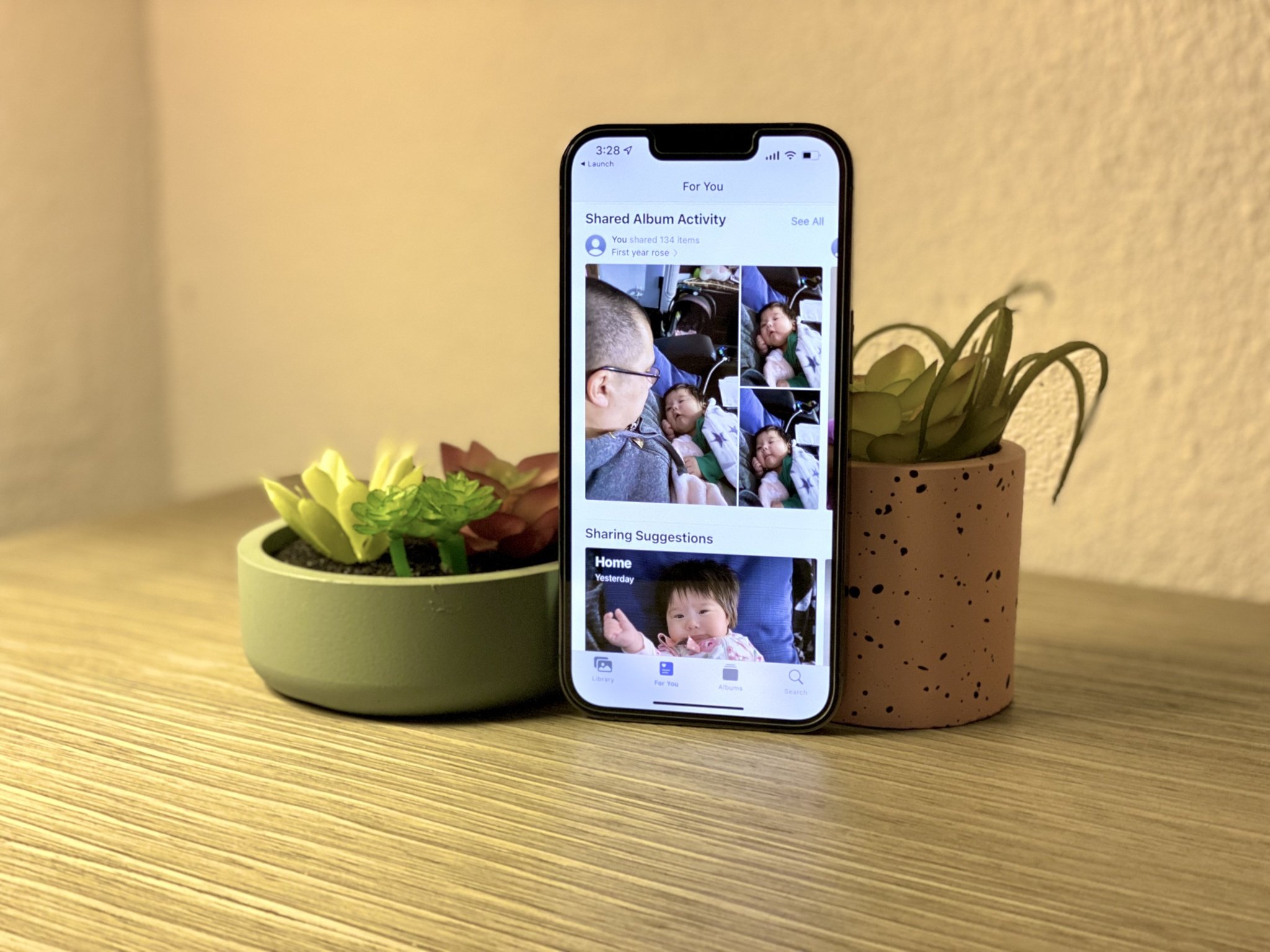
Note that by default, when you open the Shared section in Photos on the best iPhone and iPad, you'll be taken to your activity feed for shared albums, which shows things that have been added or comments that have been made.
On iPhone and iPad
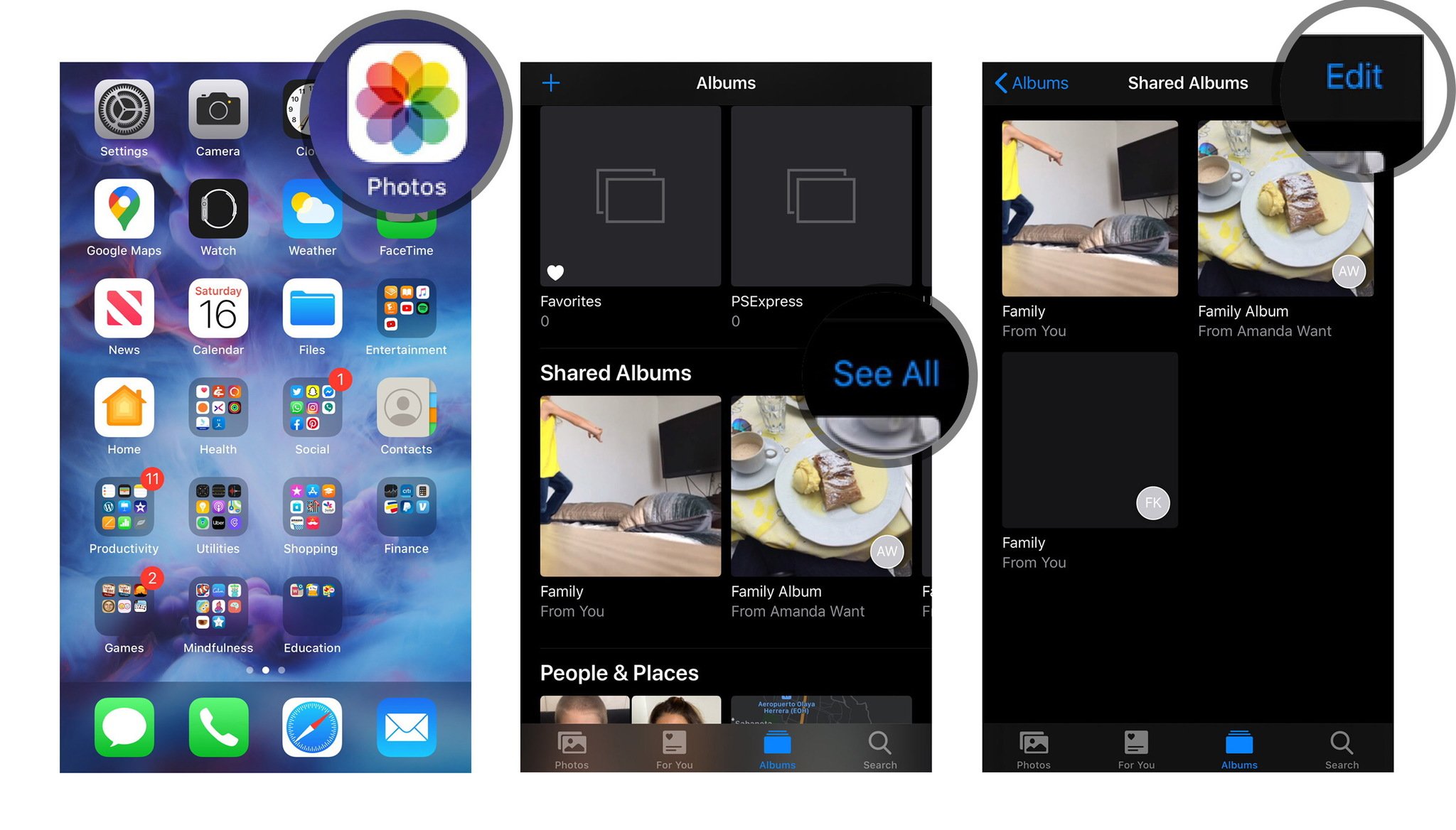
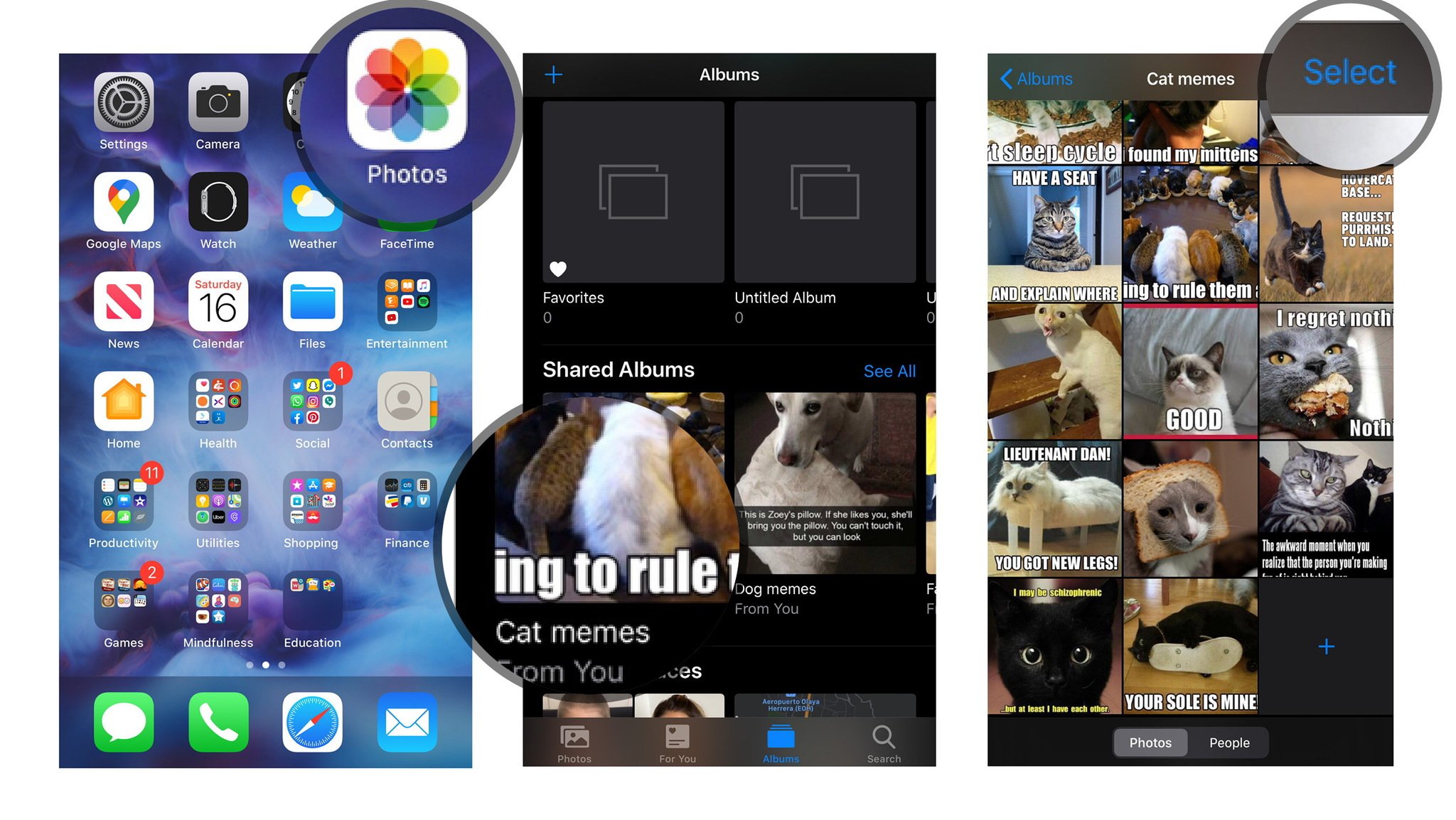
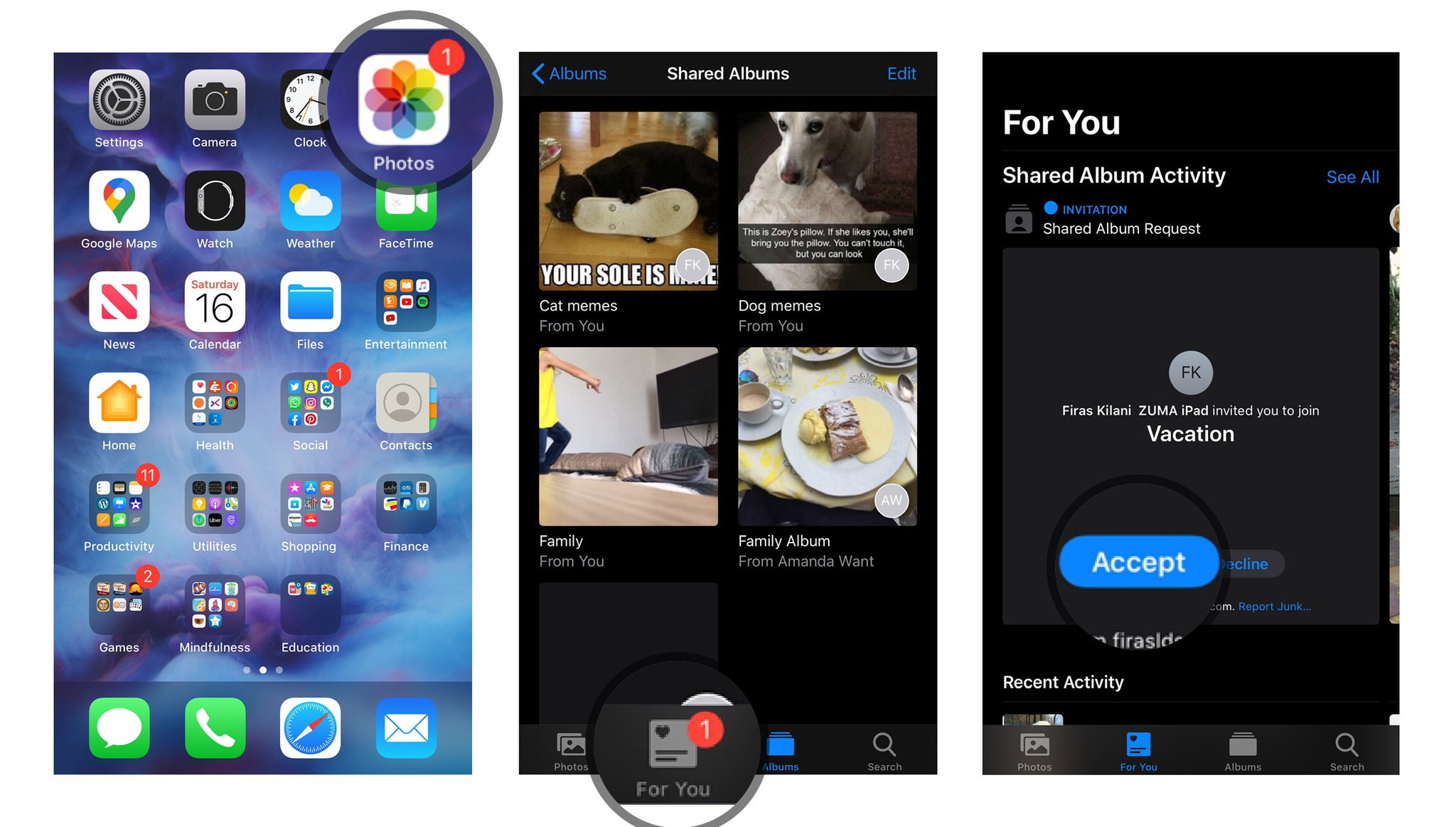
Open Photos on your iPhone or iPad.
Tap on the Albums tab.
Scroll down until you see the Shared Albums category and tap See All to view shared albums.
On your Mac
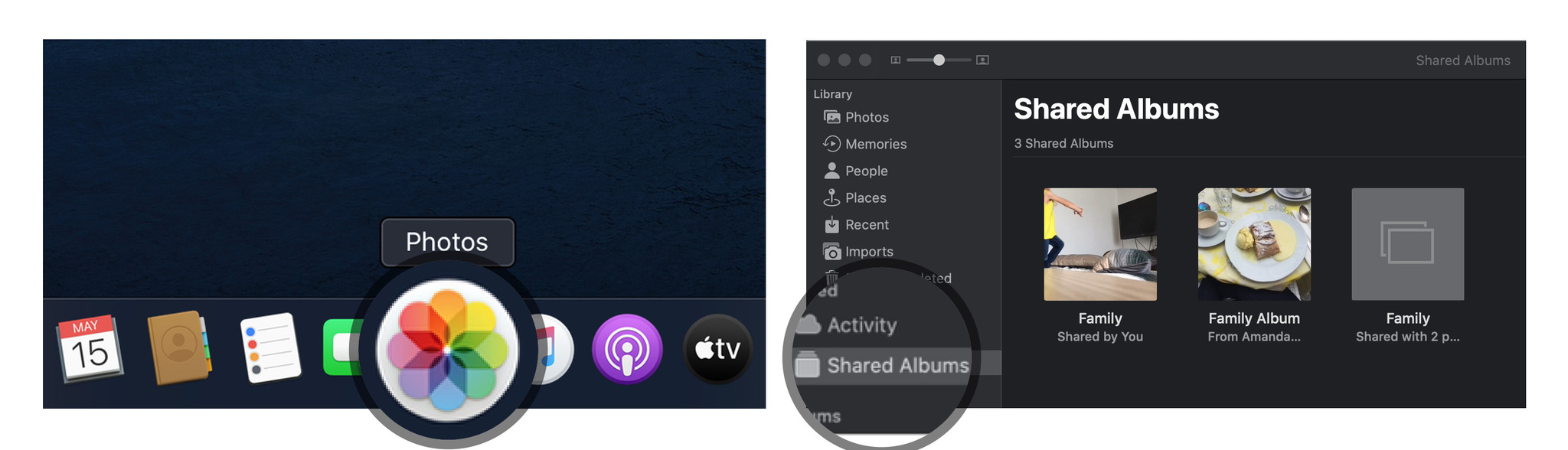
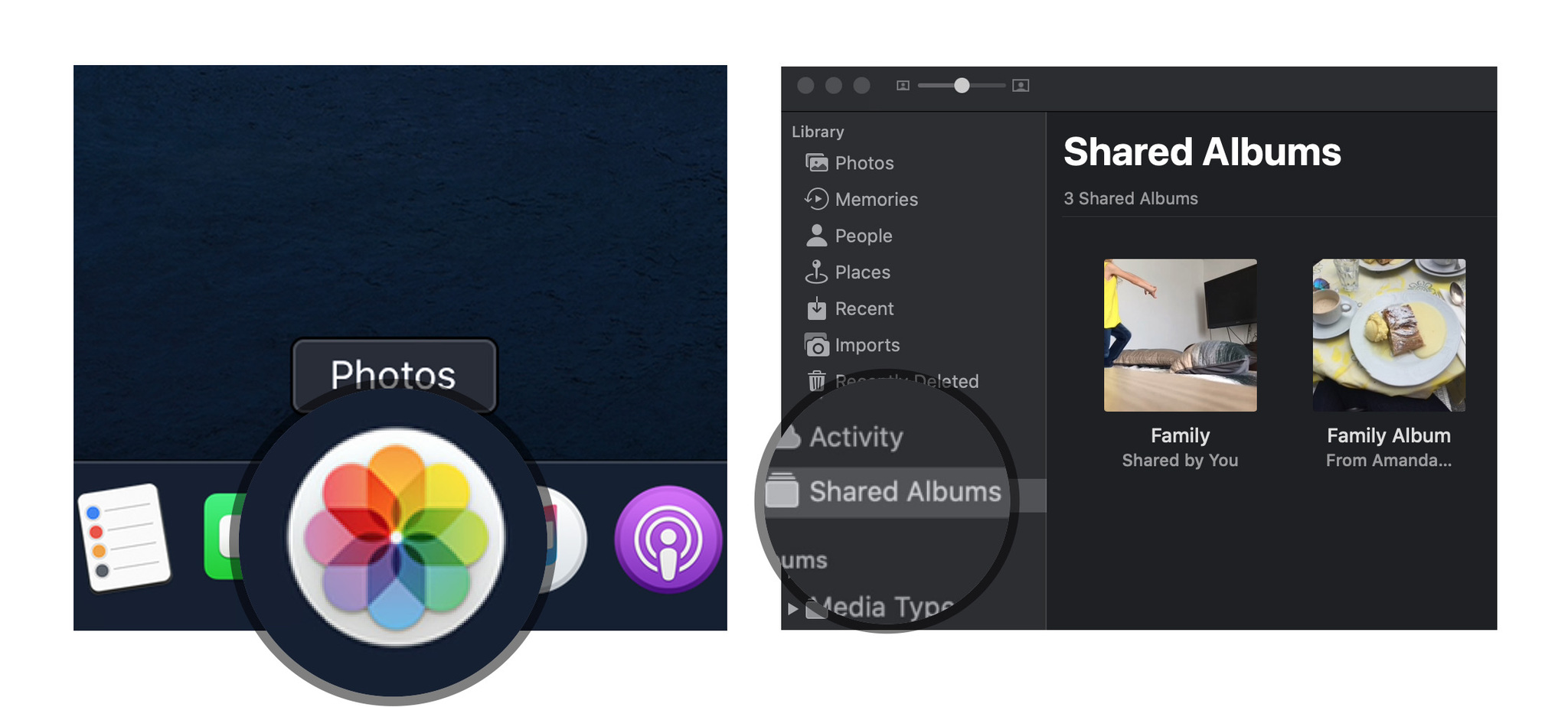
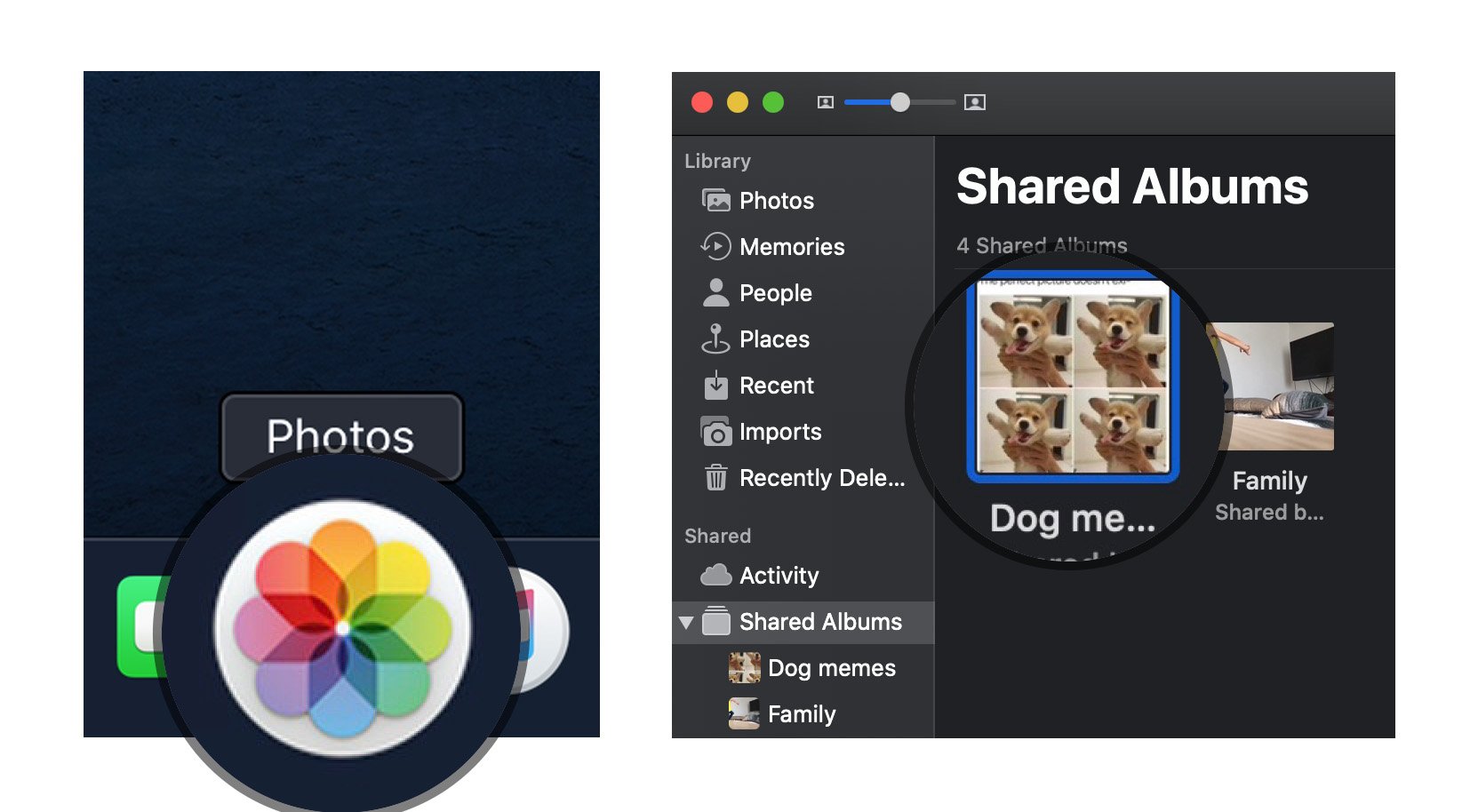
Launch the Photos app on your Mac.
Tap the Shared Albums section on the sidebar.
From here, you have two options for viewing shared images:
Activity: This mode lets you view all recent activity in your shared albums
Shared Albums: This shows you all your currently shared albums and all albums shared with you.
On your PC
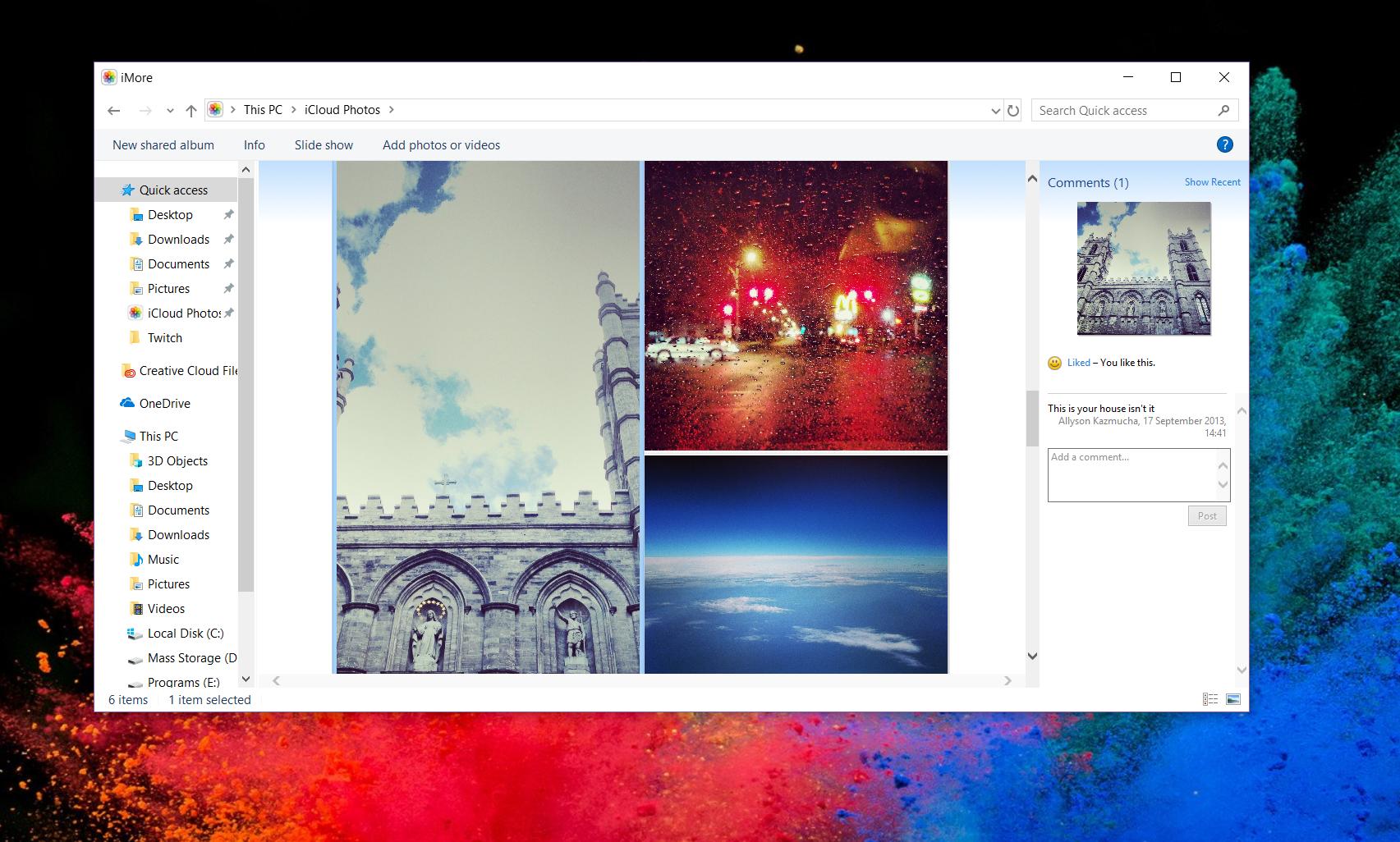
Open your iCloud Photos folder.
From here, you have two options for viewing shared images:
Activity: This album lets you view all recent activity in your shared albums.
Open a folder: The other folders in your iCloud Photos library include your shared albums and any regular albums you've created.
How to create a shared photo album on your iPhone, iPad, or Mac
If you want to share photos with your friends and family, you can create a shared photo album through iCloud and invite them to view it.
Note: In order for your recipients to properly view these images, you'll need to add the contact information they use for their iCloud account — it may well be different than their regular contact info, so make sure to check if you're in doubt.
On iPhone and iPad
Launch the Photos app on your iPhone or iPad.
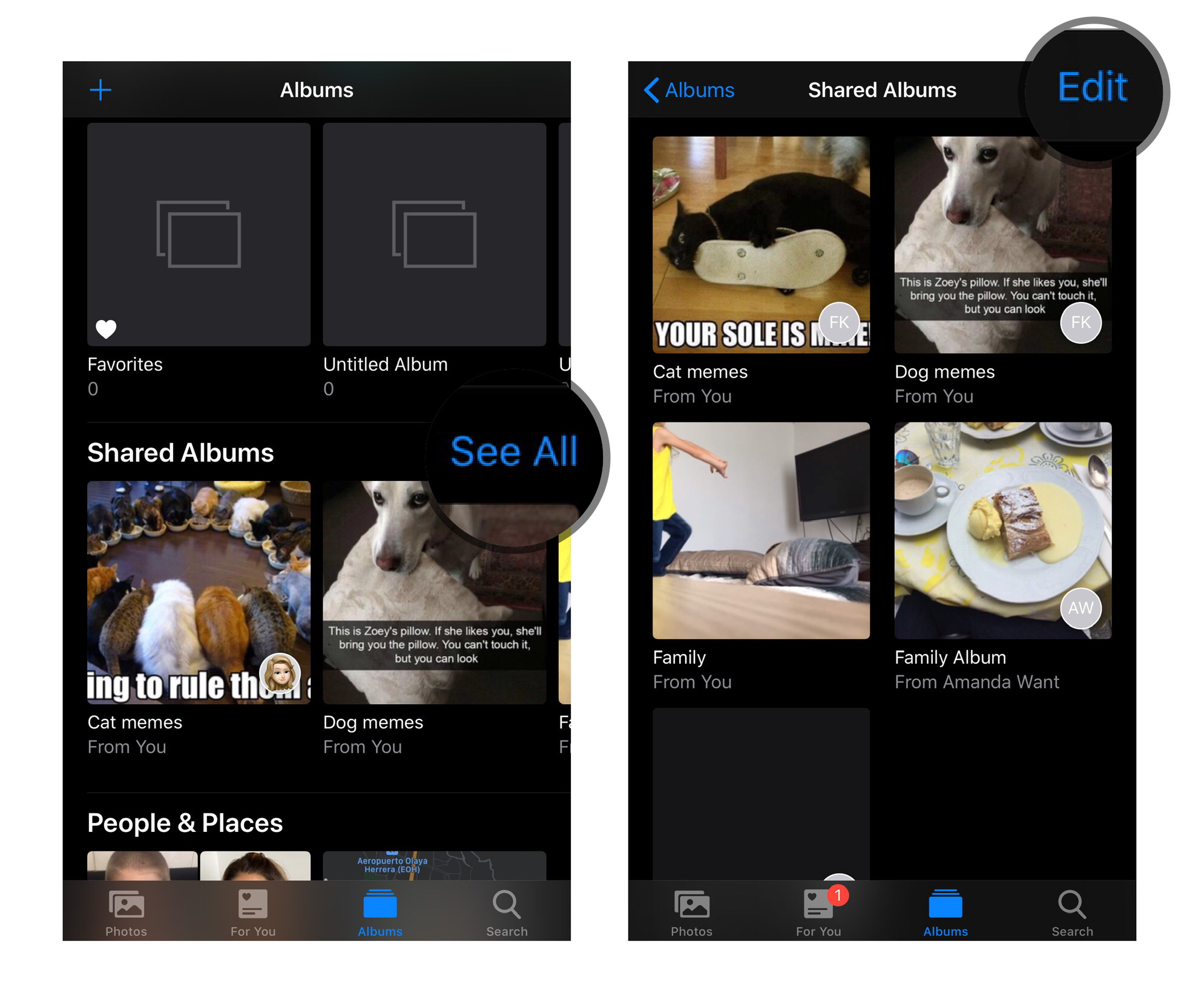
From the albums tab, scroll down to Shared Albums and tap See All.
Tap Edit in the upper right corner.
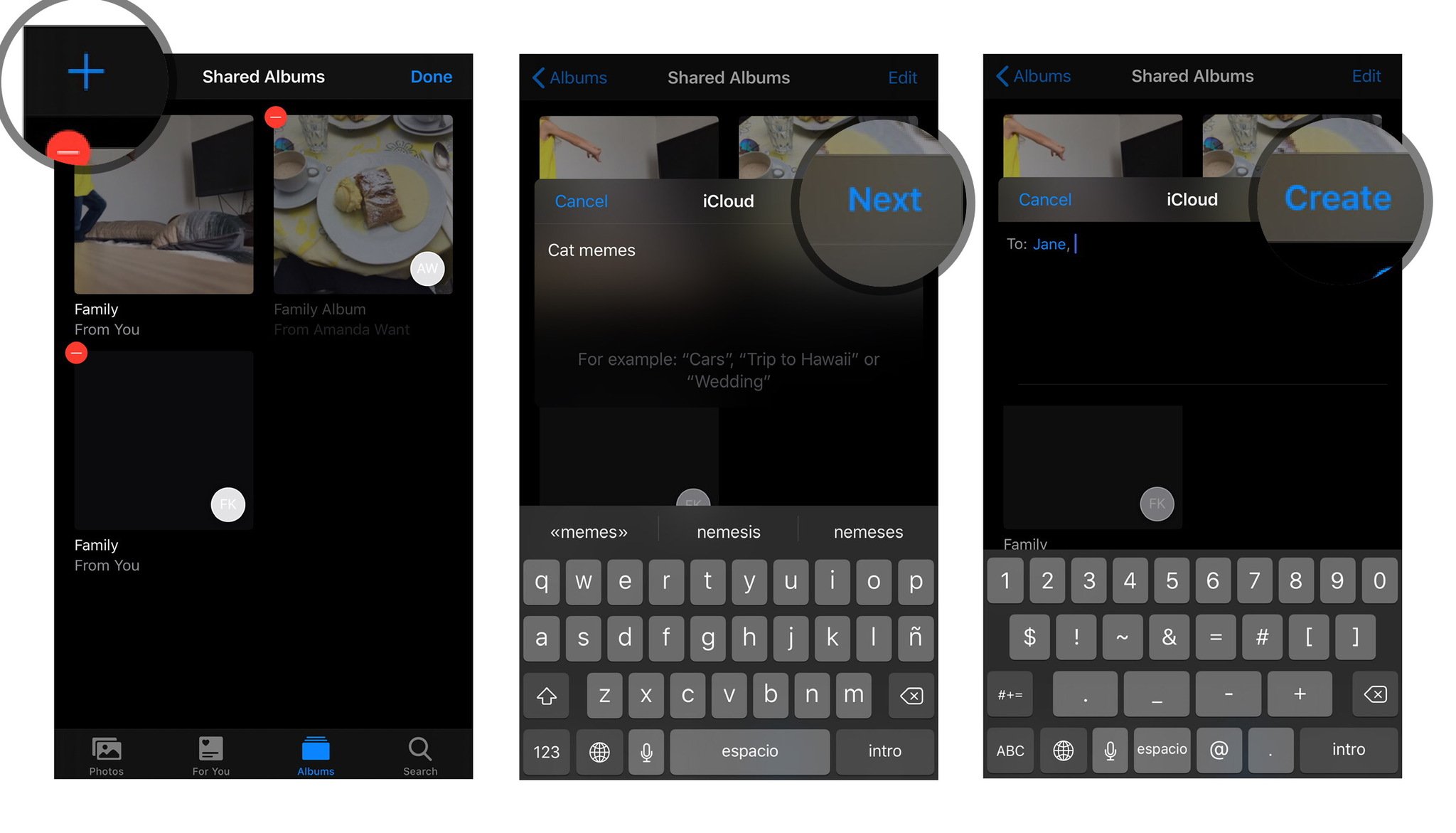
Tap Add button in the upper left corner. It looks like a plus symbol (+).
Name your album and tap Next.
Add the contacts you want to share the album with and tap Create.
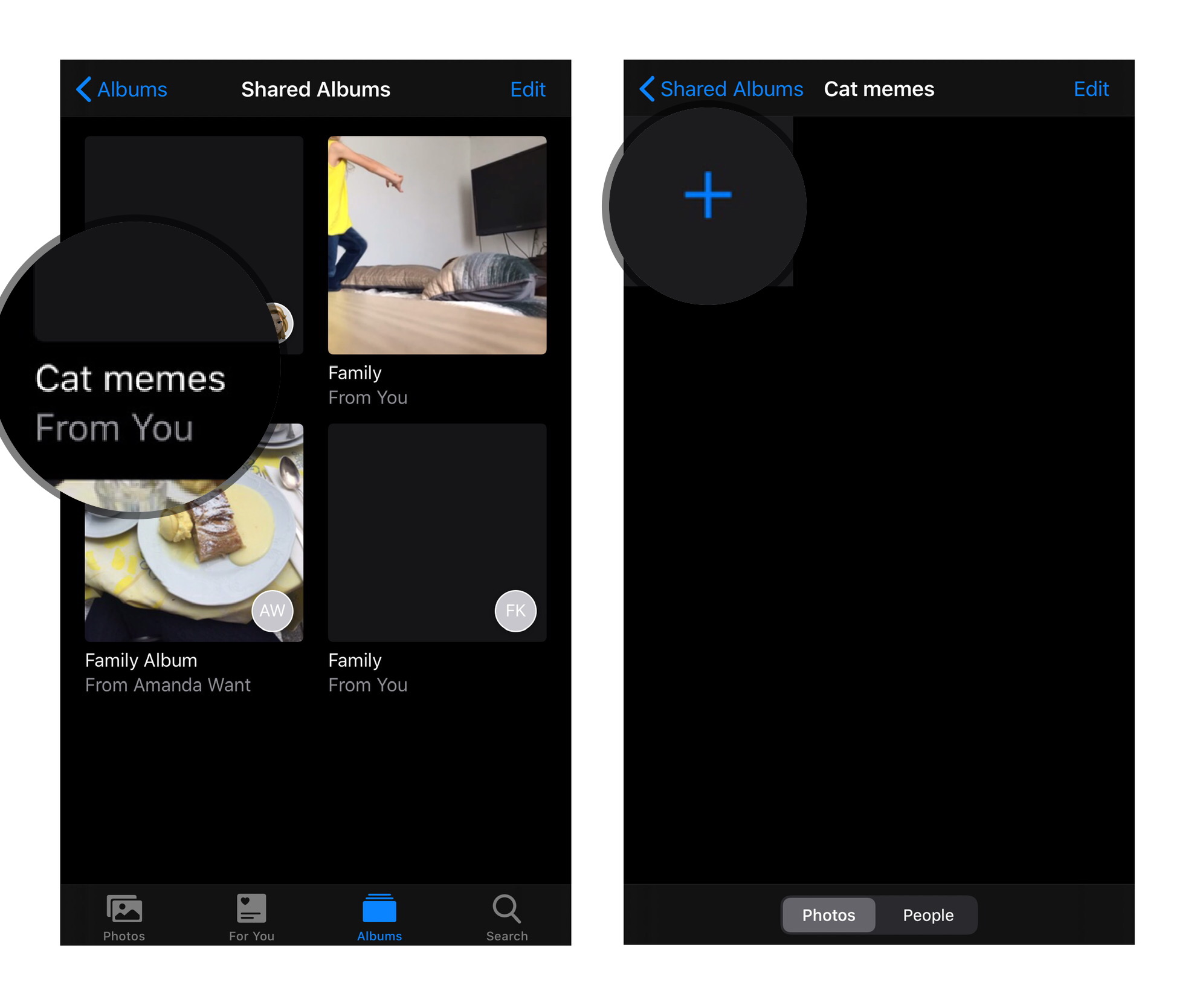
Tap on the newly created Shared Photo Album.
Tap the Add button in the album tray. It looks like a plus symbol (+).
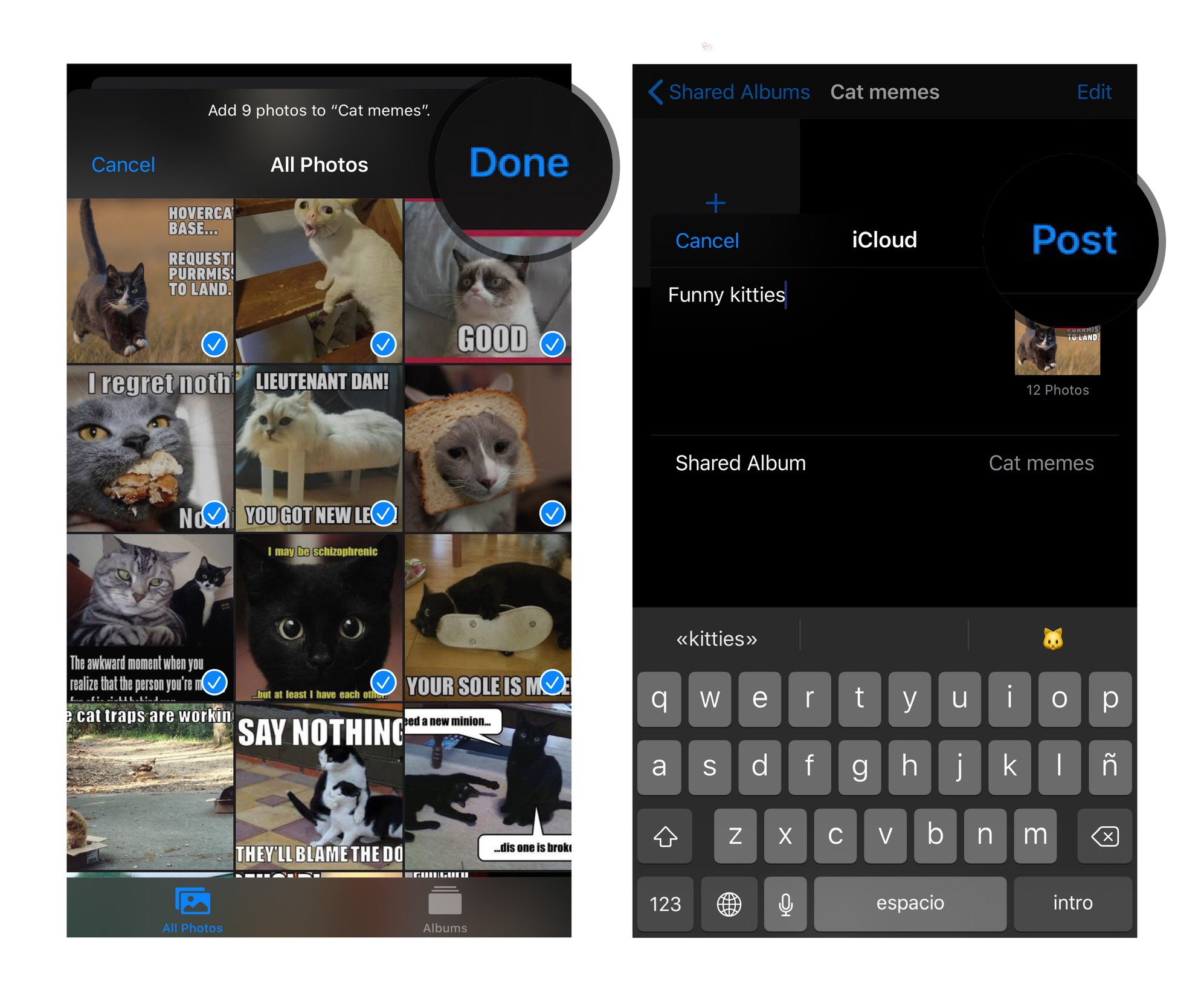
Select photos you want to add and tap Done in the upper right corner.
Add a comment, if you like, and tap Post.
You can repeat steps 7-10 every time you want to add a new photo or video.
On your Mac
Launch the Photos app on your Mac.
Click on Shared Albums in the sidebar.
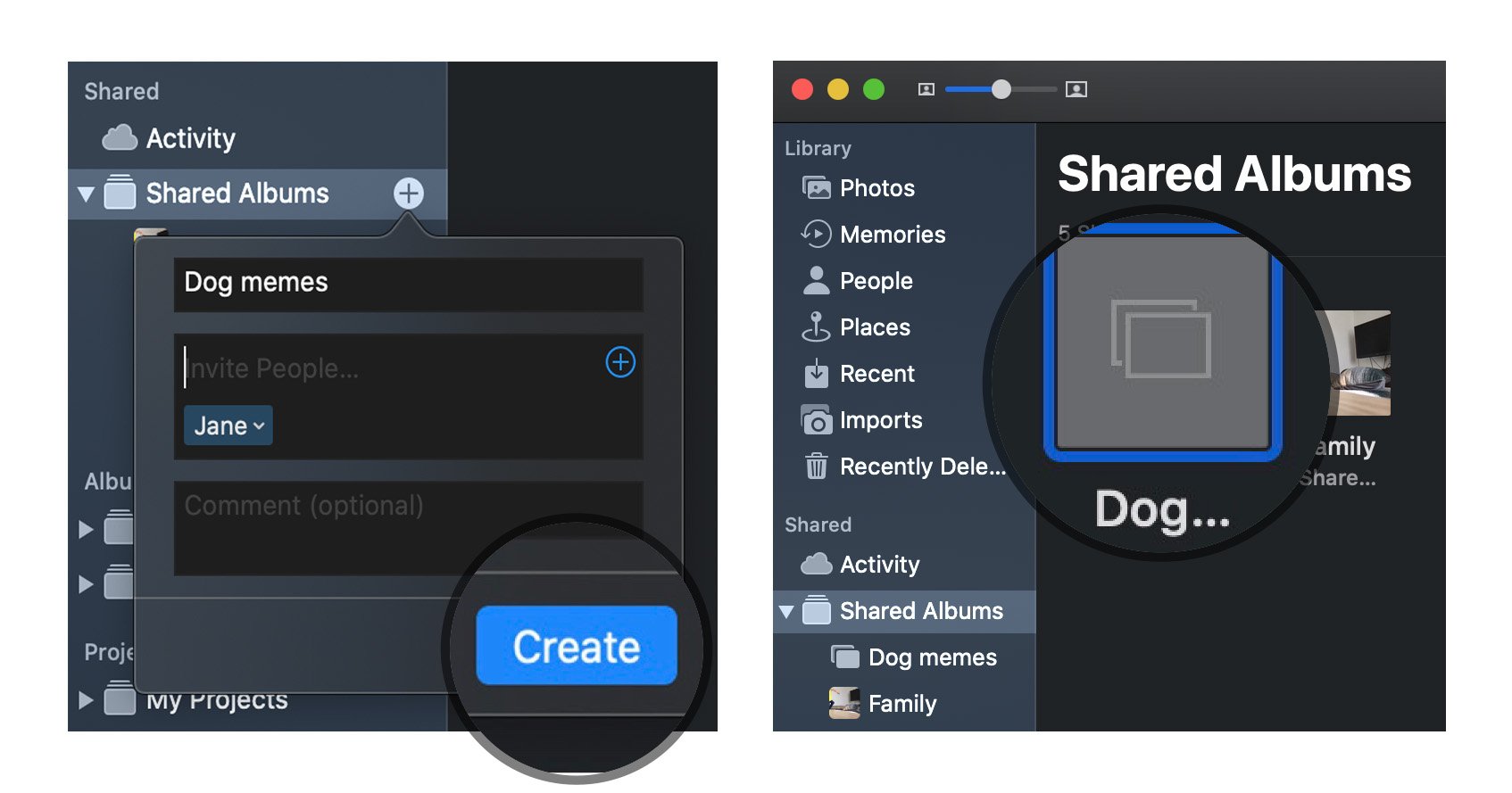
Click on the Add symbol next to the word "Shared Albums" in the sidebar.
Name the album and enter the contact for your friends and family. Make sure you use their iCloud contacts.
Click on Create.
Double or Control-Click on the newly created Shared Photo Album.
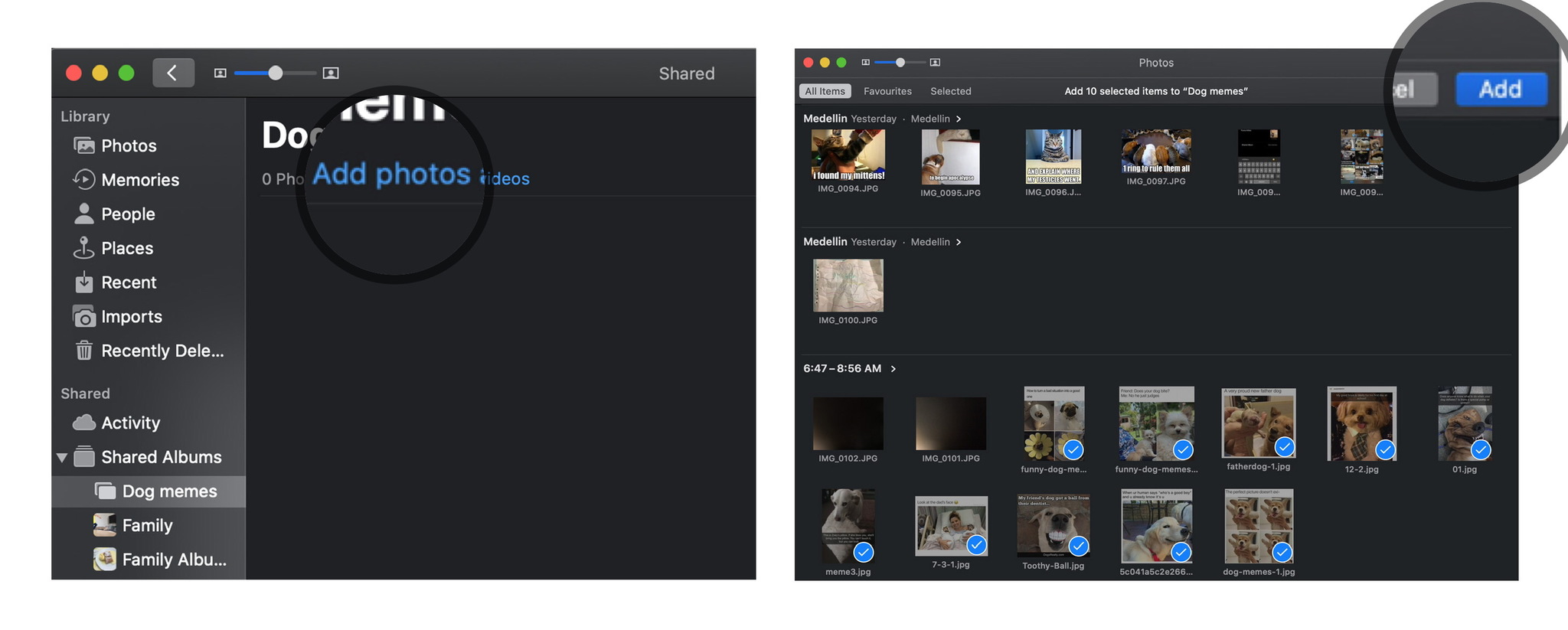
Click on Add photos and videos in the upper left corner of the window.
Select the photos you want to add to your Shared Photo Album and click on Add in the upper right corner.
You can repeat steps 6-8 every time you want to add a new photo or video.
On your PC
Open your iCloud Photos folder.
Open (or create) the folder where you wish to add your new images.
Click the New shared album button.
Add all email addresses for your friends and family.
Give the album a name.
Click Next.
Select all the photos you want to add from your computer.
Click Done.
All the photos added to this folder will now be available as a shared album; anyone you invited will be able to access them after pressing OK.
How to add images and video to a shared photo album on your iPhone, iPad, Mac, or PC
Once you've created an album, you can add more images or videos to it at any time with the tap of a few buttons. Here's how.
On iPhone or iPad
Open the Photos app on your iPhone or iPad.
Select the Albums tab and scroll down until you see Shared Albums.
If you don't see the album you want right away, tap See All to view all shared albums.
Tap on the album you'd like to add photos to.
Press the plus button square at the top of the album.
Select the images you wish to add and press Done.
Add a comment, if you like, and tap Post.
On your Mac
Open the Photos app on your Mac.
Choose the Shared Album where you want to add more images and video.
Click on the Add photos and videos button at the top of the album.
Choose the images you want to add and press Add.
On your PC
Open your iCloud Photos folder.
Open the folder where you wish to add your new images or video.
Click on the Add photos or videos button.
Choose the new images or video you wish to add to the folder.
Once you're ready, press Done.
How to delete images from a shared photo album on your iPhone, iPad, Mac, or PC
Don't want to share a particular picture or video after all? You can delete images from your shared photo album at any time — even if you weren't the one who added them!
Note: Anyone you've added to a shared photo album can download their own copy of an image or video once it's been added to the album. If you delete the photo or video after it's been available in the album, there's a chance it may have already been downloaded to another device.
On iPhone and iPad
Launch the Photos app on your iPhone or iPad.
From the Albums tab, select the Shared Album you wish to delete photos from.
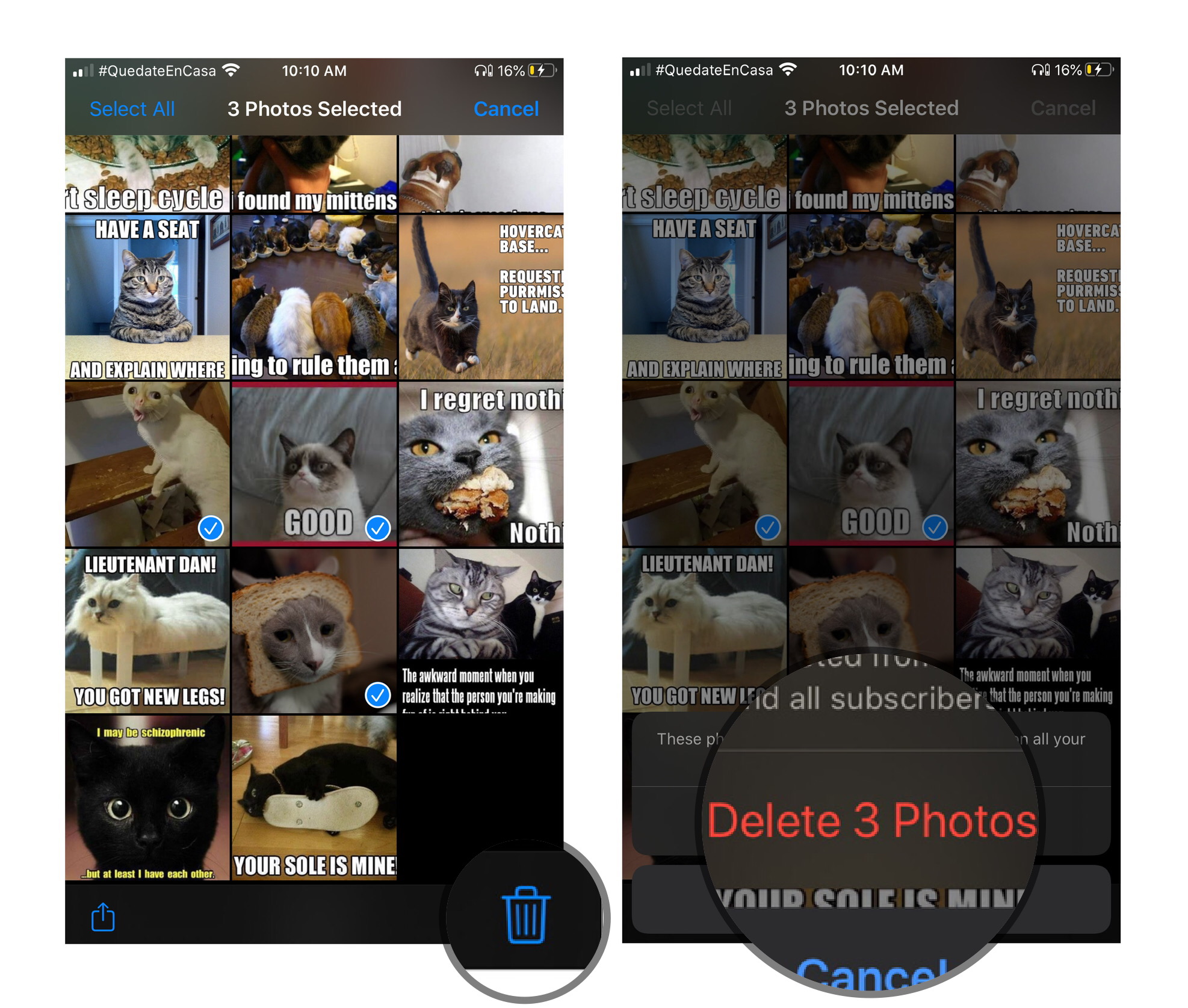
Tap Select in the upper right corner.
Select the photos you want to delete and tap the Trash icon in the bottom right corner.
Confirm by tapping Delete Photos.
This will remove the photos or videos in the album for all of your iCloud connected devices and any friends you gave access to the album.
On your Mac
Launch the Photos app on your Mac.
Click on the Shared Photo Album from which you want to delete photos.
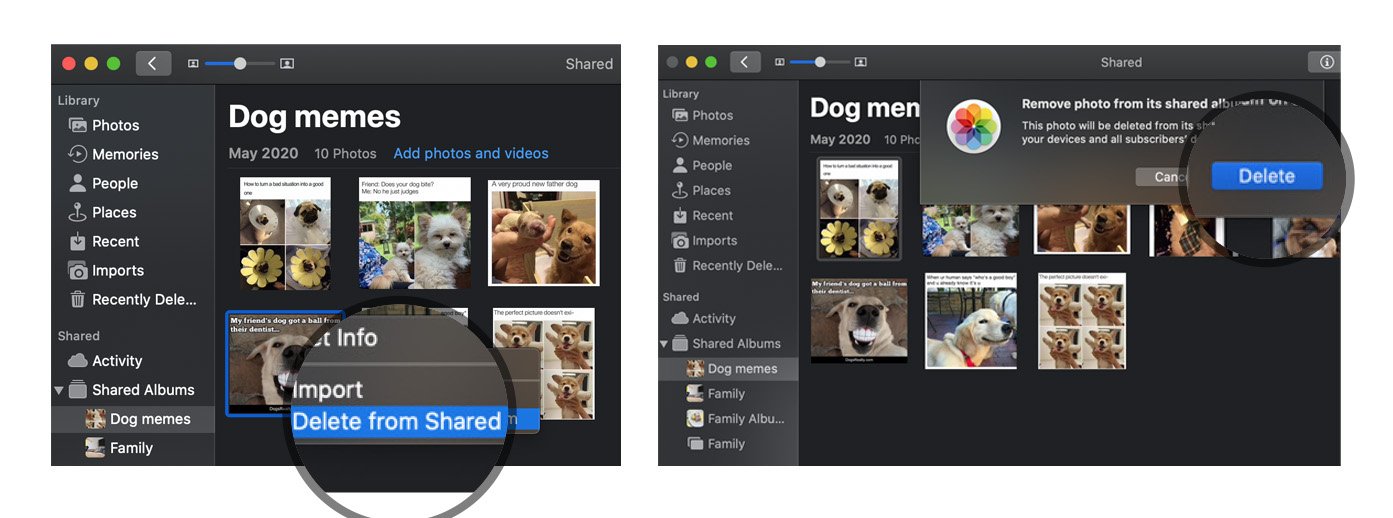
Right or Control-Click on the photo you want to delete.
Select Delete from Shared Album from the list of options.
Click on Delete to confirm that you want to remove the photo from the shared album.
On your PC
Open your iCloud Photos folder.
Open the shared folder in question.
Delete or move the images you'd like to remove from the shared photo album.
How to subscribe to a shared photo album on your iPhone, iPad, Mac, or PC
When someone invites you to a shared photo album, you'll have to subscribe before you can view photos and video (and, if the owner has allowed you to, add your own images and video). Here's how to do it.
On iPhone or iPad
Open the Photos app on your iPhone or iPad.
Select the For You tab.
Under Invitations, tap Accept or Decline to join or reject a shared album.
On your Mac
Open the Photos app on your Mac.
Select the Activity album under the Shared section of the sidebar.
Under Invitations, tap Accept or Decline to join or reject a shared album.
On your PC
Open your iCloud Photos folder.
Select the Activity folder.
Under Invitations, tap Accept or Decline to join or reject a shared album.
How to unsubscribe from a shared photo album on your iPhone, iPad, Mac, or PC
Decided you no longer want to be part of a shared photo album someone else sent you? It's a simple process to unsubscribe from that album.
On iPhone or iPad
Open the Photos app on your iPhone or iPad.
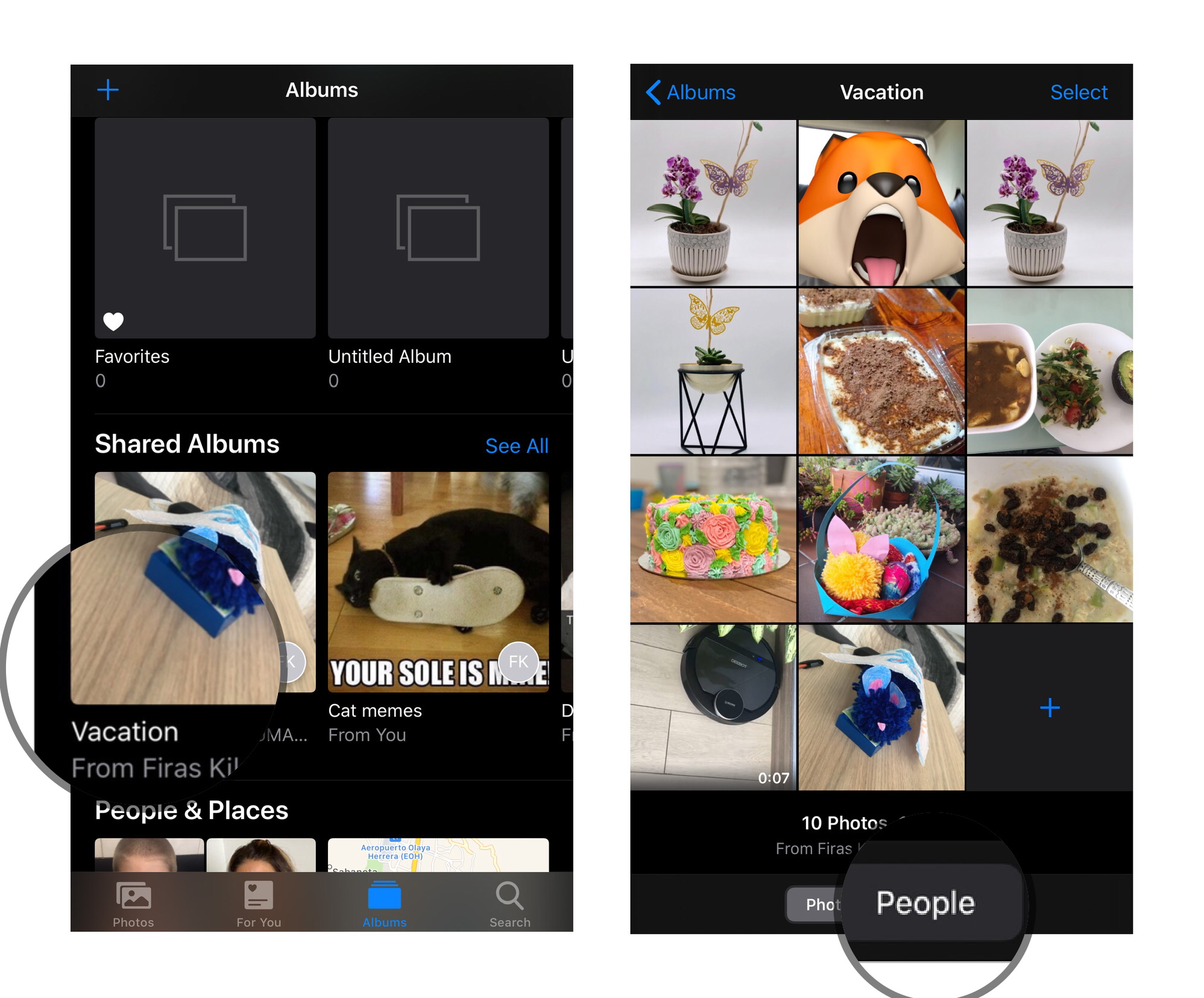
Scroll down to Shared Albums and choose the album in question.
Select the People tab.
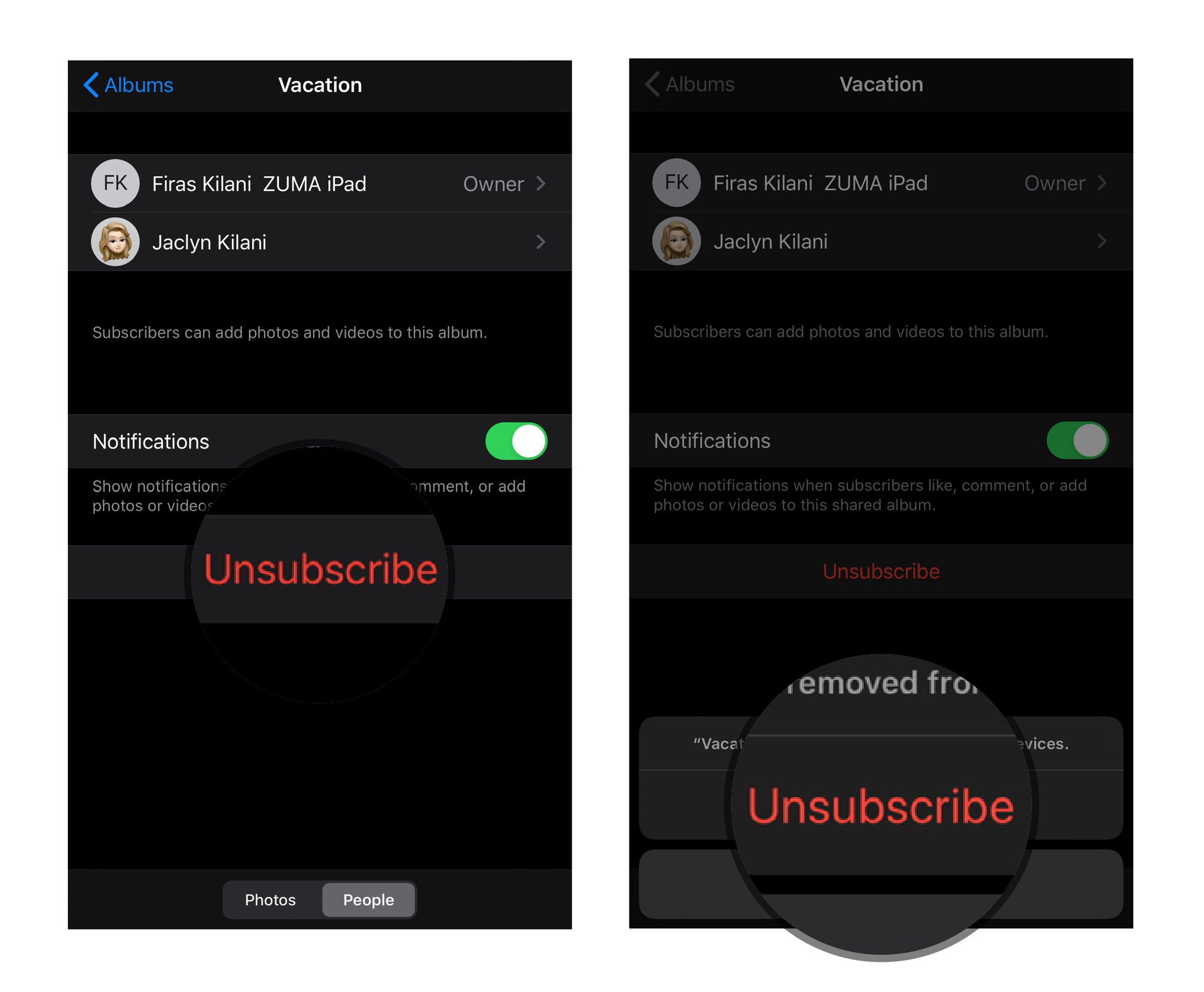
Tap on the Unsubscribe button.
Press the Unsubscribe button once more to confirm.
On your Mac
Launch the Photos app.
From the Shared Albums tab, choose the album in question.
Select the People icon in the toolbar.
Tap on the Unsubscribe button.
Press the Unsubscribe button once more to confirm.
On your PC
Open your iCloud Photos folder.
Choose the folder you'd like to delete.
Click Info.
In the box that appears, click Unsubscribe in the bottom left corner.
How to delete a shared photo album on your iPhone, iPad, Mac, or PC
If you decide you no longer want to share an album with a group, you can delete it; this removes it from iCloud on all your connected devices and all those you shared it with. (If you want to remove a shared album from your device that someone else created, you'll have to unsubscribe instead of deleting it.)
Note: Anyone you've added to a shared photo album can download their own copy of an image or video once it's been added to the album. If you delete the photo or video after it's been available in the album, there's a chance it may have already been downloaded to another device.
On iPhone and iPad
Launch the Photos app on your iPhone or iPad.
Scroll down to Shared Albums and tap See All.
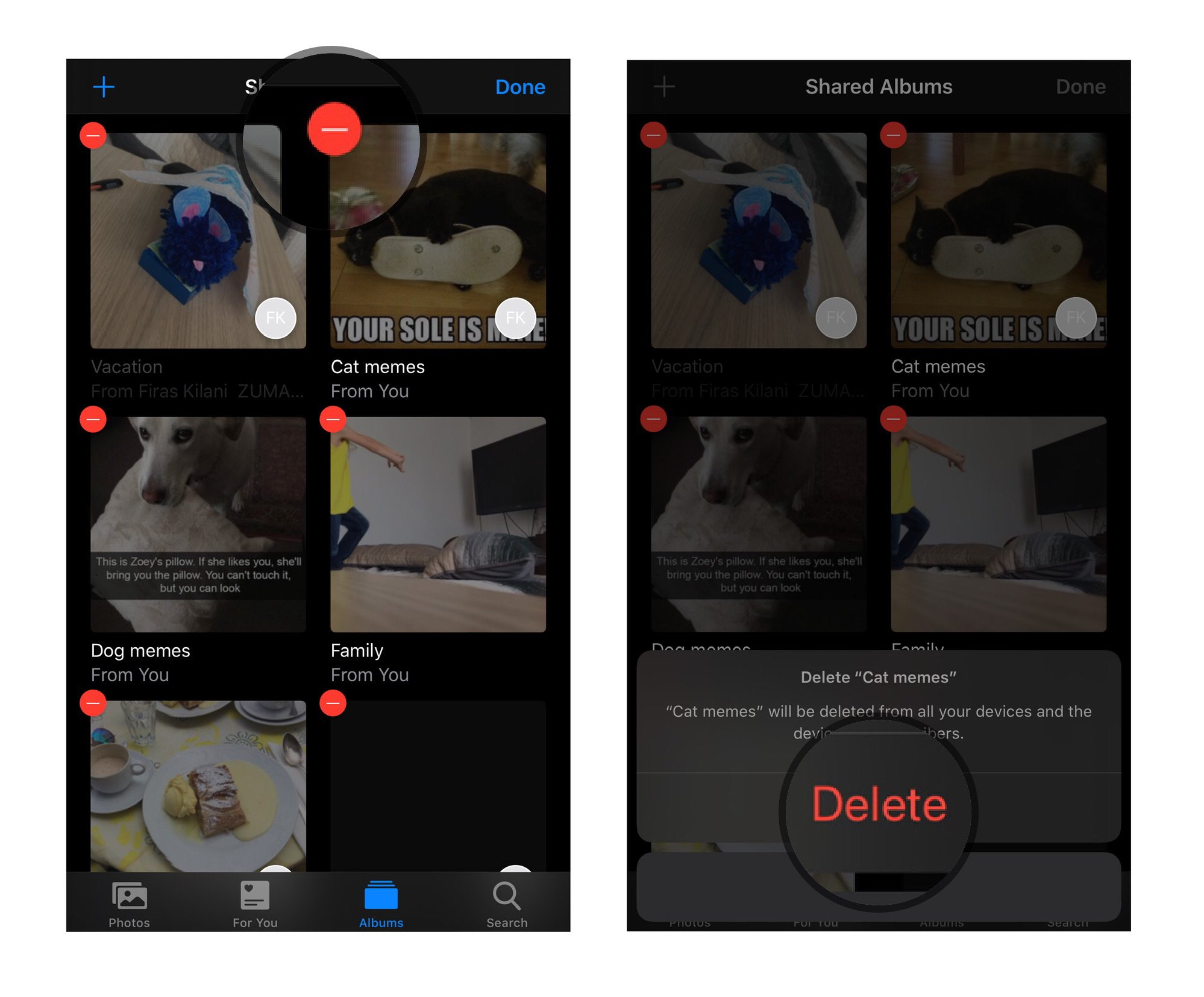
Tap Edit in the upper left corner.
Tap the red Delete icon next to the shared album you want to delete.
Tap Delete to confirm deletion.
On your Mac
Launch the Photos app on your Mac.
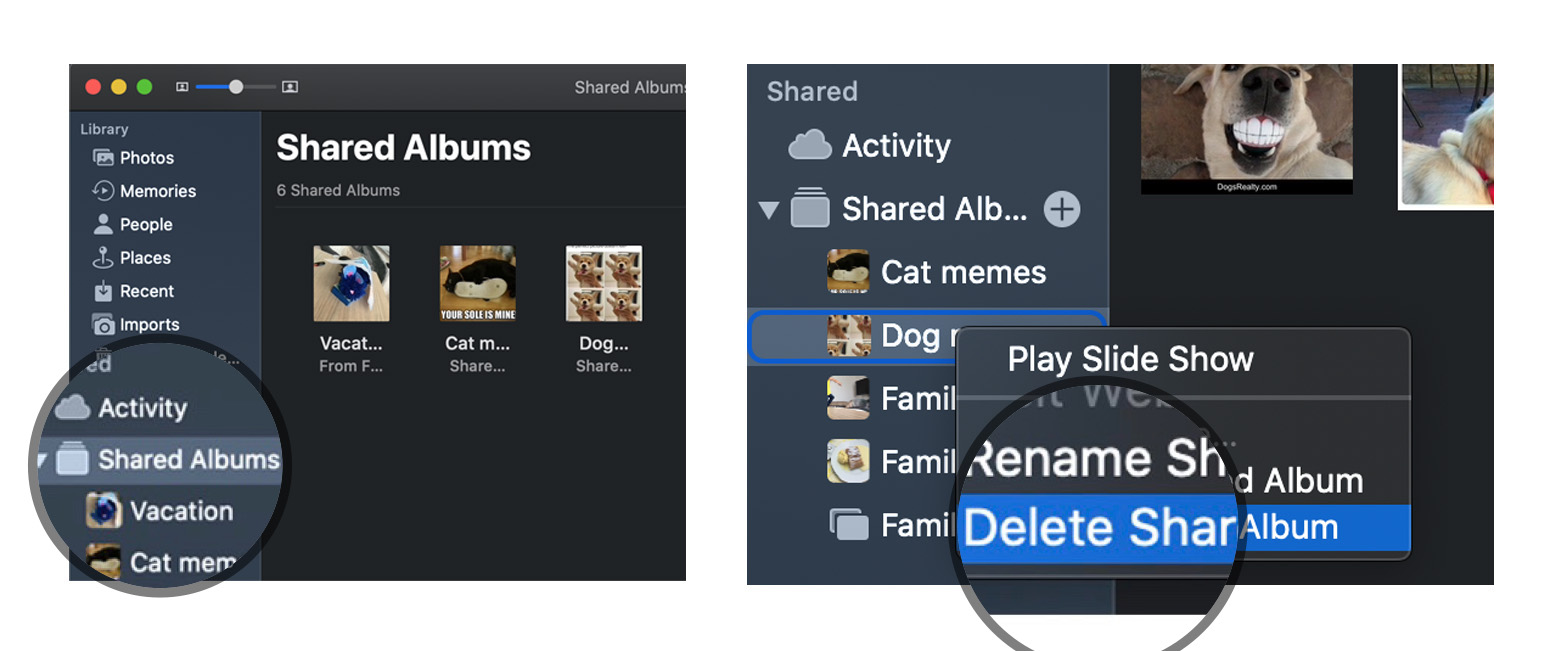
Right or Control-click on the Shared Photo Album you want to delete.
Select Delete Shared Album from the list of options and tap Delete once more to confirm.
On your PC
Open your iCloud Photos folder.
Find the shared folder in question.
Delete it.
Sharing simplified
Now that you know how to create and share albums in iCloud Photo Sharing, you can easily involve family and friends in your photo adventures. Once you have this down, it's an easy and intuitive way to safely share photos with anyone you like.
Updated April 2022: Updated for latest operating system.
SF Menu Bar is an app for searching and browsing SF Symbols.
More than 3,300 SF Symbols can be searched.
The app can be opened via the menu bar or a global keyboard shortcut.
A must-have app for developers.
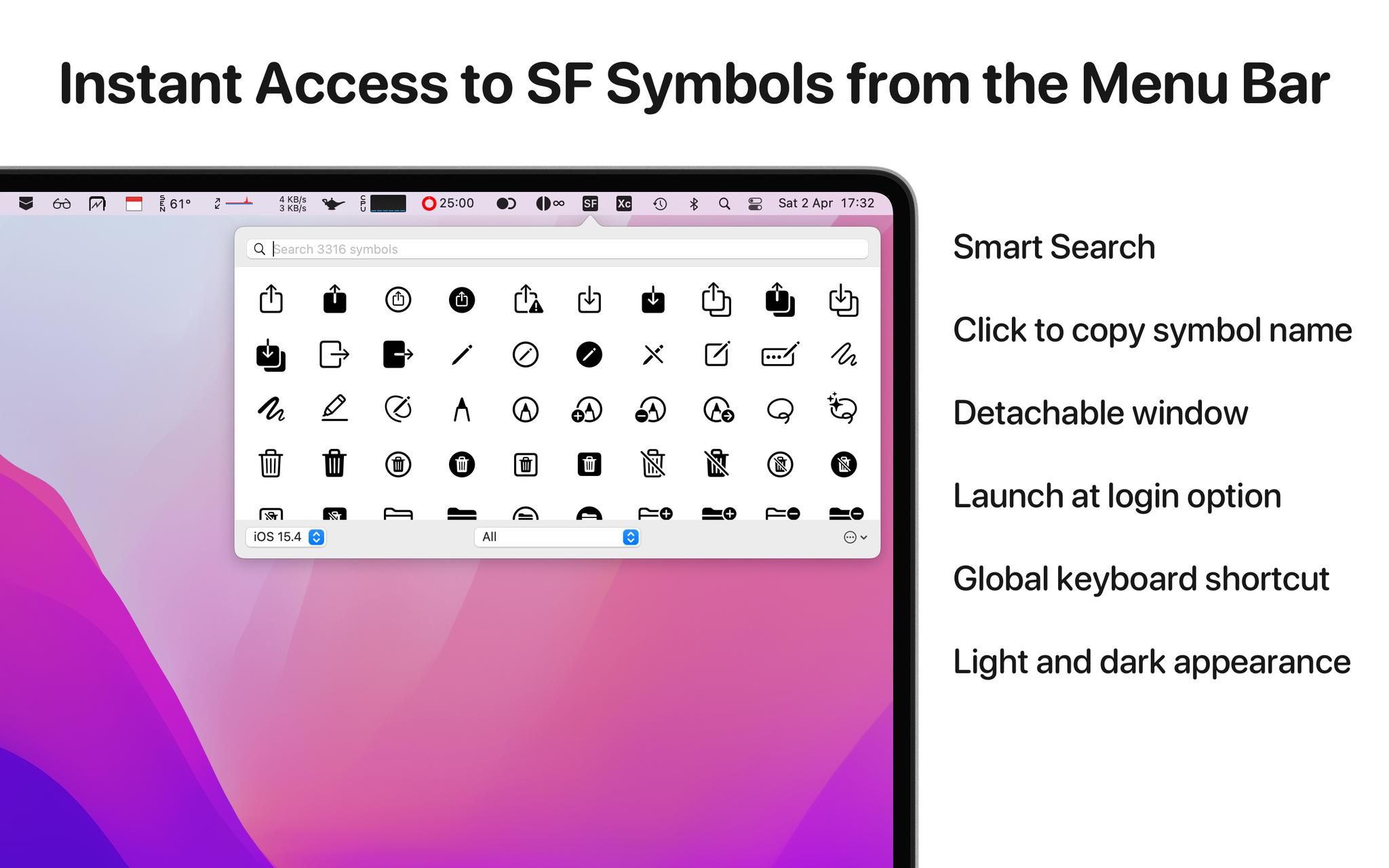
SF Menu Bar is a new Mac menu bar app that makes it easier and quicker to browse and search for SF Symbols. Once a symbol has been found users can have its name copied straight to the clipboard, ready to be pasted into Xcode or anywhere else.
The app is one that's designed specifically for developers and it can help get around an irritation that people have long had — finding the SF Symbol and name that they wanted wasn't as easy as it should have been. With the release of SF Menu Bar, that all changes. The app itself lives in the menu bar, as the name suggests, and then it can be invoked by a global keyboard shortcut or a simple click. From there, it's just a case of finding the correct symbol and copying out its name, ready for pasting.
SF Menu Bar is a menu bar app which, with a single click or keyboard shortcut, displays a window for browsing and searching SF Symbols. Tap a symbol to copy its name to the clipboard, ready to paste into your code.
SF Menu Bar can search more than 3,300 SF Symbols and it can search all symbols from iOS 13 and all the way through to iOS 15.4. As developer Geoff Hackworth points out, not even Apple's own SF Symbols app supports them all.
Despite being a relatively simple app in terms of its use case, SF Menu Bar still finds room for noteworthy features, including:
Instantly-accessible menu bar app with optional global keyboard shortcut
Smart search algorithm to quickly find symbols
Choose between all nine SF Symbol data set versions
Browse by the same categories that Apple uses in its SF Symbols app
Or use one of the smart collections to browse symbols which are restricted, or have language or right-to-left localizations
Choose from four different symbol sizes
If you're a developer who wished they could find the SF Symbol they wanted more quickly and easily, you need to check out SF Menu Bar. The app is available in the App Store now and is priced at just $2.99. That's a bargain if you're someone who needs to find SF Symbols often! Developers, this might just be the best Mac app you find all year!
The updated Prune+ comes with no ads or in-app purchases.
Prune+ can be played on iPhone and iPad.
Prune is back but this time with no in-app purchases whatsoever thanks to Apple Arcade.
Apple Arcade gardening fans will get their hands on a new game on April 29 when the popular Prune gets a rerelease as Prune+. The new game will be available in the App Store and will be sans ads and in-app purchases, just like all Apple Arcade titles.
The new game is a "love letter to trees," according to its App Store description, and will have gamers growing and shaping their trees with the swipe of a finger. It's all about finding the sunlight while avoiding obstacles while enjoying the minimal, yet gorgeous, artwork.
Coming Soon to Apple Arcade: Prune+
Get ready to cultivate, grow, and shape your tree as you bring beauty back into a forgotten landscape.
The new Prune+ release will be available on iPhone and iPad and will feature features including iCloud game progress syncing, meditative music, and more.
A unique digital plant for your pocket
Beautiful, minimalist art and a super clean interface—it's just you and the trees
Meditative music and sound design for you to zen out to
No IAP, no monetization strategy, no currencies
Share screenshots of your unique tree creations with friends
Synchronize progress across all your devices
All of this and more will be available in Apple Arcade on April 29 but you can preregister for the download now. Do that and your device will get the game all ready to go when you wake up on the big day.
It might not be of much use in this instance, but if you want to upgrade your Apple Arcade gaming experience, be sure to check out our list of the best game controllers for mobile gaming. It really can change the game!
Apple Arcade has over a hundred premium games with more added regularly each week. There is something here for everyone, and it only costs $5 a month for all you can game!
All Apple TVs come with the included Siri Remote, and while it's a great option, some people just don't like using it. Some users may want a remote with more options and buttons, while others may have specific preferences related to their interests, like gaming. Luckily for you, there are other options if you feel like you want a better experience. Whether you hate the Siri Remote, lost your old one, or are just scouting out the market, these are the best Apple TV remotes.
The OG
Apple Siri Remote
This aluminum remote is what ships with all new best Apple TVs. Use the touch trackpad on top of the remote to navigate through menus and control playback. As the name implies, you can also use Siri to pull up exactly what you want, when you want it. Just ask the voice assistant to play your favorite show, navigate to YouTube, play Apple Music, and more.
If you want a remote control that can do absolutely everything and price isn't a concern, the Logitech Harmony is a superb remote. It comes with the hub and the app, and functions with all of your smart devices, meaning you can not only control your Apple TV but your smart lights, thermometers, and more. It's been discontinued on Logitech's website but you can still get it used at Amazon and other select retailers.
The Harmony 665 Advanced Remote Control from Logitech lets you control all your devices, including your Apple TV, from the remote itself or your iPhone, using the companion app. You can combine up to 10 old-fashioned remotes directly into this singular one, making controlling your Apple TV even easier. There's also a helpful little screen for smooth navigation.
Inteset 4-in-1 Universal Backlit IR Learning Remote
Simply by pushing either the A, B, C, or D buttons, you can set up the remote to function for Apple TV (A), Xbox One (B), Windows Media Center (C), and Roku (D). Also, due to the remote's learning capabilities, if a specific device you're looking for is not found you can program it. You can also program the buttons to connect to certain streaming services such as Netflix, Amazon, and more.
Although the GE 33709 is a very basic remote, it can still work with up to four devices at once. Plus, if you have a DVD or Blu-ray player, there's a specific button that can open or close it. Note: this remote also uses conventional AAA batteries, which aren't included.
Gaming on Apple TV is so much more fun with a gaming controller, and the MFi-certified SteelSeries Nimbus + is one of the best options around. Pick up this nifty controller to enjoy an included four free months of Apple Arcade, Apple's gaming service that comes on your Apple TV. It also comes with a cool iPhone mount, a built-in rechargeable battery (50+ hours of gameplay on one charge), tactile buttons, and clickable joysticks.
If you're okay with the original Apple Siri remote, then, by all means, stick with it. Or if you need to replace it, the updated Siri Remote has a handy trackpad and works with Siri voice control. This is the best Apple TV remote for most people.
If you want something great for gaming, try the SteelSeries Nimbus +. It's an excellent controller that allows you to quickly tap and flawlessly connect to all of your best Apple devices, including your Apple TV. It comes with free four months of Apple Arcade too, if you have yet to try out the service.